> ## Documentation Index
> Fetch the complete documentation index at: https://docs.metrifox.com/llms.txt
> Use this file to discover all available pages before exploring further.
# Credit Notes
## **Overview**
A **credit note** reduces the amount a customer owes. Use credit notes to issue goodwill credits, correct billing mistakes, or compensate a customer, without editing an invoice.
A credit note is applied against the customer's next invoice, or you can apply it to a specific open invoice.
## **Creating a Credit Note**
You can create a credit note from two places.
**From the Credit Notes page**
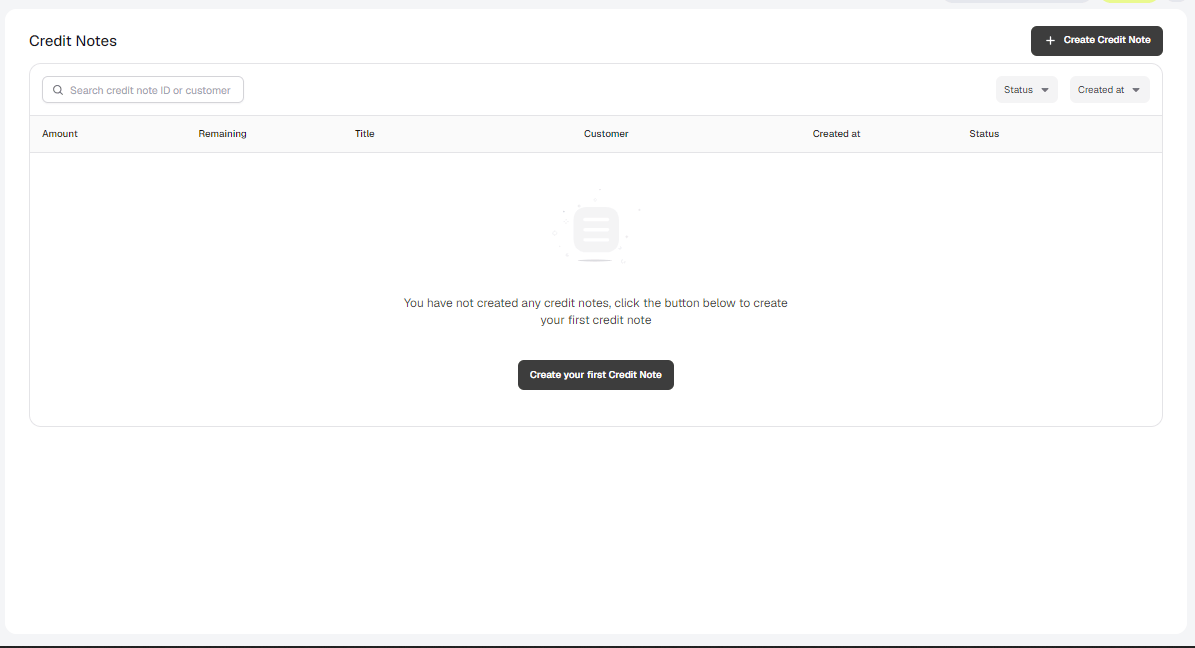
1. Navigate to **Charge customers → Credit Notes**.
2. Click **Create Credit Note**.
 **From a customer**
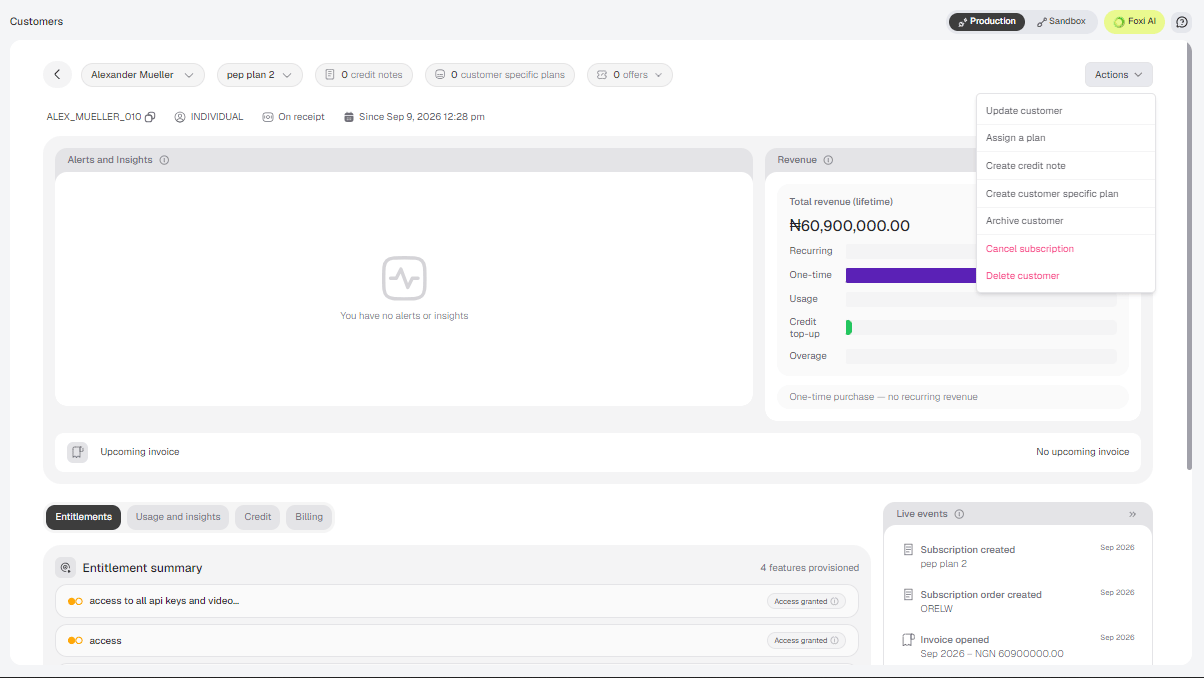
1. Open the customer's profile.
2. Select **Actions → Create credit note**.
**From a customer**
1. Open the customer's profile.
2. Select **Actions → Create credit note**.
 Then fill in the form:
| Field | Description |
| :- | :- |
| **Customer** | The customer the credit note is for. |
| **Title** | A short description of why the credit note is being issued. |
| **Amount** | The credit amount. |
| **Currency** | The currency of the credit. |
You can also click **Add description** to add more detail.
Then fill in the form:
| Field | Description |
| :- | :- |
| **Customer** | The customer the credit note is for. |
| **Title** | A short description of why the credit note is being issued. |
| **Amount** | The credit amount. |
| **Currency** | The currency of the credit. |
You can also click **Add description** to add more detail.
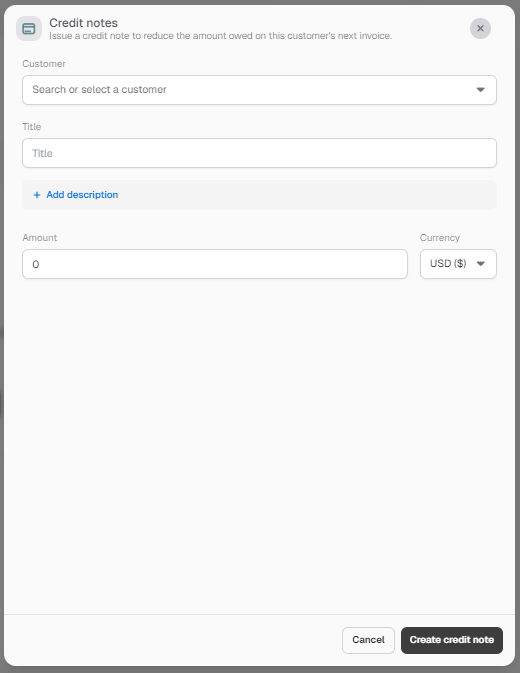 Click **Create credit note** to save it.
## **Tracking Credit Notes**
The Credit Notes page lists each note with its **title, customer, amount, remaining balance, status and creation date**. The remaining balance shows how much of the credit has not yet been used. Search by credit note ID or customer, and filter by **Status** or **Created at**.
A credit note has one of these statuses:
| Status | Meaning |
| :- | :- |
| **Pending** | The credit note has been created and has not been applied yet. |
| **Applied** | The credit note has been applied to an invoice. |
| **Refunded** | The credit note has been refunded. |
A customer's profile shows how many credit notes they have.
## **Applying a Credit Note to an Invoice**
You can apply a credit note to an open invoice that was created for the same customer the credit note was issued to.
1. Open the open invoice you want to reduce.
2. Select **Actions → Apply Credit Note**.
3. Choose how to apply credit:
* **Use all applicable credit notes**: draws on all of the customer's available credit notes. The dialog shows the combined **Credit Note(s) Balance**.
Click **Create credit note** to save it.
## **Tracking Credit Notes**
The Credit Notes page lists each note with its **title, customer, amount, remaining balance, status and creation date**. The remaining balance shows how much of the credit has not yet been used. Search by credit note ID or customer, and filter by **Status** or **Created at**.
A credit note has one of these statuses:
| Status | Meaning |
| :- | :- |
| **Pending** | The credit note has been created and has not been applied yet. |
| **Applied** | The credit note has been applied to an invoice. |
| **Refunded** | The credit note has been refunded. |
A customer's profile shows how many credit notes they have.
## **Applying a Credit Note to an Invoice**
You can apply a credit note to an open invoice that was created for the same customer the credit note was issued to.
1. Open the open invoice you want to reduce.
2. Select **Actions → Apply Credit Note**.
3. Choose how to apply credit:
* **Use all applicable credit notes**: draws on all of the customer's available credit notes. The dialog shows the combined **Credit Note(s) Balance**.
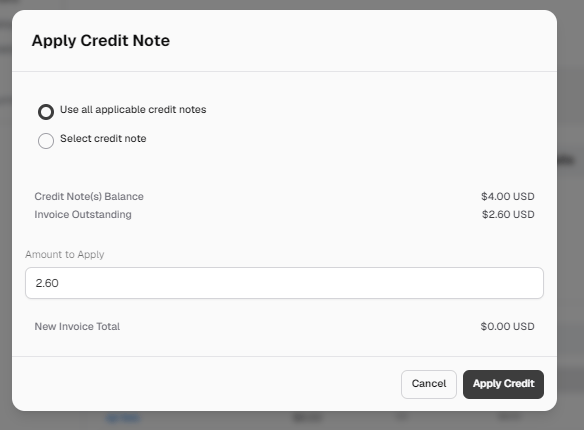 * **Select credit note**: pick one credit note from the dropdown. Each option shows its title and the amount still available.
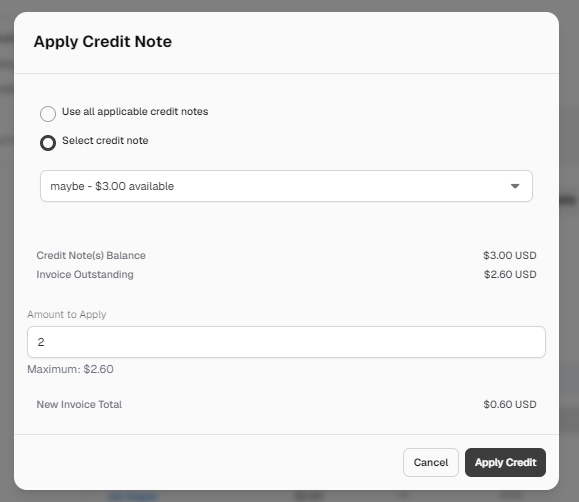 4. Review the **Credit Note(s) Balance** and the **Invoice Outstanding**, then enter the **Amount to Apply**. The maximum is the invoice's outstanding amount.
5. Check the **New Invoice Total**, then click **Apply Credit**.
You can apply less than the invoice's outstanding amount, so a credit note can reduce an invoice partly. For example, applying $2.00 to an invoice with $2.60 outstanding leaves a new invoice total of \$0.60. The credit note's **Remaining** amount on the Credit Notes page shows how much credit is left.
See [Invoices](/invoices#invoice-operations) for the other invoice operations.
This documentation is built and hosted on [Mintlify](https://mintlify.com), a developer documentation platform.
4. Review the **Credit Note(s) Balance** and the **Invoice Outstanding**, then enter the **Amount to Apply**. The maximum is the invoice's outstanding amount.
5. Check the **New Invoice Total**, then click **Apply Credit**.
You can apply less than the invoice's outstanding amount, so a credit note can reduce an invoice partly. For example, applying $2.00 to an invoice with $2.60 outstanding leaves a new invoice total of \$0.60. The credit note's **Remaining** amount on the Credit Notes page shows how much credit is left.
See [Invoices](/invoices#invoice-operations) for the other invoice operations.
This documentation is built and hosted on [Mintlify](https://mintlify.com), a developer documentation platform.