> ## Documentation Index
> Fetch the complete documentation index at: https://docs.metrifox.com/llms.txt
> Use this file to discover all available pages before exploring further.
# Credit Systems
## Overview
Credits are a flexible, prepaid resources that customers can purchase and consume for metered features. This system is ideal for products with variable usage, such as AI tokens, API calls, or compute time, allowing you to offer predictable spending with the flexibility of usage-based pricing.
A credit system in Metrifox allows you to:
* **Debit a prepaid balance** instantly as customers consume features.(there are no surprise bills)
* **Bundle included credits** which are free credits that are automatically granted with the plan (typically recurring each billing cycle).
* **Set up recurring subscriptions** that include a monthly credit allowance.
* **Enable manual top-ups** so customers can purchase more credits at any time.
* **Grant free promotional credits** for trials or marketing campaigns.
## Creating a credit system
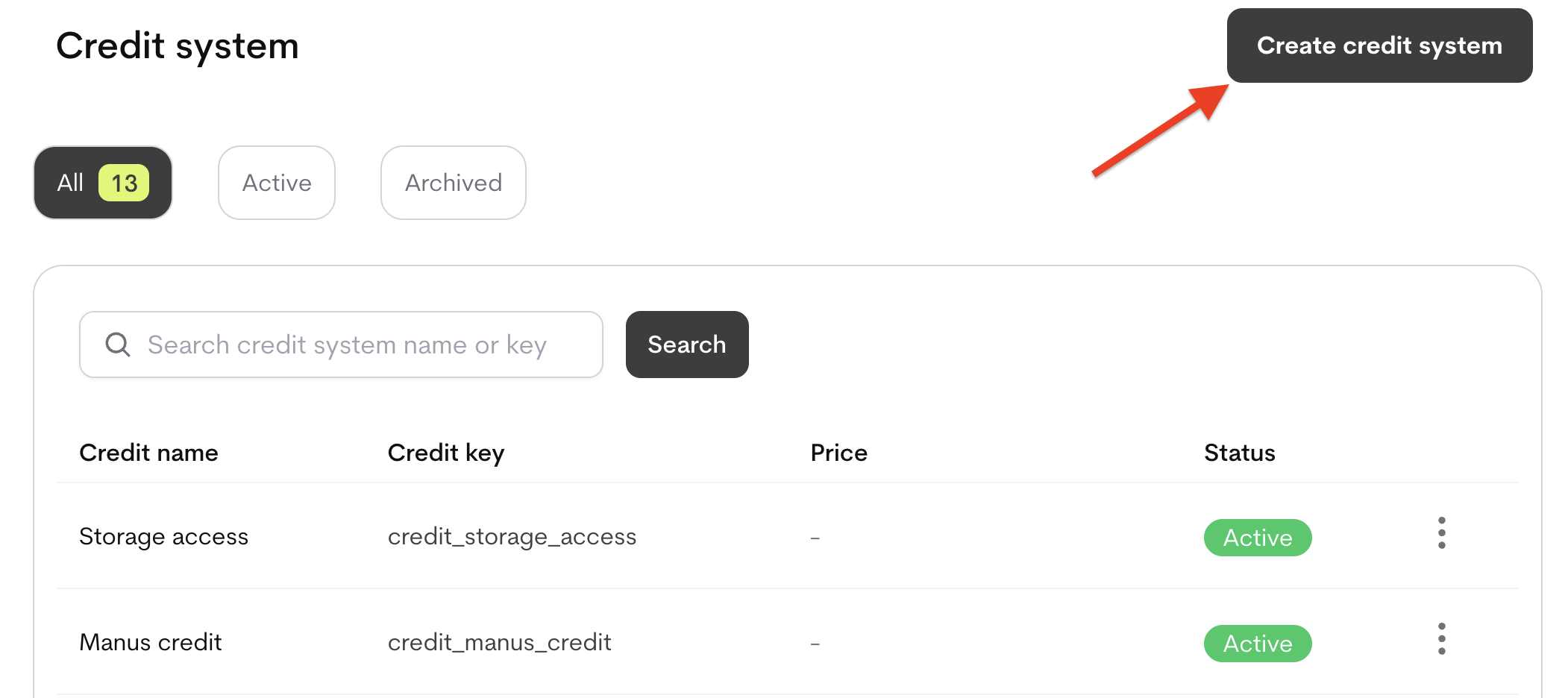
1. Navigate to **Product Catalog → Credit Systems**.
2. Click **Create Credit System**.
3. Define the Credit system settings:
| Field | Description | Recommendations |
| :--------------------- | :------------------------------------------------ | :---------------------------------------------- |
| Name | Unique name (e.g., "Storage Access", "AI Tokens") | Customer-facing, keep clear and descriptive |
| Description (Optional) | Shown to customers during top-ups | Explain value (e.g., "1 credit = 1 GB storage") |
| Credit Key (Optional) | Custom ID for your credit systems | Useful for integrations/API |
| Unit Labels | Singular/plural (e.g., "credit" / "credits") | Matches invoices and dashboards |
 ## **Attach a Credit System to a Plan**
To enable a plan to use credits, you must attach the credit system and define its rules.
1. Navigate to your **Plan.**(Catalog → Products → \[Product] → Plans → \[Plan]).
2. Click + Add credit.
3. Select an existing credit system from the dropdown or the **Create credit system** button
4. Choose:
* **Included**: Bundled with plan at no extra cost — set **Included allowance** (credits granted per billing cycle).
* **Priced**: Billed separately — select **Upfront commitment** or **Pay-as-you-go**.
## **Attach a Credit System to a Plan**
To enable a plan to use credits, you must attach the credit system and define its rules.
1. Navigate to your **Plan.**(Catalog → Products → \[Product] → Plans → \[Plan]).
2. Click + Add credit.
3. Select an existing credit system from the dropdown or the **Create credit system** button
4. Choose:
* **Included**: Bundled with plan at no extra cost — set **Included allowance** (credits granted per billing cycle).
* **Priced**: Billed separately — select **Upfront commitment** or **Pay-as-you-go**.
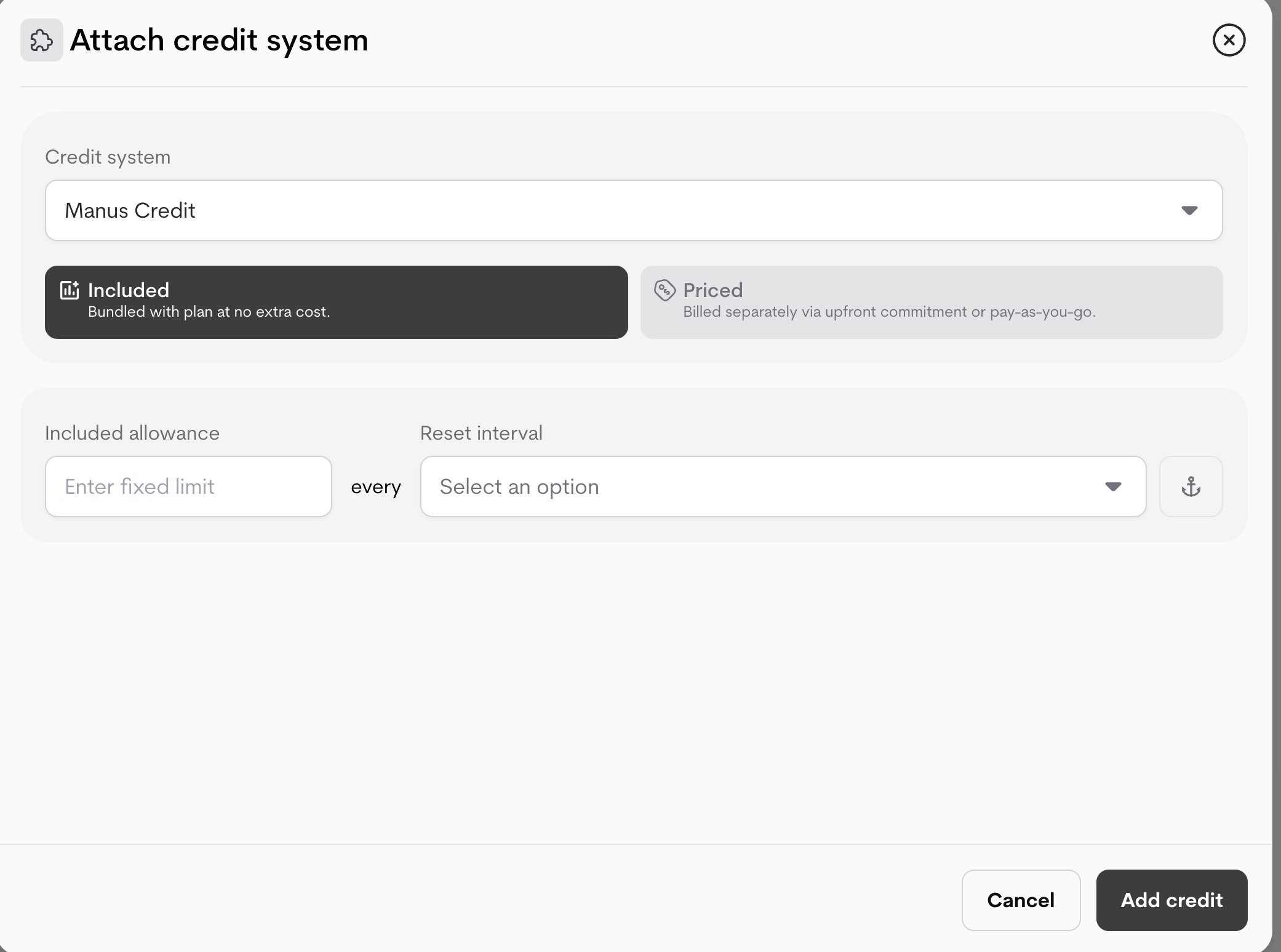 5. Configure the entitlement rules:
* **Reset Interval:** How often the quota resets (e.g., daily,weekly,monthly, annually).
* **Included Allowance:** Grant a recurring amount of free credits (e.g., 5 free credits every week).
## **Pricing for** **Price Your Credits**
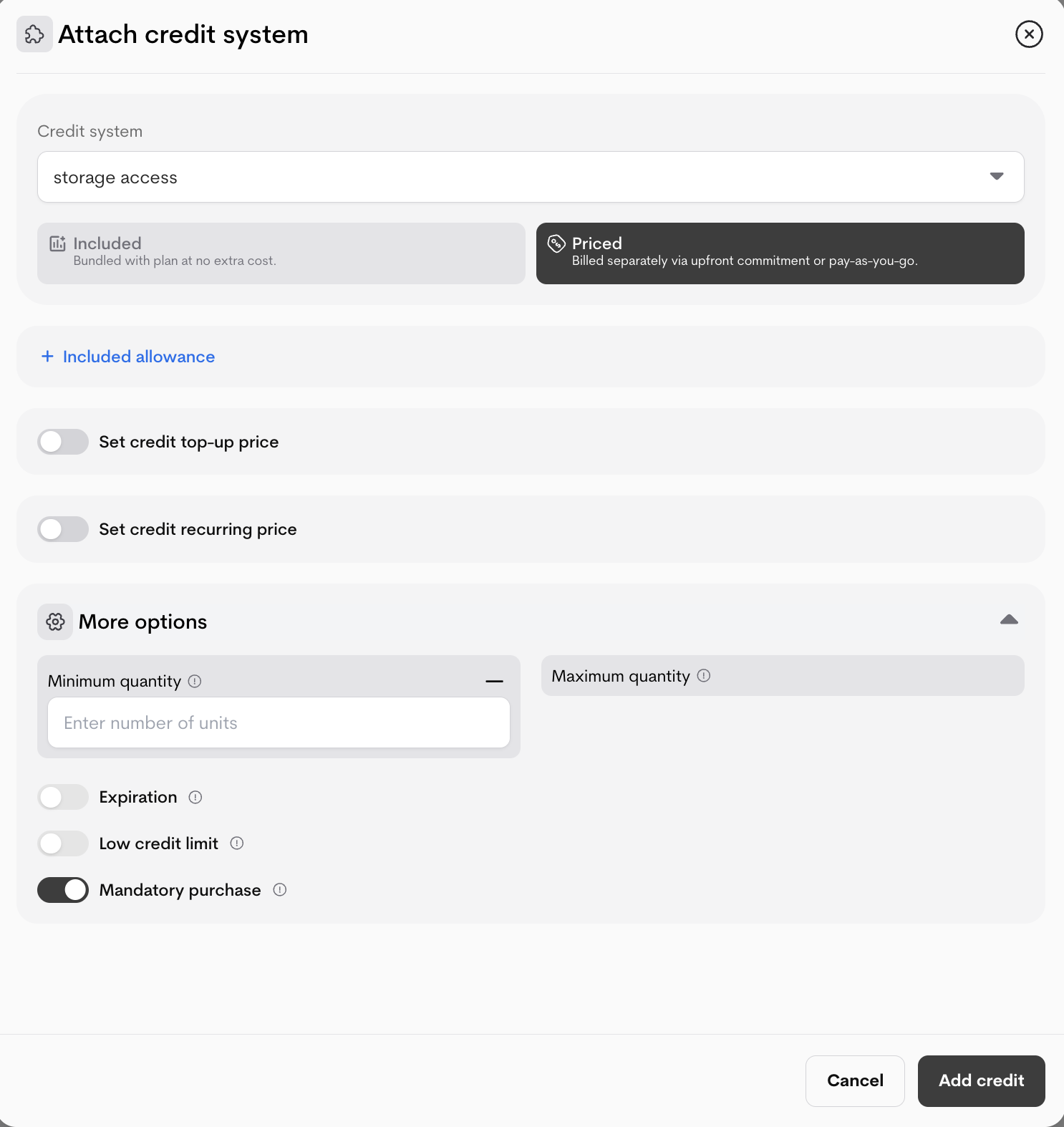
When **Priced** is selected, define how customers buy additional credits.
1. **Top-up price** (one-time purchases of extra credits):
1. Enable the **set credit top up price** toggle if you would like to set the top up price.
2. Choose **Pricing type** (Graduated or Volume).
3. Select **Pricing model** (Per unit, Per package, Flat, Percentage).
4. Define tiers:
* First unit (e.g., 0)
* Last unit (leave blank for infinite)
* Price / unit (or %/package/flat)
5. (Optional) Add tax.
6. Click **Add another tier** for multi-tier pricing.
2. **Recurring price** (automatic credit packs per cycle):
1. Enable the **Credit recurring price** toggle.
2. **Upfront commitment** is automatically selceted as the **Pay-as-you-go** is disbaled because credits can only be bought in advance
3. Set billing intervals if it has not been already set up.
4. Define price per interval using the same tier setup as top-ups.
5. (Optional) Add tax.
6. Click **Add another tier** for multi-tier pricing.
3. **More options** (toggles):
* **Minimum quantity** / **Maximum quantity**: Enforce purchase limits.
* **Expiration**: Set how long unused credits last (select duration).
* **Low credit limit**: Trigger alerts or restrictions when balance is low.
* **Mandatory purchase**: Require customers to buy credits (no free access).
5. Configure the entitlement rules:
* **Reset Interval:** How often the quota resets (e.g., daily,weekly,monthly, annually).
* **Included Allowance:** Grant a recurring amount of free credits (e.g., 5 free credits every week).
## **Pricing for** **Price Your Credits**
When **Priced** is selected, define how customers buy additional credits.
1. **Top-up price** (one-time purchases of extra credits):
1. Enable the **set credit top up price** toggle if you would like to set the top up price.
2. Choose **Pricing type** (Graduated or Volume).
3. Select **Pricing model** (Per unit, Per package, Flat, Percentage).
4. Define tiers:
* First unit (e.g., 0)
* Last unit (leave blank for infinite)
* Price / unit (or %/package/flat)
5. (Optional) Add tax.
6. Click **Add another tier** for multi-tier pricing.
2. **Recurring price** (automatic credit packs per cycle):
1. Enable the **Credit recurring price** toggle.
2. **Upfront commitment** is automatically selceted as the **Pay-as-you-go** is disbaled because credits can only be bought in advance
3. Set billing intervals if it has not been already set up.
4. Define price per interval using the same tier setup as top-ups.
5. (Optional) Add tax.
6. Click **Add another tier** for multi-tier pricing.
3. **More options** (toggles):
* **Minimum quantity** / **Maximum quantity**: Enforce purchase limits.
* **Expiration**: Set how long unused credits last (select duration).
* **Low credit limit**: Trigger alerts or restrictions when balance is low.
* **Mandatory purchase**: Require customers to buy credits (no free access).
 ### **How to Link a Feature to Credits**
This is configured per plan (on priced metered features).
1. Open a plan draft (**Catalog → Products → \[Product] → Plans → \[Plan]**).
2. In the **Features** tab, find a **priced metered feature** (or Add a new feature,if new).
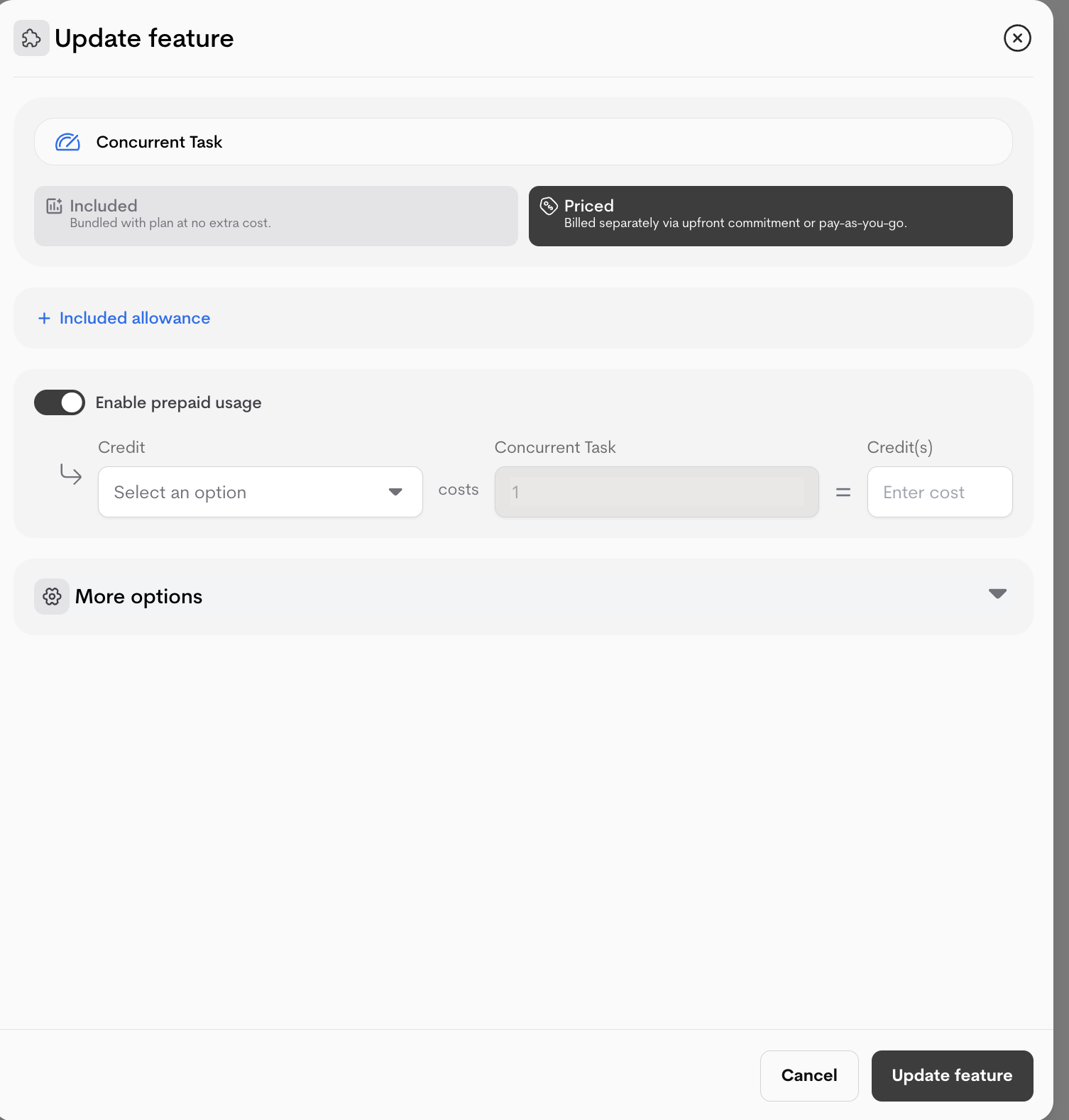
3. Click the **(⋮)** next to the feature and select **Update entitlement**
4. Click Priced
5. Toggle **Enable prepaid usage** on.
6. Select the attached **Credit system** (e.g., "AI Tokens").
7. Set **Credit cost**: How many credits one unit of the feature consumes (e.g., "1 credit per 1 image generated" or "0.5 credits per API call").
8. Save changes.
### **How to Link a Feature to Credits**
This is configured per plan (on priced metered features).
1. Open a plan draft (**Catalog → Products → \[Product] → Plans → \[Plan]**).
2. In the **Features** tab, find a **priced metered feature** (or Add a new feature,if new).
3. Click the **(⋮)** next to the feature and select **Update entitlement**
4. Click Priced
5. Toggle **Enable prepaid usage** on.
6. Select the attached **Credit system** (e.g., "AI Tokens").
7. Set **Credit cost**: How many credits one unit of the feature consumes (e.g., "1 credit per 1 image generated" or "0.5 credits per API call").
8. Save changes.
 ## **Monitor Customer Balances**
Track all credit activity and balances for any customer.
1. Navigate to the **Customer's Account** page.
2. Select the **Prepaid Balance** tab.
3. Use the dropdown to select a specific credit wallet.
4. View the **Total Available Balance**, which is the sum of:
* **Included Credits** (from their plan allowance)
* **Purchased Credits** (from top-ups)
* **Promotional Credits** (manually granted)
5. **View Transactions:** Click on any balance type to see a full history of purchases, grants, and consumption.
**Note:** Metrifox automatically consumes credits starting with those nearest to their expiration date (FIFO).
## **Monitor Customer Balances**
Track all credit activity and balances for any customer.
1. Navigate to the **Customer's Account** page.
2. Select the **Prepaid Balance** tab.
3. Use the dropdown to select a specific credit wallet.
4. View the **Total Available Balance**, which is the sum of:
* **Included Credits** (from their plan allowance)
* **Purchased Credits** (from top-ups)
* **Promotional Credits** (manually granted)
5. **View Transactions:** Click on any balance type to see a full history of purchases, grants, and consumption.
**Note:** Metrifox automatically consumes credits starting with those nearest to their expiration date (FIFO).