> ## Documentation Index
> Fetch the complete documentation index at: https://docs.metrifox.com/llms.txt
> Use this file to discover all available pages before exploring further.
# Connect with NRS
NRS E-Invoicing is the supported Metrifox integration for Nigerian-registered businesses. After setup, Metrifox can submit eligible invoice information to the Nigeria Revenue Service and add the Invoice Reference Number (IRN) and QR code to the invoice.
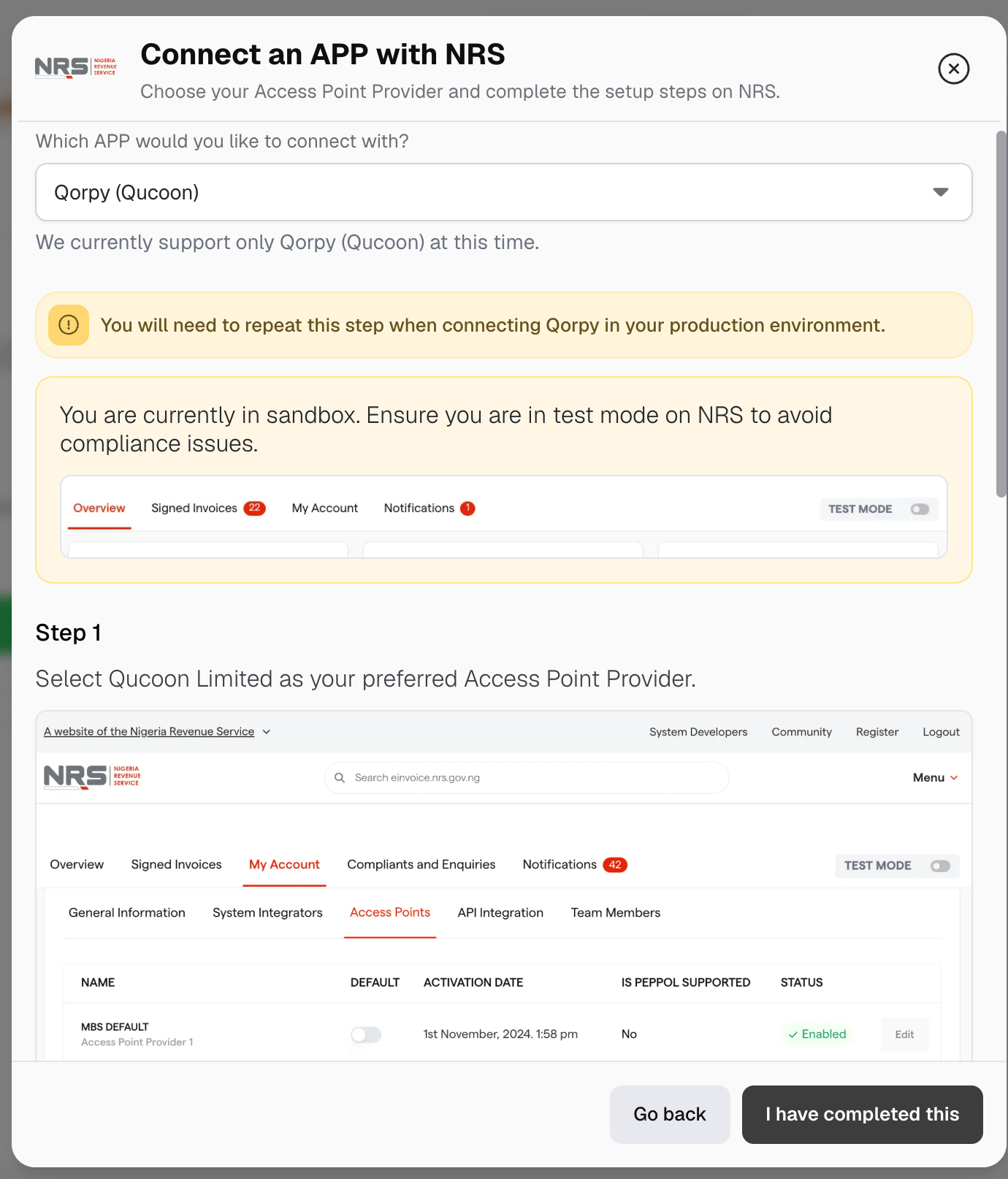
Before you start, register your business with NRS and make sure you can access the NRS dashboard. Metrifox connects to NRS through Qorpy (Qucoon), an Access Point Provider (APP).
Match the environments. Use NRS test mode for a Metrifox sandbox and NRS production mode for a production workspace. You must repeat the connection when moving from sandbox to production.
## Connect NRS
1. Navigate to **Integrations** → **E-invoicing providers**.
2. Find **NRS** and click **Connect**.
3. Confirm whether your business is registered with NRS. If it is not, complete registration through the [NRS e-invoicing portal](https://einvoice.nrs.gov.ng/enablement), then return to Metrifox.
4. In the NRS dashboard, navigate to **My Account** → **Access Points**. Select **Qucoon Limited** and make it your default APP.
5. Navigate to **My Account** → **API Integration** and copy your FIRS Entity ID and FIRS Business ID.
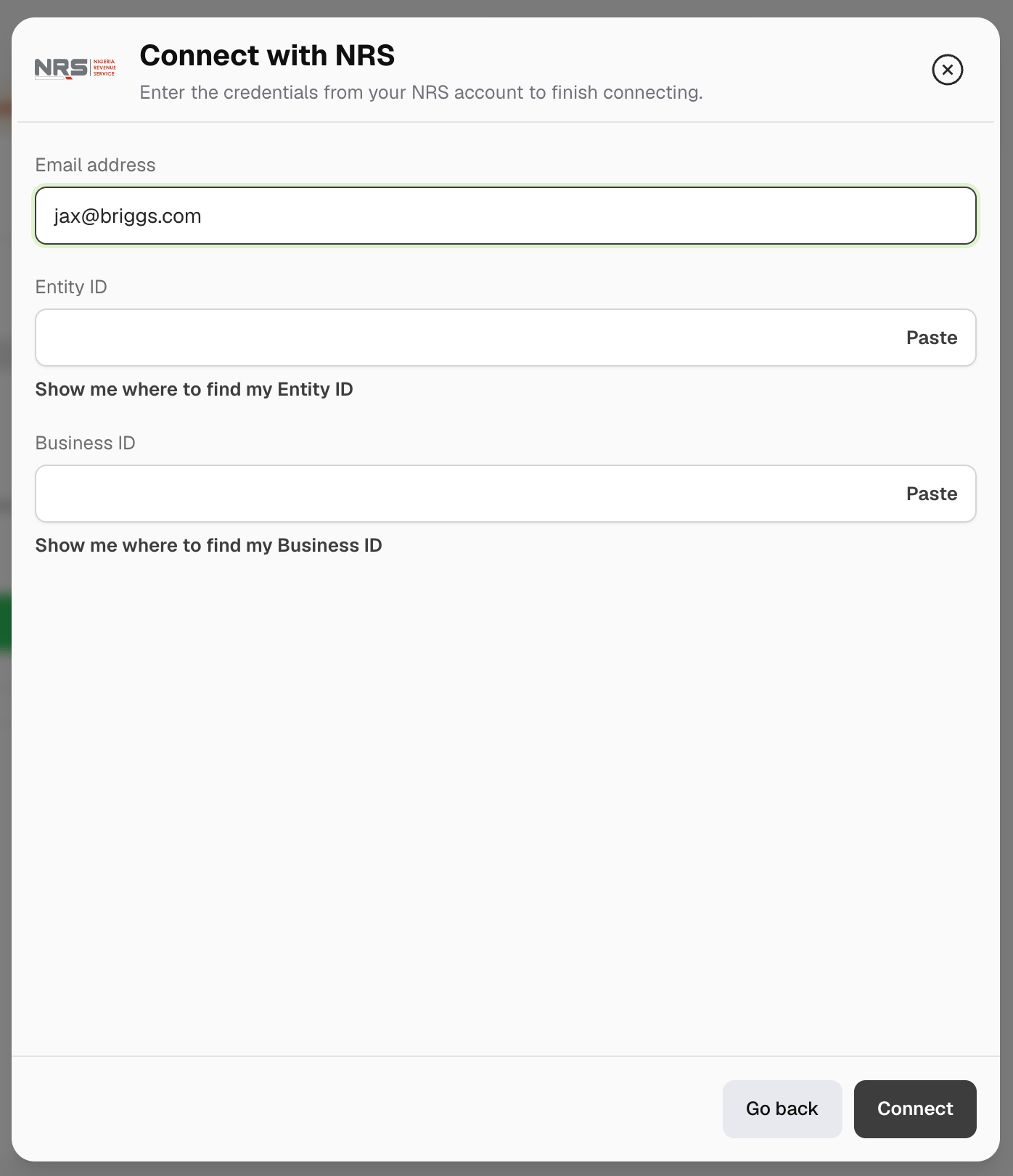
6. Return to Metrifox and enter your email address, Entity ID, and Business ID.
7. Click **Connect**.
 Connecting the account does not start invoice submission. You must complete the readiness checks and enable compliance.
## Enable compliance
Open the connected NRS integration, click **Manage**, and turn on **Enable e-invoicing compliance**. If your workspace is not ready, Metrifox shows what you need to complete.
| Readiness check | What is required |
| :- | :- |
| **Business address** | A complete Nigerian business address, including the state and LGA. |
| **TIN** | Your business Tax Identification Number from your NRS account. |
| **Product classification** | A service category for every active product. |
| **Tax category** | A Nigerian compliance category for every active tax. |
Connecting the account does not start invoice submission. You must complete the readiness checks and enable compliance.
## Enable compliance
Open the connected NRS integration, click **Manage**, and turn on **Enable e-invoicing compliance**. If your workspace is not ready, Metrifox shows what you need to complete.
| Readiness check | What is required |
| :- | :- |
| **Business address** | A complete Nigerian business address, including the state and LGA. |
| **TIN** | Your business Tax Identification Number from your NRS account. |
| **Product classification** | A service category for every active product. |
| **Tax category** | A Nigerian compliance category for every active tax. |
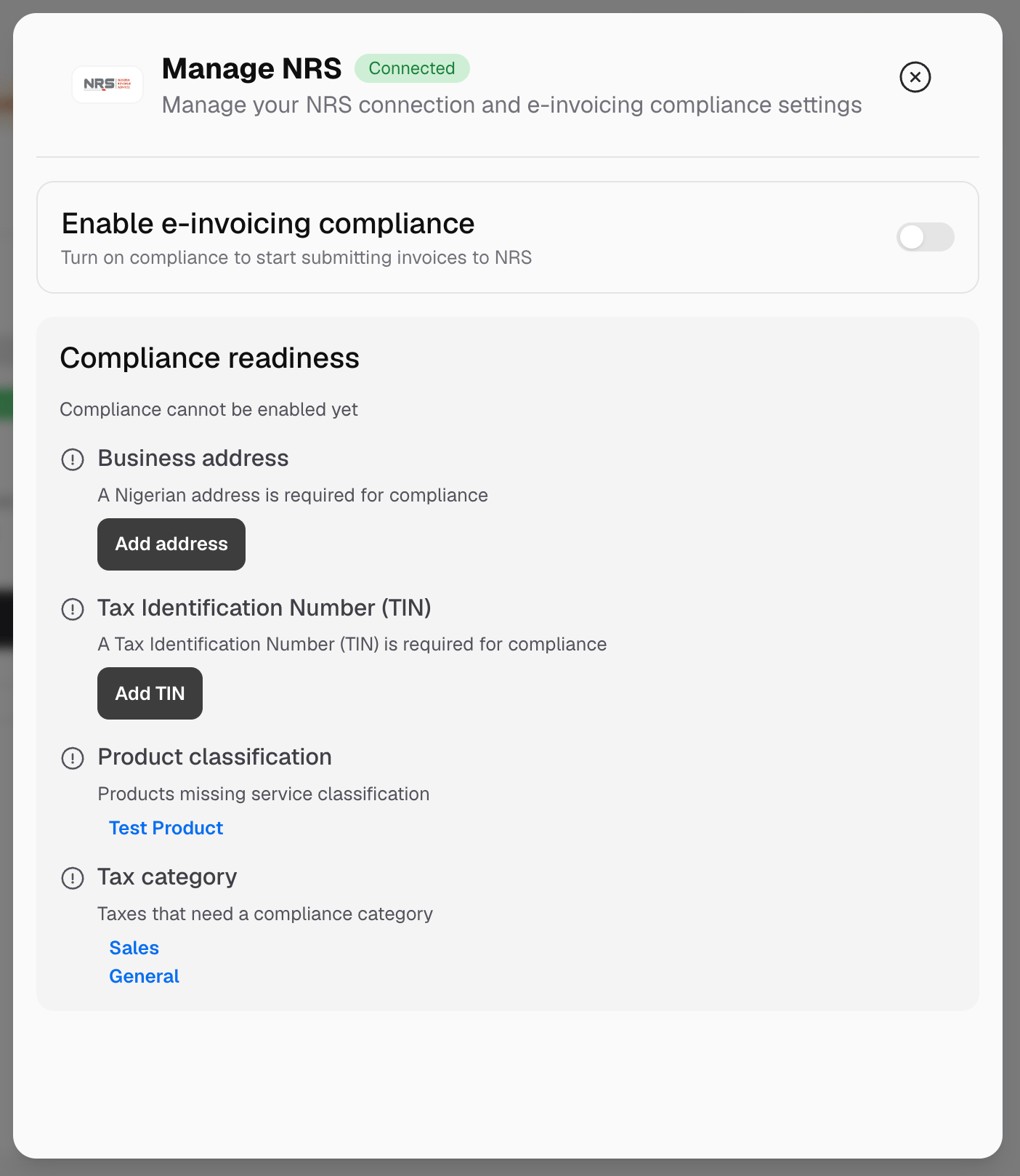 Select an item in the checklist to update it. When every check passes, turn on compliance again. Metrifox can then submit eligible invoices to NRS.
While compliance is enabled, you cannot delete your only Nigerian business address. Add another Nigerian address or disable compliance first.
## Add compliant customer details
When compliance is enabled, business customers need a company name, email address, complete billing address, and tax identification. A Nigerian business address must also include an LGA.
These details are requested during self-serve checkout. When assigning a subscription or creating an order manually, Metrifox asks you to update a business customer whose details are incomplete.
Use **Check e-invoicing compliance** to confirm whether a Nigerian business customer's TIN is registered for NRS e-invoicing.
Individual customers follow the normal personal account flow. They do not need a company name, business TIN, or NRS business registration check.
## Understand fiscalization timing
| Customer | Condition | When the invoice is fiscalized |
| :- | :- | :- |
| **Nigerian business** | Complete billing details and a TIN registered for NRS e-invoicing | When the invoice opens |
| **Nigerian business** | Complete billing details but the TIN is not registered | After the invoice is paid |
| **Business outside Nigeria** | Any compliance result | After the invoice is paid |
| **Individual** | No business compliance check is required | After the invoice is paid |
Payment can be completed online or recorded manually in Metrifox. When an invoice reaches the required stage, Metrifox submits it automatically.
A Nigerian business customer that does not pass the registration check can still continue. Metrifox waits until the invoice is paid before submitting it.
## Verify a fiscalized invoice
A fiscalized invoice shows an **Invoice fiscalized** status, an Invoice Reference Number (IRN), and a QR code.
Select an item in the checklist to update it. When every check passes, turn on compliance again. Metrifox can then submit eligible invoices to NRS.
While compliance is enabled, you cannot delete your only Nigerian business address. Add another Nigerian address or disable compliance first.
## Add compliant customer details
When compliance is enabled, business customers need a company name, email address, complete billing address, and tax identification. A Nigerian business address must also include an LGA.
These details are requested during self-serve checkout. When assigning a subscription or creating an order manually, Metrifox asks you to update a business customer whose details are incomplete.
Use **Check e-invoicing compliance** to confirm whether a Nigerian business customer's TIN is registered for NRS e-invoicing.
Individual customers follow the normal personal account flow. They do not need a company name, business TIN, or NRS business registration check.
## Understand fiscalization timing
| Customer | Condition | When the invoice is fiscalized |
| :- | :- | :- |
| **Nigerian business** | Complete billing details and a TIN registered for NRS e-invoicing | When the invoice opens |
| **Nigerian business** | Complete billing details but the TIN is not registered | After the invoice is paid |
| **Business outside Nigeria** | Any compliance result | After the invoice is paid |
| **Individual** | No business compliance check is required | After the invoice is paid |
Payment can be completed online or recorded manually in Metrifox. When an invoice reaches the required stage, Metrifox submits it automatically.
A Nigerian business customer that does not pass the registration check can still continue. Metrifox waits until the invoice is paid before submitting it.
## Verify a fiscalized invoice
A fiscalized invoice shows an **Invoice fiscalized** status, an Invoice Reference Number (IRN), and a QR code.
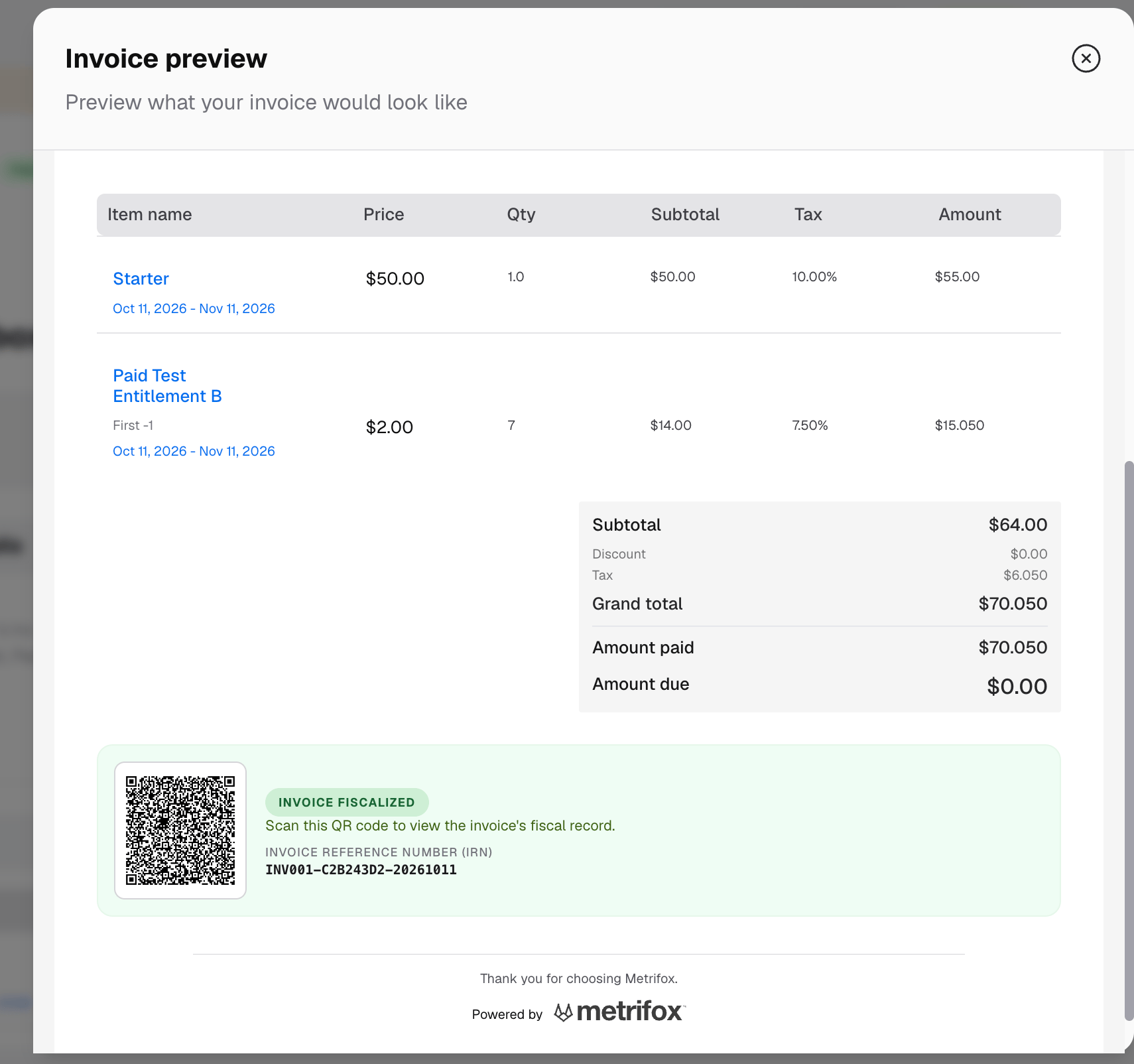 To verify the invoice, open the MB360 app and scan its QR code. Download the Android or iOS app from the [official NRS MB360 page](https://einvoice.nrs.gov.ng/tools/mbs360).
This documentation is built and hosted on [Mintlify](https://mintlify.com), a developer documentation platform.
To verify the invoice, open the MB360 app and scan its QR code. Download the Android or iOS app from the [official NRS MB360 page](https://einvoice.nrs.gov.ng/tools/mbs360).
This documentation is built and hosted on [Mintlify](https://mintlify.com), a developer documentation platform.