> ## Documentation Index
> Fetch the complete documentation index at: https://docs.metrifox.com/llms.txt
> Use this file to discover all available pages before exploring further.
# Invoices
## **Overview**
Metrifox generates an invoice for each billing cycle and for one-time purchases. You can review invoices, resend them, record payments made outside Metrifox, apply credit notes, and write off invoices you don't expect to collect.
To see your invoices, navigate to **Charge customers → Invoices**.
The page opens with a summary of **Total outstanding**, **Total paid**, **Total revenue** and **Total late**, followed by the invoice list. You can search by invoice number, and use the **⋮** menu on any row for [invoice operations](#invoice-operations).
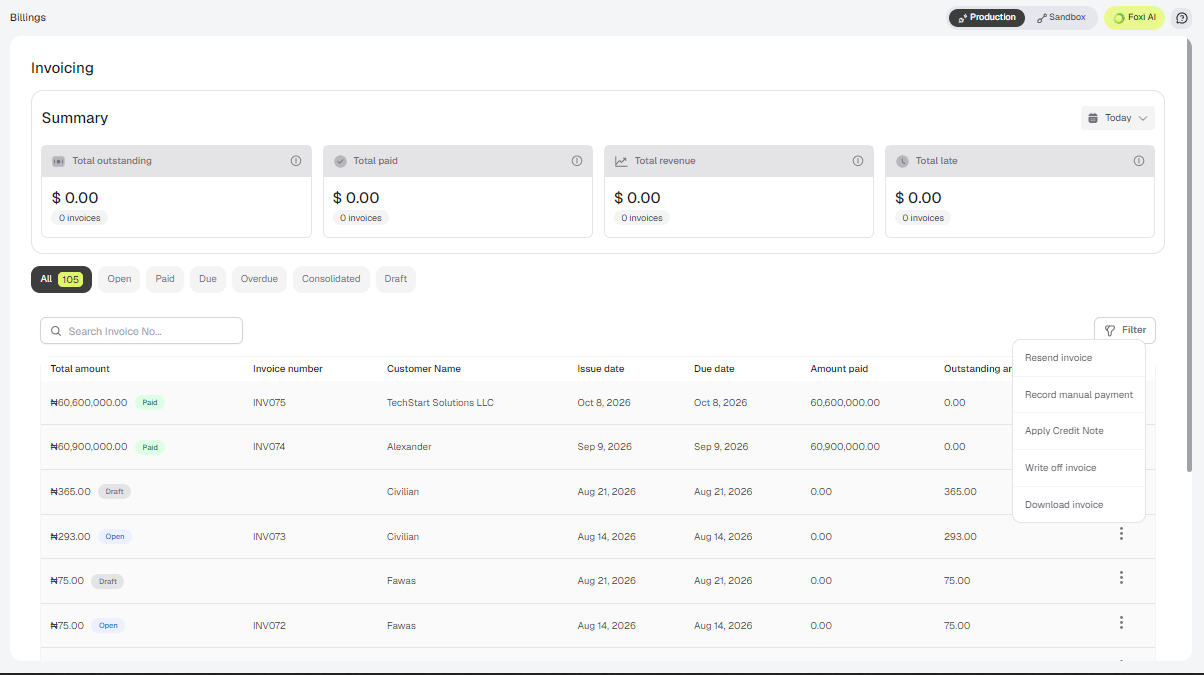 Filter the list by status:
| Status | Meaning |
| :- | :- |
| **Draft** | The invoice has been created but not yet issued. For example, the upcoming invoice for the next billing period. |
| **Open** | The invoice has been issued and has an outstanding balance. |
| **Paid** | The invoice has been paid in full. |
| **Due** / **Overdue** | The invoice is due or past its due date. |
| **Consolidated** | The invoice has been combined into another invoice. You can consolidate a customer's unpaid order invoices when you [create a single purchase order](/orders#creating-an-order). |
## **Invoice Operations**
Open an invoice and use the **Actions** menu at the top right.
| Action | What it does |
| :- | :- |
| **Resend invoice** | Emails the invoice to the customer again. |
| **Record manual payment** | Records a payment collected outside Metrifox. |
| **Apply Credit Note** | Applies one of the customer's [credit notes](/credit-notes) to this invoice. |
| **Write off invoice** | Removes the outstanding balance from your receivables. |
| **Download invoice** | Downloads the invoice. |
### **Record a manual payment**
Use this when a customer pays by cash, bank transfer or check, outside of your connected payment provider.
1. Open the invoice and select **Actions → Record manual payment**.
2. Enter the **Amount**, choose the **Payment method**, and set the **Payment date**.
3. Click **Save**.
Filter the list by status:
| Status | Meaning |
| :- | :- |
| **Draft** | The invoice has been created but not yet issued. For example, the upcoming invoice for the next billing period. |
| **Open** | The invoice has been issued and has an outstanding balance. |
| **Paid** | The invoice has been paid in full. |
| **Due** / **Overdue** | The invoice is due or past its due date. |
| **Consolidated** | The invoice has been combined into another invoice. You can consolidate a customer's unpaid order invoices when you [create a single purchase order](/orders#creating-an-order). |
## **Invoice Operations**
Open an invoice and use the **Actions** menu at the top right.
| Action | What it does |
| :- | :- |
| **Resend invoice** | Emails the invoice to the customer again. |
| **Record manual payment** | Records a payment collected outside Metrifox. |
| **Apply Credit Note** | Applies one of the customer's [credit notes](/credit-notes) to this invoice. |
| **Write off invoice** | Removes the outstanding balance from your receivables. |
| **Download invoice** | Downloads the invoice. |
### **Record a manual payment**
Use this when a customer pays by cash, bank transfer or check, outside of your connected payment provider.
1. Open the invoice and select **Actions → Record manual payment**.
2. Enter the **Amount**, choose the **Payment method**, and set the **Payment date**.
3. Click **Save**.
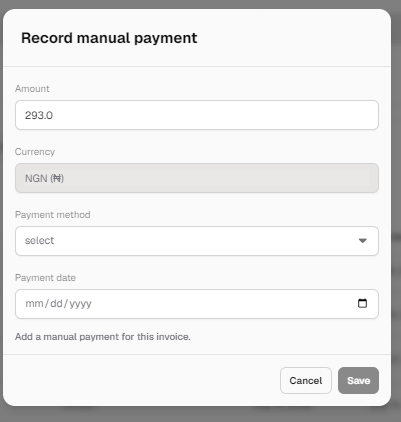 Partial payments are supported. Record several payments until the invoice is fully paid. The payment currency is taken from the invoice, and the amount cannot exceed the outstanding balance. To do this from your own systems, use the [Record manual payment API](/api-reference/invoices/record-manual-payment).
### **Write off an invoice**
Write off an invoice when you no longer expect to collect payment on it. The invoice's outstanding balance is removed from your receivables.
1. Open the invoice and select **Actions → Write off invoice**.
2. Confirm.
Partial payments are supported. Record several payments until the invoice is fully paid. The payment currency is taken from the invoice, and the amount cannot exceed the outstanding balance. To do this from your own systems, use the [Record manual payment API](/api-reference/invoices/record-manual-payment).
### **Write off an invoice**
Write off an invoice when you no longer expect to collect payment on it. The invoice's outstanding balance is removed from your receivables.
1. Open the invoice and select **Actions → Write off invoice**.
2. Confirm.
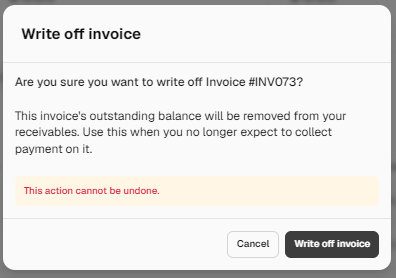 Writing off an invoice cannot be undone.
## **Invoicing Settings**
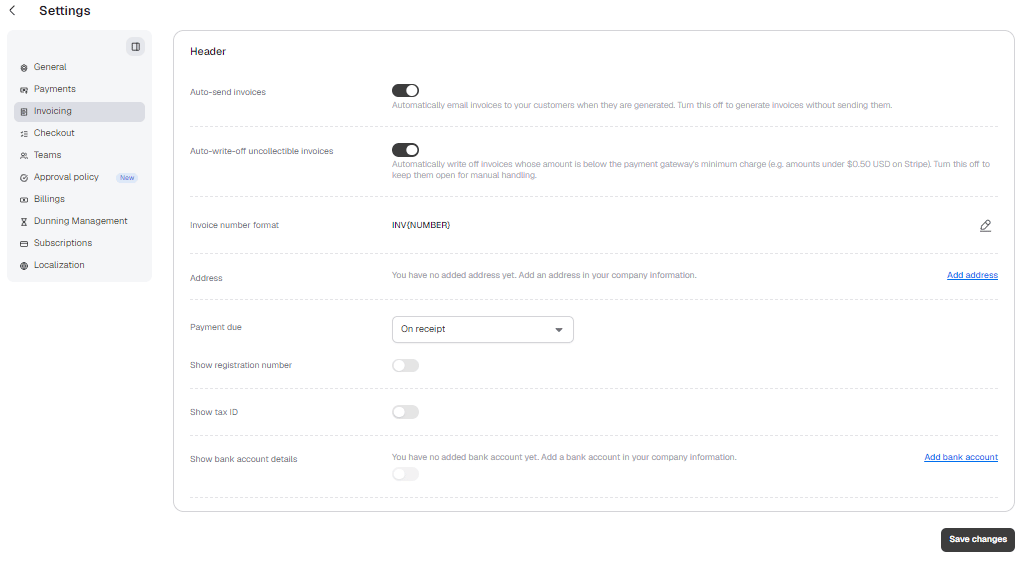
Configure how invoices look and behave under **Settings → Invoicing**.
Writing off an invoice cannot be undone.
## **Invoicing Settings**
Configure how invoices look and behave under **Settings → Invoicing**.
 | Setting | Description |
| :- | :- |
| **Auto-send invoices** | Automatically email invoices to your customers when they are generated. Turn this off to generate invoices without sending them. |
| **Auto-write-off uncollectible invoices** | Automatically write off invoices whose amount is below the payment gateway's minimum charge (for example, amounts under \$0.50 USD on Stripe). Turn this off to keep them open for manual handling. |
| **Invoice number format** | The format used to number invoices, for example `INV{NUMBER}`. |
| **Payment due** | The payment term used to set an invoice's due date when the invoice is created. Choose **On receipt**, **Net** or **End of month**. The default is **On receipt**. See [Payment Due](#payment-due). |
| **Show registration number** | Show your business registration number on invoices. |
| **Show tax ID** | Show your tax ID on invoices. |
| **Show bank account details** | Show your bank account details on invoices. |
The address, tax ID and bank account shown on invoices come from **Settings → General → Company information**.
### **Payment Due**
The **Payment due** setting is a payment term you set before invoices are created. When Metrifox creates an invoice, it uses this setting to set the invoice's **due date**. Choose one of three options:
| Option | Due date set on the invoice |
| :- | :- |
| **On receipt** | The invoice date, so it is due as soon as it is issued. |
| **Net** | A number of days after the invoice date. For example, Net 30 gives the customer 30 days to pay. You enter the number of days. |
| **End of month** | A number of days after the end of the month the invoice was issued in. You enter the number of days. |
This documentation is built and hosted on [Mintlify](https://mintlify.com), a developer documentation platform.
| Setting | Description |
| :- | :- |
| **Auto-send invoices** | Automatically email invoices to your customers when they are generated. Turn this off to generate invoices without sending them. |
| **Auto-write-off uncollectible invoices** | Automatically write off invoices whose amount is below the payment gateway's minimum charge (for example, amounts under \$0.50 USD on Stripe). Turn this off to keep them open for manual handling. |
| **Invoice number format** | The format used to number invoices, for example `INV{NUMBER}`. |
| **Payment due** | The payment term used to set an invoice's due date when the invoice is created. Choose **On receipt**, **Net** or **End of month**. The default is **On receipt**. See [Payment Due](#payment-due). |
| **Show registration number** | Show your business registration number on invoices. |
| **Show tax ID** | Show your tax ID on invoices. |
| **Show bank account details** | Show your bank account details on invoices. |
The address, tax ID and bank account shown on invoices come from **Settings → General → Company information**.
### **Payment Due**
The **Payment due** setting is a payment term you set before invoices are created. When Metrifox creates an invoice, it uses this setting to set the invoice's **due date**. Choose one of three options:
| Option | Due date set on the invoice |
| :- | :- |
| **On receipt** | The invoice date, so it is due as soon as it is issued. |
| **Net** | A number of days after the invoice date. For example, Net 30 gives the customer 30 days to pay. You enter the number of days. |
| **End of month** | A number of days after the end of the month the invoice was issued in. You enter the number of days. |
This documentation is built and hosted on [Mintlify](https://mintlify.com), a developer documentation platform.