> ## Documentation Index
> Fetch the complete documentation index at: https://docs.metrifox.com/llms.txt
> Use this file to discover all available pages before exploring further.
# Manual Subscription
## **Overview**
Manual subscriptions let you create and manage subscriptions directly in the dashboard, without requiring customers to go through self-serve checkout.
**Use cases**:
* **Sales-led or enterprise deals**: Create subscriptions for customers with negotiated/custom pricing, terms, or bundles that aren't available in self-serve checkout.
* **Free or promotional access**: Quickly grant complimentary subscriptions for partners, beta testers, influencers, or marketing campaigns.
* **Internal testing/demos**: Set up test subscriptions for your team or product demos without real payments.
* **Support resolutions**: Fix or adjust subscriptions directly (e.g., extend access).Manual subscriptions support recurring billing, add-ons, credits, custom pricing overrides, and invoice generation, just like self-serve ones.
### **Creating a Manual Subscription**
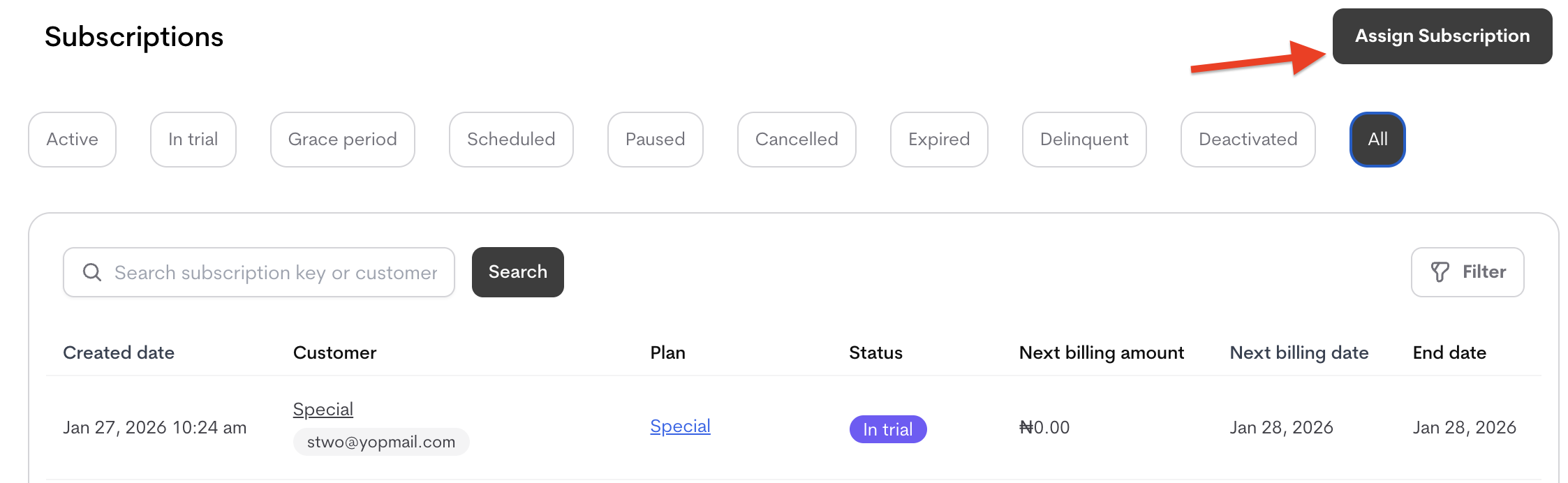
Manual subscriptions are created from the **Subscriptions** tab .
1. Navigate to **Subscriptions** (main navigation).
2. Click **Assign Subscription**.
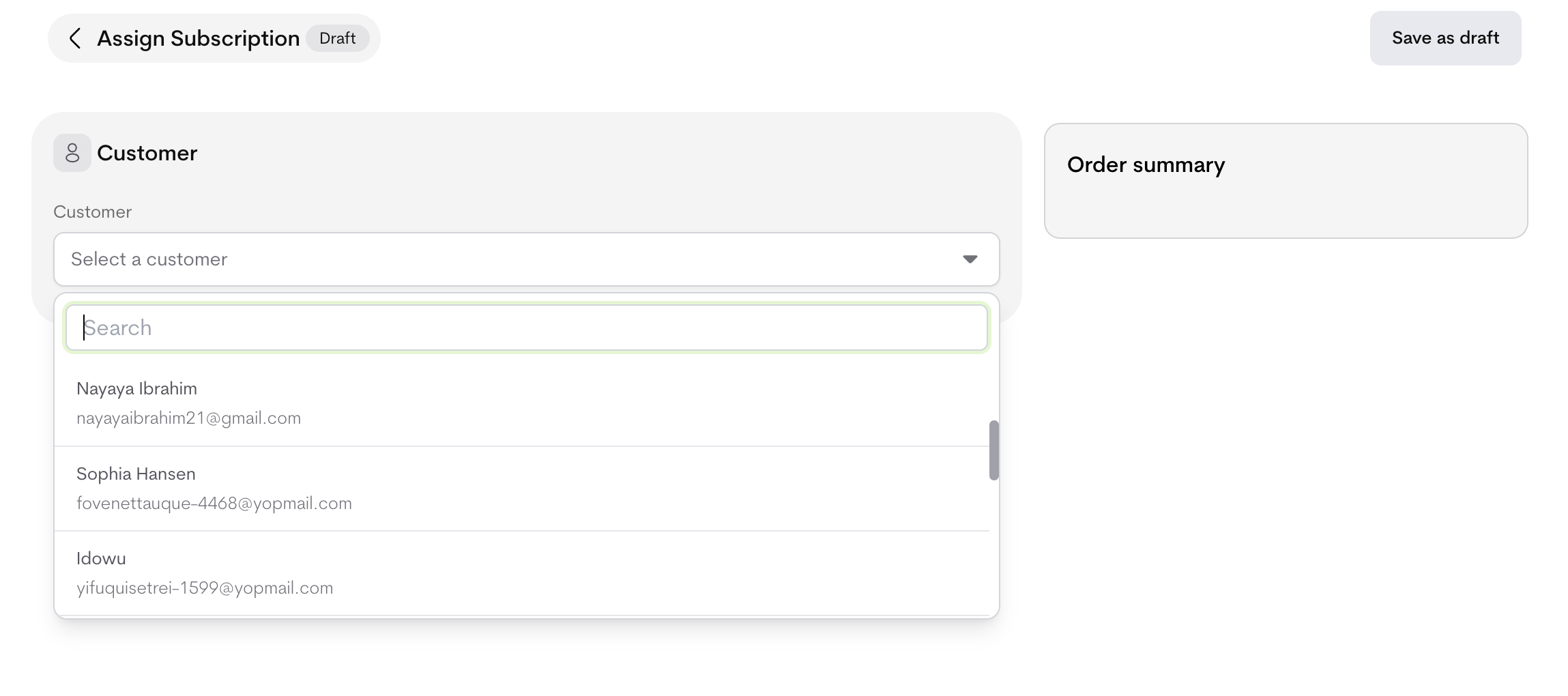
 3. **Select a customer**
* Search or choose from the dropdown.
* Customer details (key, email, address and payment term) appear after the customer has been selected.
3. **Select a customer**
* Search or choose from the dropdown.
* Customer details (key, email, address and payment term) appear after the customer has been selected.
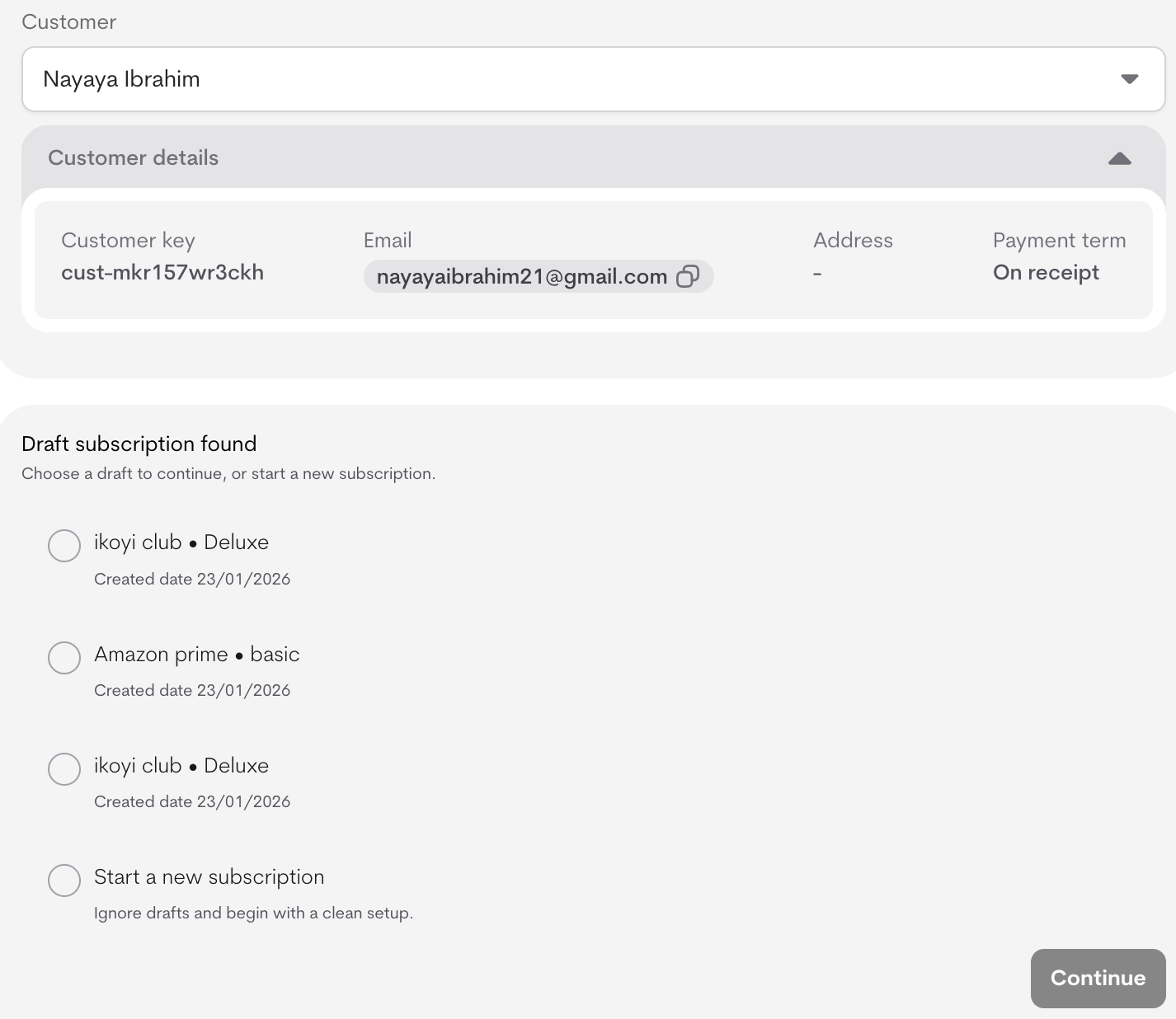
 4. If drafts exist for this customer:
* You'll see a list of saved drafts (e.g., "ikoyi club • Deluxe – Created 23/01/2026").
* Choose **Continue** on a draft to resume editing, or **Start a new subscription** to ignore drafts and begin fresh.
4. If drafts exist for this customer:
* You'll see a list of saved drafts (e.g., "ikoyi club • Deluxe – Created 23/01/2026").
* Choose **Continue** on a draft to resume editing, or **Start a new subscription** to ignore drafts and begin fresh.
 5. Configure the subscription:
* **Product**: Select from dropdown.
* **Plan**: Select from product's plans (loads after product).
* **Add subscription key** (optional custom ID).
**Subscription Start & Duration**\
These options control when the subscription begins and how long it runs. Available choices depend on the **Collection Mode for In-Advance Plans** (set under **Billing & Collection** in subscription settings) and whether the customer has a saved payment method.
**Subscription Start**
* **Checkout completion**: Subscription starts once the customer completes payment.\
Available when: Collection mode is **prepaid**.
* **Auto-charge & start subscription**: Automatically charges the customer and activates the subscription on the start date.\
Available when: Collection mode is **prepaid** and the customer has a saved payment method; if no payment method is saved, this option is grayed out and disabled.
* **Start immediately without charge**: Activates the subscription right away; the customer is invoiced later.\
Available when: Collection mode is **postpaid**.
* **Custom start date**: Activates the subscription on a date you choose.\
Available: Always. If collection mode is **prepaid**, payment must be completed before the subscription starts.
**Subscription Duration**
* **Forever**: No end date (ongoing until canceled).\
Available for all terms.
* **Duration**: Fixed length (e.g., 12 months).\
Available depending on term.
* **Custom end date**: Specific end date.\
Available depending on term.
**More options** → you can also enter a purchase order number, but if you do not one would be generated for that subscription .
Right sidebar shows **Order summary** (subtotal, tax, total due) and it updates live as you configure.
6. Click **Assign Subscription** to create (active immediately) or **Save as draft** for later.
### **Managing Manual Subscriptions**
From the customer's profile or global Subscriptions list:
* View all subscriptions (filter by status: Active, In trial, Grace period, Paused, Cancelled, etc.).
* Click on the subscription you want to manage
* Click the **action** button at the top right and cancel subscription
**Important Notes**
* Manual subscriptions count toward usage/entitlements exactly like self-serve.
5. Configure the subscription:
* **Product**: Select from dropdown.
* **Plan**: Select from product's plans (loads after product).
* **Add subscription key** (optional custom ID).
**Subscription Start & Duration**\
These options control when the subscription begins and how long it runs. Available choices depend on the **Collection Mode for In-Advance Plans** (set under **Billing & Collection** in subscription settings) and whether the customer has a saved payment method.
**Subscription Start**
* **Checkout completion**: Subscription starts once the customer completes payment.\
Available when: Collection mode is **prepaid**.
* **Auto-charge & start subscription**: Automatically charges the customer and activates the subscription on the start date.\
Available when: Collection mode is **prepaid** and the customer has a saved payment method; if no payment method is saved, this option is grayed out and disabled.
* **Start immediately without charge**: Activates the subscription right away; the customer is invoiced later.\
Available when: Collection mode is **postpaid**.
* **Custom start date**: Activates the subscription on a date you choose.\
Available: Always. If collection mode is **prepaid**, payment must be completed before the subscription starts.
**Subscription Duration**
* **Forever**: No end date (ongoing until canceled).\
Available for all terms.
* **Duration**: Fixed length (e.g., 12 months).\
Available depending on term.
* **Custom end date**: Specific end date.\
Available depending on term.
**More options** → you can also enter a purchase order number, but if you do not one would be generated for that subscription .
Right sidebar shows **Order summary** (subtotal, tax, total due) and it updates live as you configure.
6. Click **Assign Subscription** to create (active immediately) or **Save as draft** for later.
### **Managing Manual Subscriptions**
From the customer's profile or global Subscriptions list:
* View all subscriptions (filter by status: Active, In trial, Grace period, Paused, Cancelled, etc.).
* Click on the subscription you want to manage
* Click the **action** button at the top right and cancel subscription
**Important Notes**
* Manual subscriptions count toward usage/entitlements exactly like self-serve.