> ## Documentation Index
> Fetch the complete documentation index at: https://docs.metrifox.com/llms.txt
> Use this file to discover all available pages before exploring further.
# Create and manage a quote
> Create, build, publish, and complete a customer quote.
Before you start, make sure the customer exists in Metrifox and has an email address.
## Create and build quote
1. Navigate to **Charge Customers** → **Quotes**.
2. Click **New quote** and enter a clear title.
3. Click **Select customer** and choose the customer.
 Metrifox creates the first draft version and adds the customer's email as an **Admin** recipient when an email is available.
Check the selected customer before adding pricing. Pricing created inside a quote can be specific to that customer.
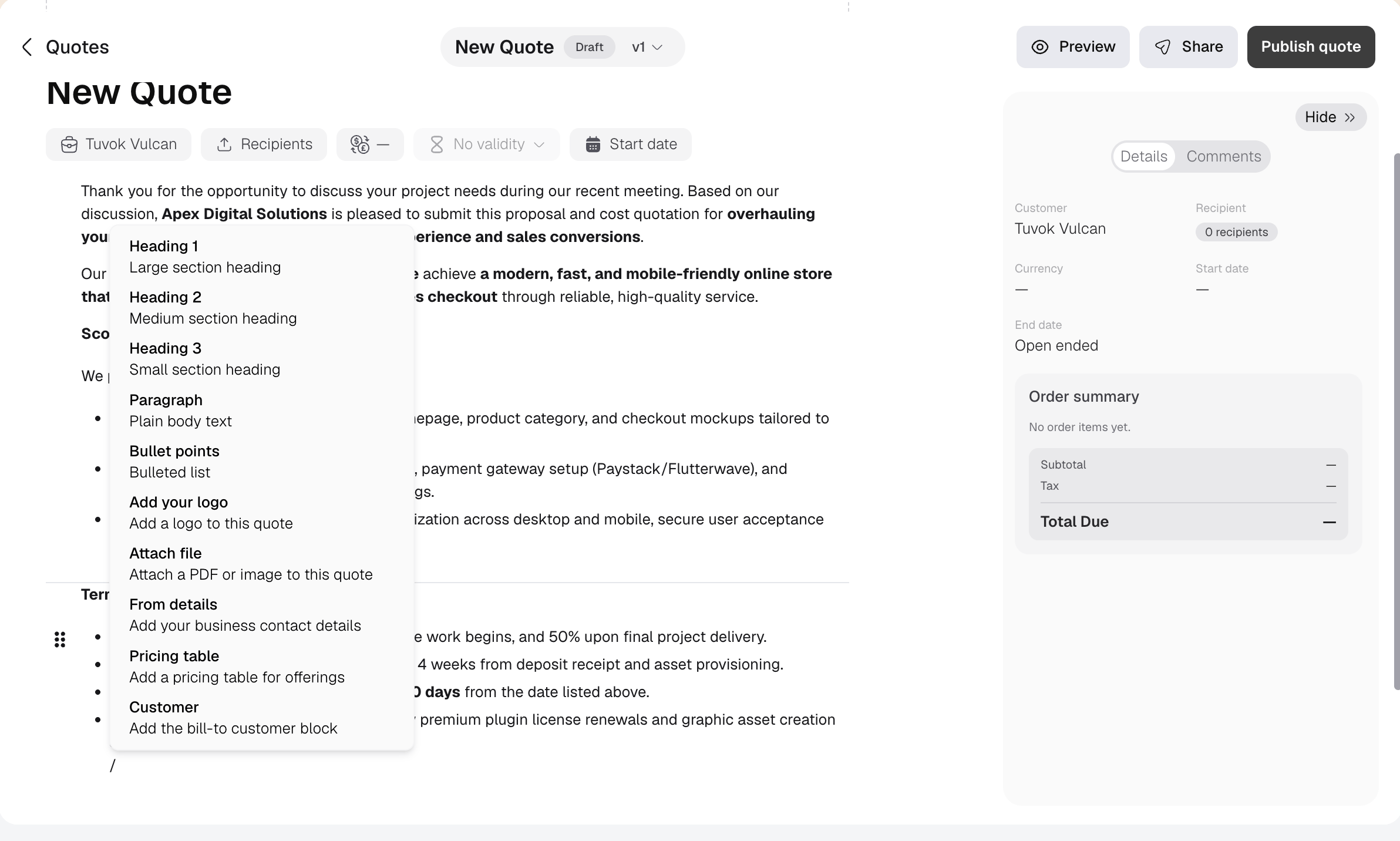
After selecting the customer, type `/` on an empty line to add content to the quote. You can add text, branding, files, business or customer details, and a pricing table. You can also format and rearrange the content, then use **Preview** to check what recipients will see.
Metrifox creates the first draft version and adds the customer's email as an **Admin** recipient when an email is available.
Check the selected customer before adding pricing. Pricing created inside a quote can be specific to that customer.
After selecting the customer, type `/` on an empty line to add content to the quote. You can add text, branding, files, business or customer details, and a pricing table. You can also format and rearrange the content, then use **Preview** to check what recipients will see.
 Draft changes save automatically after a short delay.
### Add pricing
1. Type `/` and select **Pricing table**.
2. Click **Add offering**.
3. Choose a plan or single purchase.
4. Add the required pricing and check the order summary.
The options you may use are:
| Option | What it does |
| :- | :- |
| **Existing plan** | Adds a published plan and its existing pricing. |
| **New plan** | Creates customer-specific plan pricing for the quote. |
| **Single purchase** | Adds an item that the customer buys once. |
| **Base price** | Adds a fixed recurring plan charge. |
| **Feature** | Adds access, an allowance, or usage pricing. |
| **Credit** | Adds included or priced credits. |
| **One-time charge** | Adds a non-recurring fee, such as setup. |
| **Add-on** | Adds an extra offering to the selected plan. |
| **Discount** | Reduces the full offering or selected items. |
Draft changes save automatically after a short delay.
### Add pricing
1. Type `/` and select **Pricing table**.
2. Click **Add offering**.
3. Choose a plan or single purchase.
4. Add the required pricing and check the order summary.
The options you may use are:
| Option | What it does |
| :- | :- |
| **Existing plan** | Adds a published plan and its existing pricing. |
| **New plan** | Creates customer-specific plan pricing for the quote. |
| **Single purchase** | Adds an item that the customer buys once. |
| **Base price** | Adds a fixed recurring plan charge. |
| **Feature** | Adds access, an allowance, or usage pricing. |
| **Credit** | Adds included or priced credits. |
| **One-time charge** | Adds a non-recurring fee, such as setup. |
| **Add-on** | Adds an extra offering to the selected plan. |
| **Discount** | Reduces the full offering or selected items. |
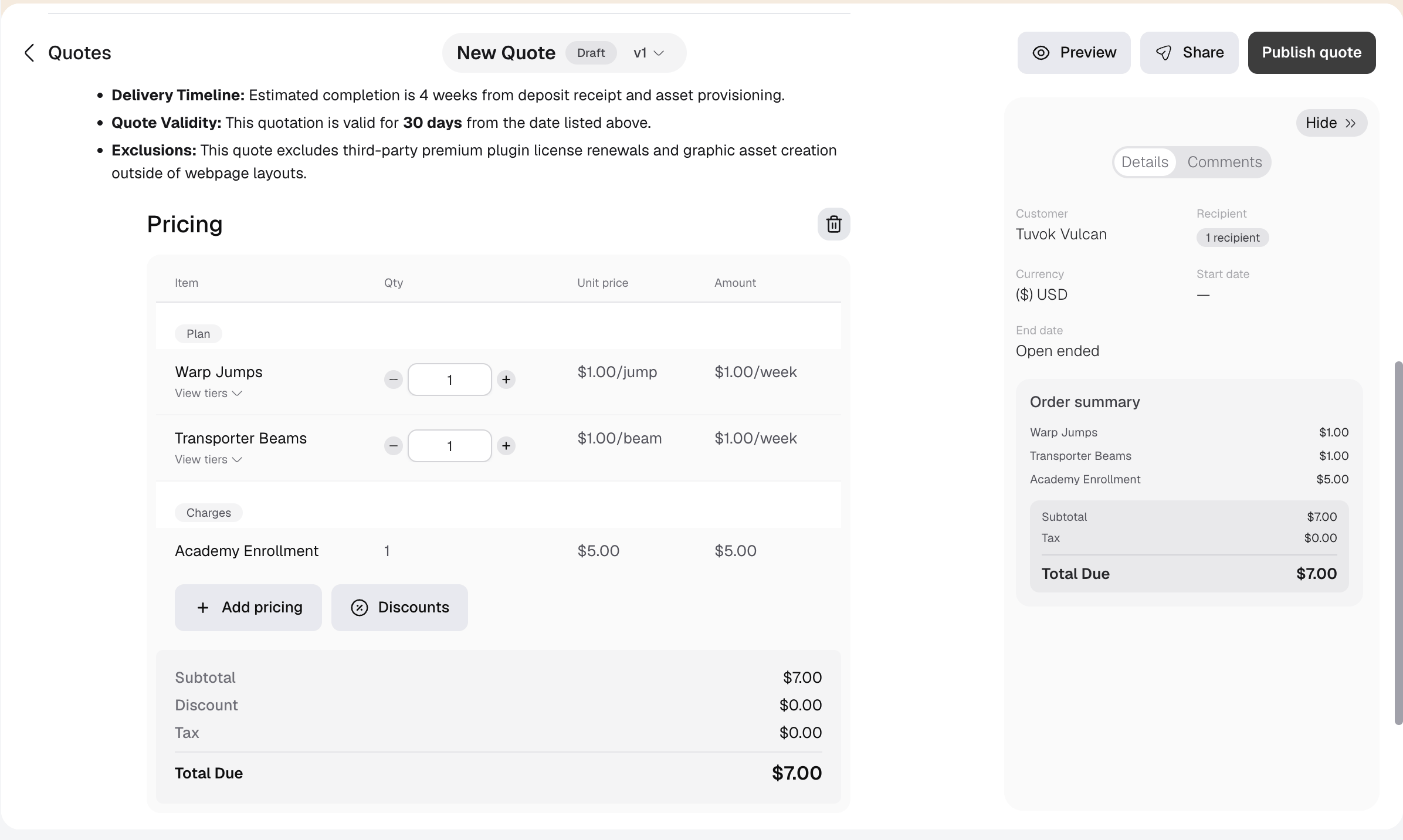 Before continuing, check the billing interval, quantities, discounts, tax, currency, and total. A plan sets the main quote currency, and single purchases must use the same currency.
### Add recipients
Add recipients from **Recipients**, **Share**, or **Publish quote**. Enter each person's name and email address, then choose their role.
| Role | What the recipient can do |
| :- | :- |
| **Admin** | View, comment, request changes, invite others, and accept. |
| **Commenter** | View, comment, and request changes. |
| **Viewer** | View only. |
At least one Admin recipient is required before the quote can be published. Give this role only to someone who can accept the quote for the customer.
## Share and publish quote
### Share quote
1. Open the quote and click **Share**.
2. Review the existing recipients. To add someone, enter their name and email address, choose a role, and click **Add**.
3. Leave **Make this quote public** off for private access, or turn it on if anyone with the link should be able to view the quote.
4. Click the copy icon beside **Copy quote link**.
5. Click **Done**, then send the copied link to the people who need it.
Before continuing, check the billing interval, quantities, discounts, tax, currency, and total. A plan sets the main quote currency, and single purchases must use the same currency.
### Add recipients
Add recipients from **Recipients**, **Share**, or **Publish quote**. Enter each person's name and email address, then choose their role.
| Role | What the recipient can do |
| :- | :- |
| **Admin** | View, comment, request changes, invite others, and accept. |
| **Commenter** | View, comment, and request changes. |
| **Viewer** | View only. |
At least one Admin recipient is required before the quote can be published. Give this role only to someone who can accept the quote for the customer.
## Share and publish quote
### Share quote
1. Open the quote and click **Share**.
2. Review the existing recipients. To add someone, enter their name and email address, choose a role, and click **Add**.
3. Leave **Make this quote public** off for private access, or turn it on if anyone with the link should be able to view the quote.
4. Click the copy icon beside **Copy quote link**.
5. Click **Done**, then send the copied link to the people who need it.
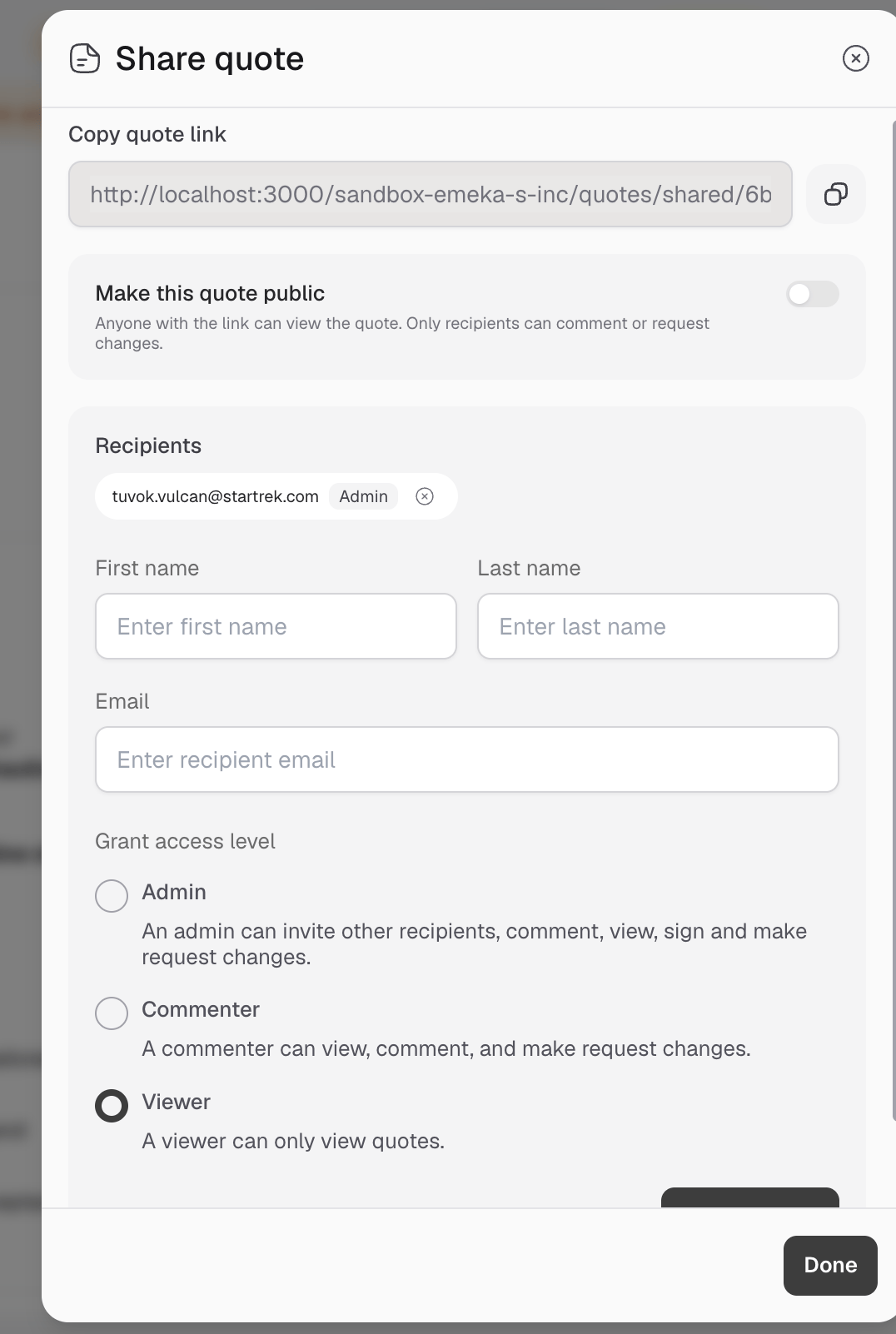 For a private quote, only email addresses added as recipients can access the link. A recipient can view a shared draft, but cannot comment, request changes, or accept it until the quote is published.
### Publish quote
1. Open the draft and click **Publish quote**.
2. Review the recipients.
3. Choose the validity period.
4. Set the finalization, email notification, and public access options.
5. Click **Publish quote**.
For a private quote, only email addresses added as recipients can access the link. A recipient can view a shared draft, but cannot comment, request changes, or accept it until the quote is published.
### Publish quote
1. Open the draft and click **Publish quote**.
2. Review the recipients.
3. Choose the validity period.
4. Set the finalization, email notification, and public access options.
5. Click **Publish quote**.
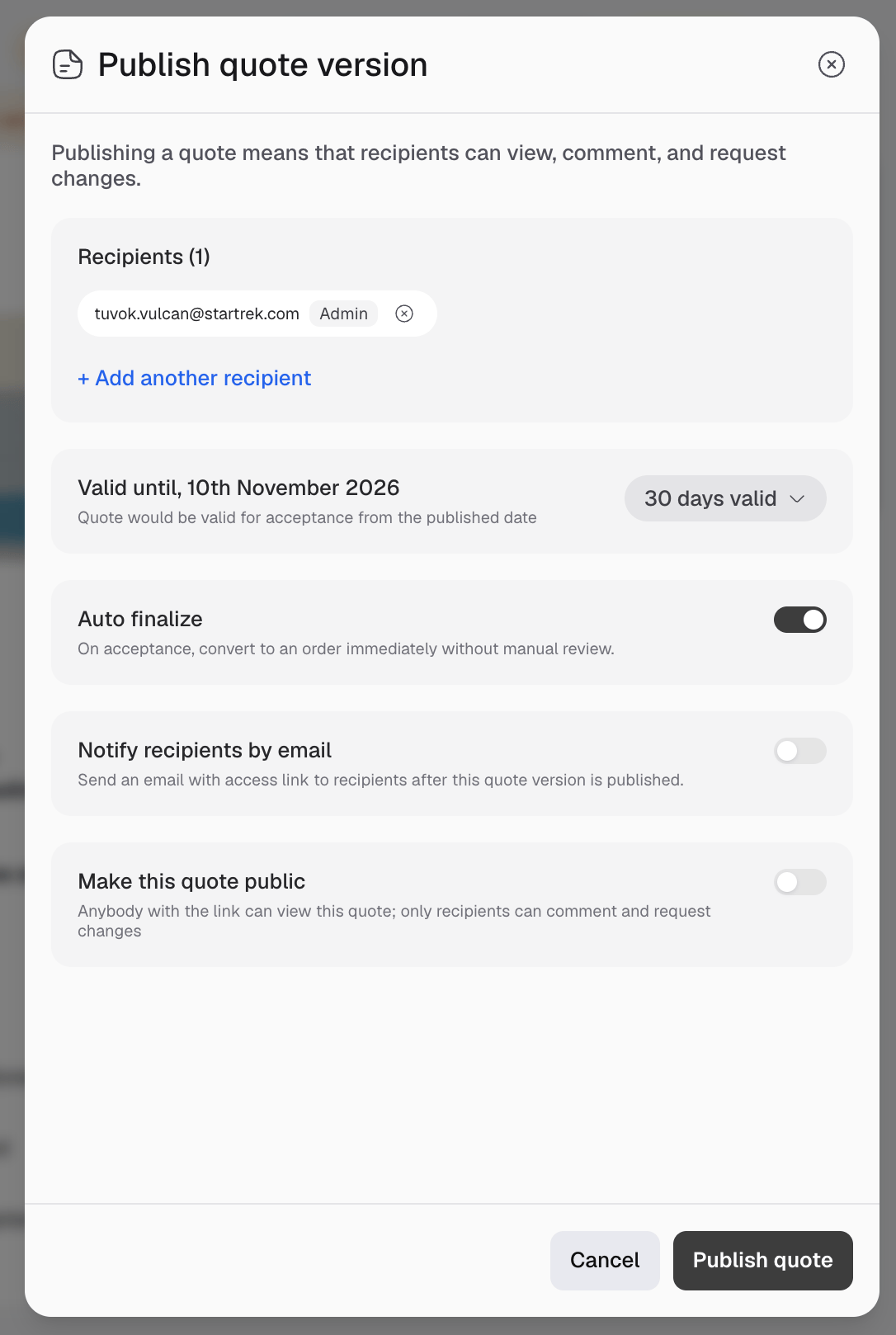 | Option | What it controls |
| :- | :- |
| **Validity** | How long recipients can accept the quote or request changes. |
| **Auto finalize** | Whether Metrifox processes the order immediately after acceptance. |
| **Notify recipients by email** | Whether recipients receive their private links by email. |
| **Make this quote public** | Whether anyone with the link can view the quote. |
Private links are limited to named recipients. A public link allows anyone with the link to view the quote, but only named recipients can take actions allowed by their role.
Do not make a quote public if it contains confidential prices, customer details, terms, or attachments.
If your workspace uses quote approvals, publishing submits the quote for approval first.
## Comments and requesting changes
Comments on a draft are internal. After publishing, Admin and Commenter recipients can comment and reply to discussions.
To request an update, an Admin or Commenter clicks **Request changes**, adds a reason, and confirms. The quote moves to **Changes requested** and cannot be accepted.
To respond, review the feedback, click **Edit quote** to create a new draft version, make the updates, and publish the new version. Comments remain connected to the version where they were created.
## Accept quote
Only an Admin recipient can accept a published quote that is still valid and has no pending change request.
1. Open the private quote link.
2. Review the proposal and pricing.
3. Click **Accept quote** and confirm.
| Option | What it controls |
| :- | :- |
| **Validity** | How long recipients can accept the quote or request changes. |
| **Auto finalize** | Whether Metrifox processes the order immediately after acceptance. |
| **Notify recipients by email** | Whether recipients receive their private links by email. |
| **Make this quote public** | Whether anyone with the link can view the quote. |
Private links are limited to named recipients. A public link allows anyone with the link to view the quote, but only named recipients can take actions allowed by their role.
Do not make a quote public if it contains confidential prices, customer details, terms, or attachments.
If your workspace uses quote approvals, publishing submits the quote for approval first.
## Comments and requesting changes
Comments on a draft are internal. After publishing, Admin and Commenter recipients can comment and reply to discussions.
To request an update, an Admin or Commenter clicks **Request changes**, adds a reason, and confirms. The quote moves to **Changes requested** and cannot be accepted.
To respond, review the feedback, click **Edit quote** to create a new draft version, make the updates, and publish the new version. Comments remain connected to the version where they were created.
## Accept quote
Only an Admin recipient can accept a published quote that is still valid and has no pending change request.
1. Open the private quote link.
2. Review the proposal and pricing.
3. Click **Accept quote** and confirm.
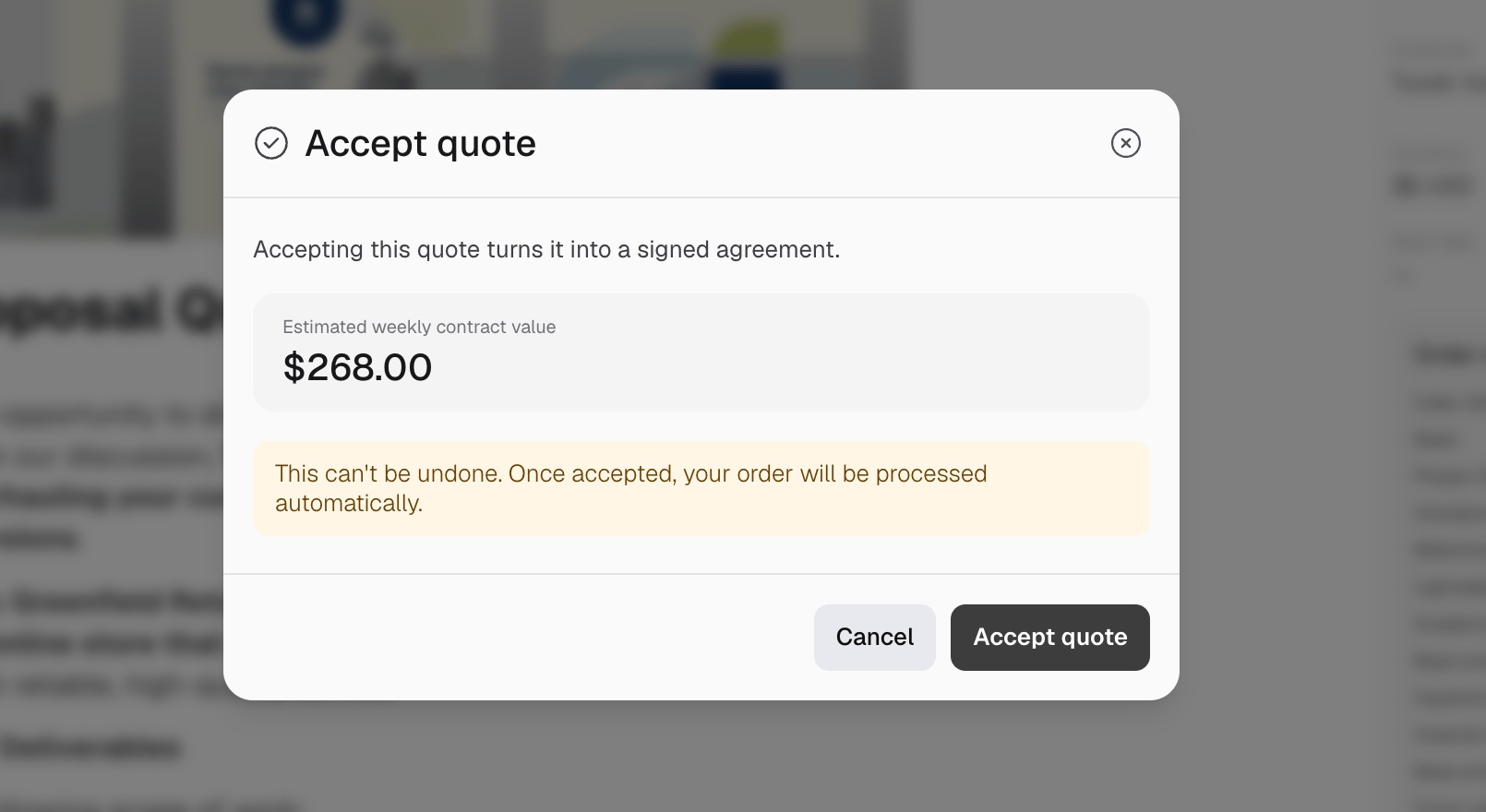 Acceptance records the person who accepted the agreement and cannot be undone.
| Auto finalize | What happens after acceptance |
| :- | :- |
| **On** | Metrifox immediately processes the order and starts the normal billing and provisioning flow. |
| **Off** | The quote is accepted, but your team must review it and click **Finalize quote**. |
After finalization, prepaid subscriptions require payment before activation. Postpaid subscriptions are activated before payment and invoiced later.
This documentation is built and hosted on [Mintlify](https://mintlify.com), a developer documentation platform.
Acceptance records the person who accepted the agreement and cannot be undone.
| Auto finalize | What happens after acceptance |
| :- | :- |
| **On** | Metrifox immediately processes the order and starts the normal billing and provisioning flow. |
| **Off** | The quote is accepted, but your team must review it and click **Finalize quote**. |
After finalization, prepaid subscriptions require payment before activation. Postpaid subscriptions are activated before payment and invoiced later.
This documentation is built and hosted on [Mintlify](https://mintlify.com), a developer documentation platform.