> ## Documentation Index
> Fetch the complete documentation index at: https://docs.metrifox.com/llms.txt
> Use this file to discover all available pages before exploring further.
# Quotes overview
Quotes help you prepare, price, share, and agree on a custom offer with a customer. You can write the proposal, add pricing, invite recipients, collect feedback, and automatically turn the accepted quote into an order.
Use quotes when a customer needs a proposal that is more personal than your normal self-service checkout. For example, you may need custom terms, a special combination of items, or a review step before the order is processed.
## The quote workflow
Give the quote a title and select the customer.
Add your written content, files, customer details, and pricing.
Choose the people who can open the quote and give each person the right access level.
Set the validity period and sharing options, then publish the quote. Recipients can review the published version, comment, or request changes based on their role.
An Admin recipient accepts the quote. Metrifox then processes the order automatically or waits for your team to finalize it, based on the quote setting.
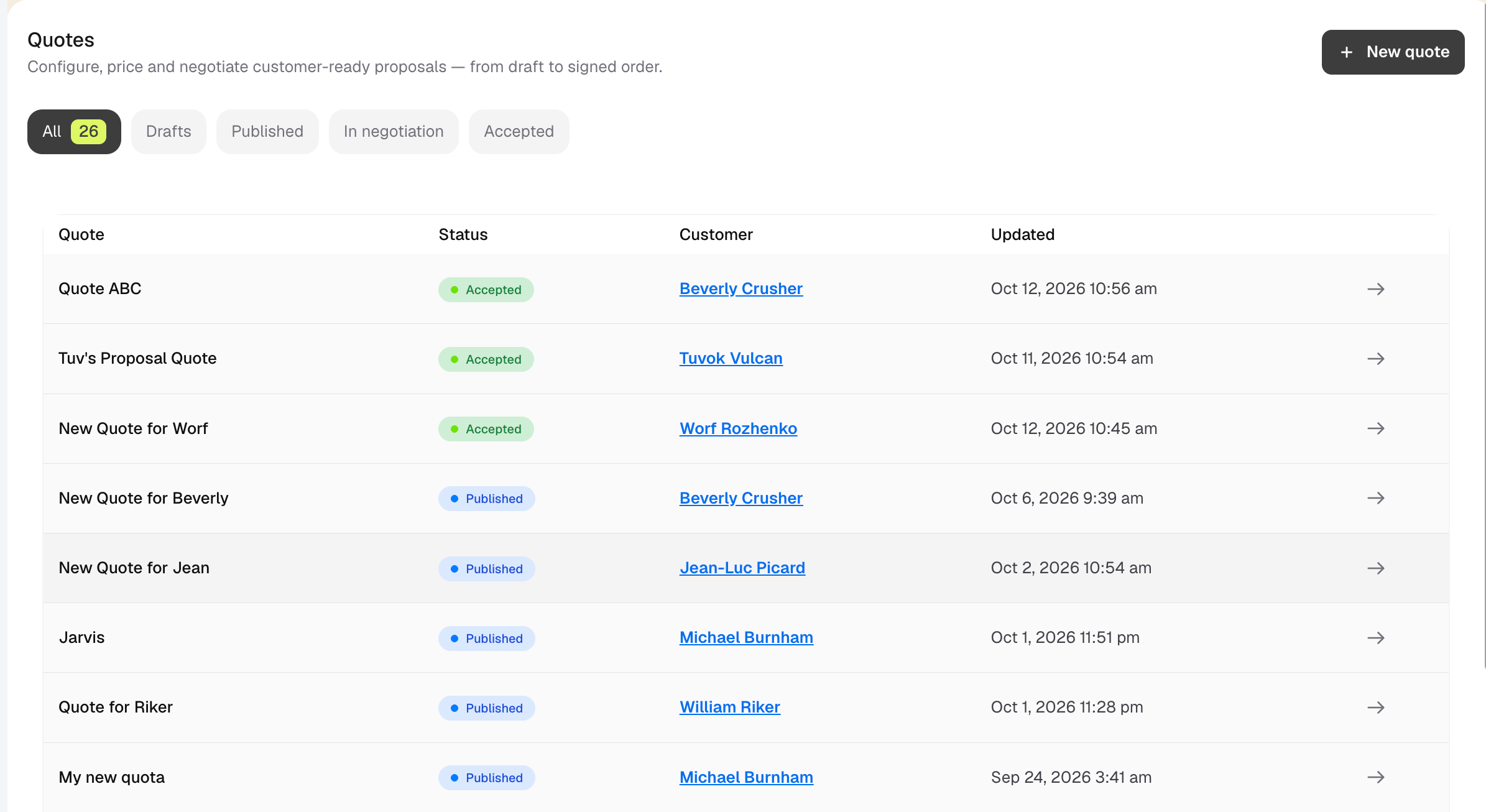
## Quote statuses
| Status | What it means |
| :- | :- |
| **Draft** | Your team is still preparing the current version. |
| **Published** | The version is available for recipients to review and accept. |
| **Changes requested** | A recipient asked for an update. Your team can create a new draft version and publish when updated. |
| **Accepted** | An Admin recipient accepted the published version. |
 ## Quotes and quote versions
A quote can have several versions. This lets you negotiate without changing the version that a customer already received.
* A new quote starts as **v1**.
* Editing a published quote creates a new draft version.
* The published version stays visible to the customer while you work on the draft.
* Publishing the new draft replaces the previously published version.
* You can use the version selector beside the quote status to open an older version.
Comments, pricing, attachments, and the accepted agreement belong to a specific quote version. Check the version number before you make a change or reply to a comment.
## Continue through the guide
Follow the full workflow from creating a draft to accepting and finalizing the quote.
This documentation is built and hosted on [Mintlify](https://mintlify.com), a developer documentation platform.
## Quotes and quote versions
A quote can have several versions. This lets you negotiate without changing the version that a customer already received.
* A new quote starts as **v1**.
* Editing a published quote creates a new draft version.
* The published version stays visible to the customer while you work on the draft.
* Publishing the new draft replaces the previously published version.
* You can use the version selector beside the quote status to open an older version.
Comments, pricing, attachments, and the accepted agreement belong to a specific quote version. Check the version number before you make a change or reply to a comment.
## Continue through the guide
Follow the full workflow from creating a draft to accepting and finalizing the quote.
This documentation is built and hosted on [Mintlify](https://mintlify.com), a developer documentation platform.