> ## Documentation Index
> Fetch the complete documentation index at: https://docs.metrifox.com/llms.txt
> Use this file to discover all available pages before exploring further.
# Taxes
## **Overview**
Taxes let you configure and apply tax rules to priced components across your plans (base prices, priced entitlements, add-ons, one-time fees).
Metrifox supports common tax types (e.g., VAT, sales tax) with options for inclusive/exclusive pricing and regional targeting. Taxes are created globally and selected via dropdown when configuring pricing.
This ensures compliant, automated tax calculation on invoices without custom code.
## **Creating a Tax**
Taxes are managed globally and reusable across all products/plans.
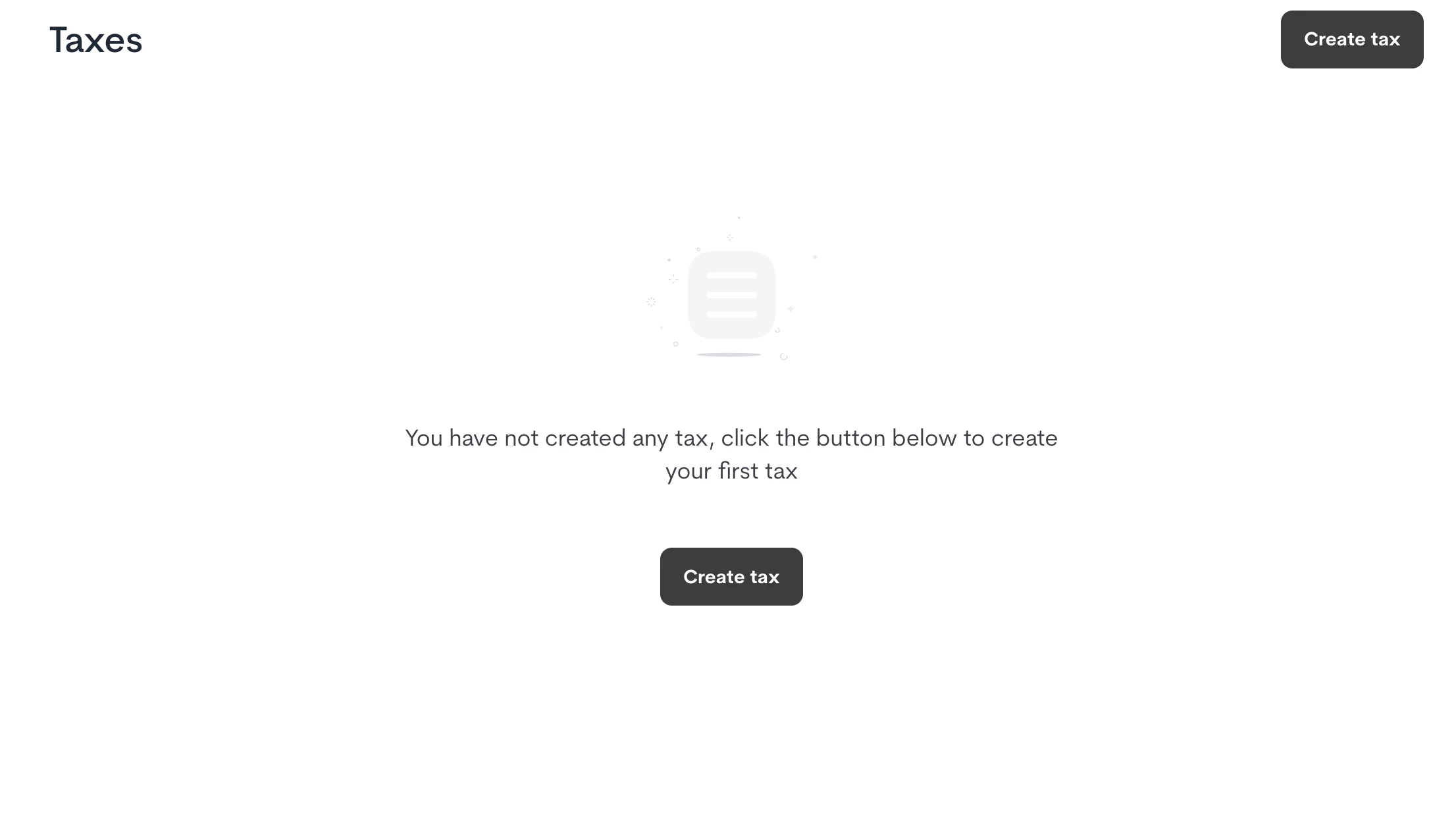
1. Navigate to **Catalog → Taxes**.
2. Click **Create tax**
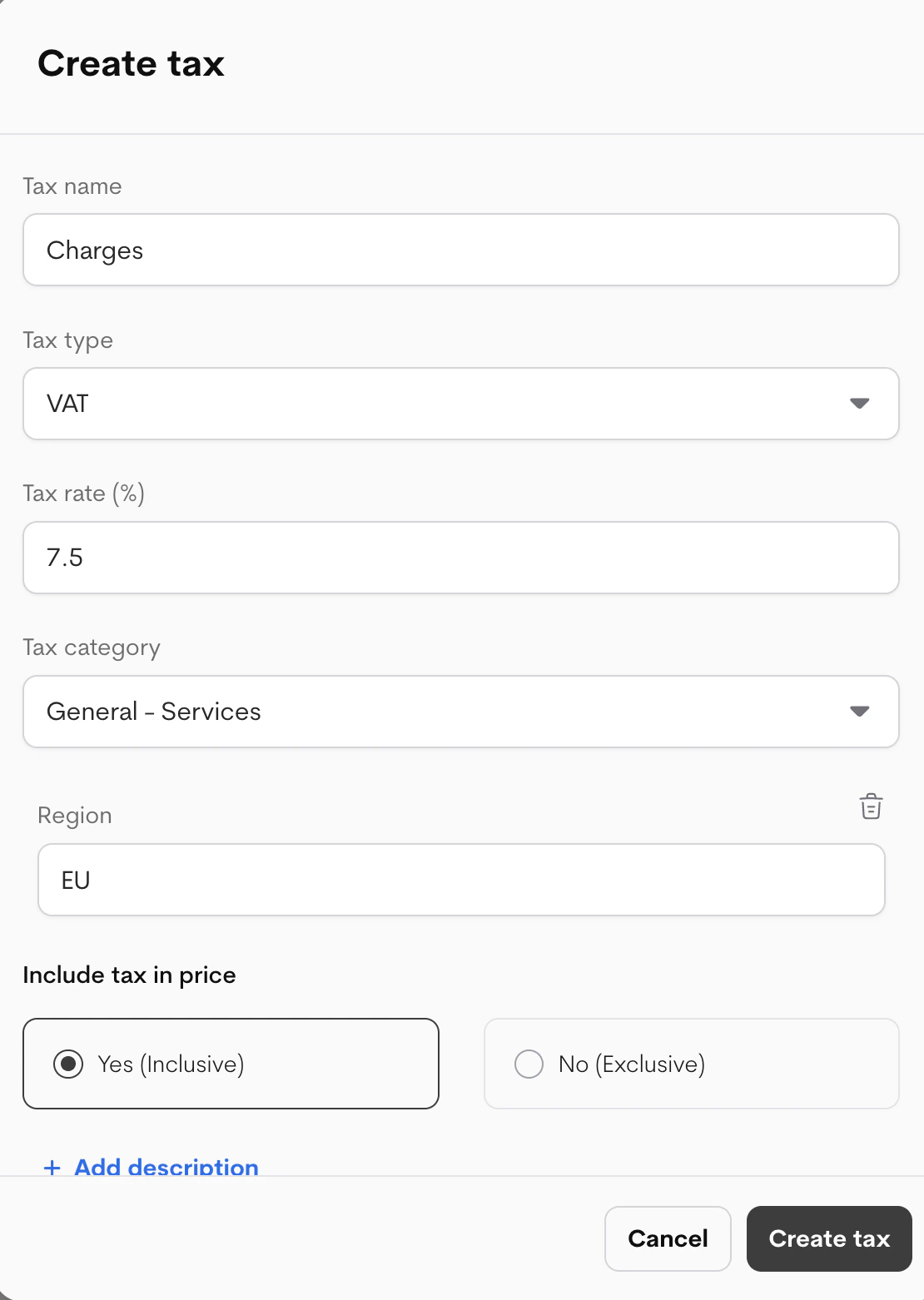
3. In the modal, fill details:
 | Field | Description | Recommendations |
| :------------------------- | :--------------------------------------------------------------------------------- | :------------------------------------------------------- |
| Tax name | Unique name for the tax (e.g., "EU VAT") | Clear and descriptive for internal use |
| Tax type | Type of tax (e.g., VAT, Sales Tax) | Match your jurisdiction's standard |
| Tax rate (%) | Percentage rate (e.g., 20) | Enter as number only (no % symbol) |
| Tax category | Category (e.g., General - Services, Digital Goods) | Helps with compliance/reporting |
| Region | Country/region the tax applies to | Leave blank for global, or specify (e.g., EU, US-CA) |
| Include tax in price | **Yes (Inclusive)**: Price shown includes tax **No (Exclusive)**: Tax added on top | Inclusive common in EU; Exclusive in US |
| Add description (Optional) | Internal notes or customer-facing info | Explain applicability (e.g., "20% VAT for EU customers") |
| Field | Description | Recommendations |
| :------------------------- | :--------------------------------------------------------------------------------- | :------------------------------------------------------- |
| Tax name | Unique name for the tax (e.g., "EU VAT") | Clear and descriptive for internal use |
| Tax type | Type of tax (e.g., VAT, Sales Tax) | Match your jurisdiction's standard |
| Tax rate (%) | Percentage rate (e.g., 20) | Enter as number only (no % symbol) |
| Tax category | Category (e.g., General - Services, Digital Goods) | Helps with compliance/reporting |
| Region | Country/region the tax applies to | Leave blank for global, or specify (e.g., EU, US-CA) |
| Include tax in price | **Yes (Inclusive)**: Price shown includes tax **No (Exclusive)**: Tax added on top | Inclusive common in EU; Exclusive in US |
| Add description (Optional) | Internal notes or customer-facing info | Explain applicability (e.g., "20% VAT for EU customers") |
 4. Click **Create tax**.
## **Managing Taxes**
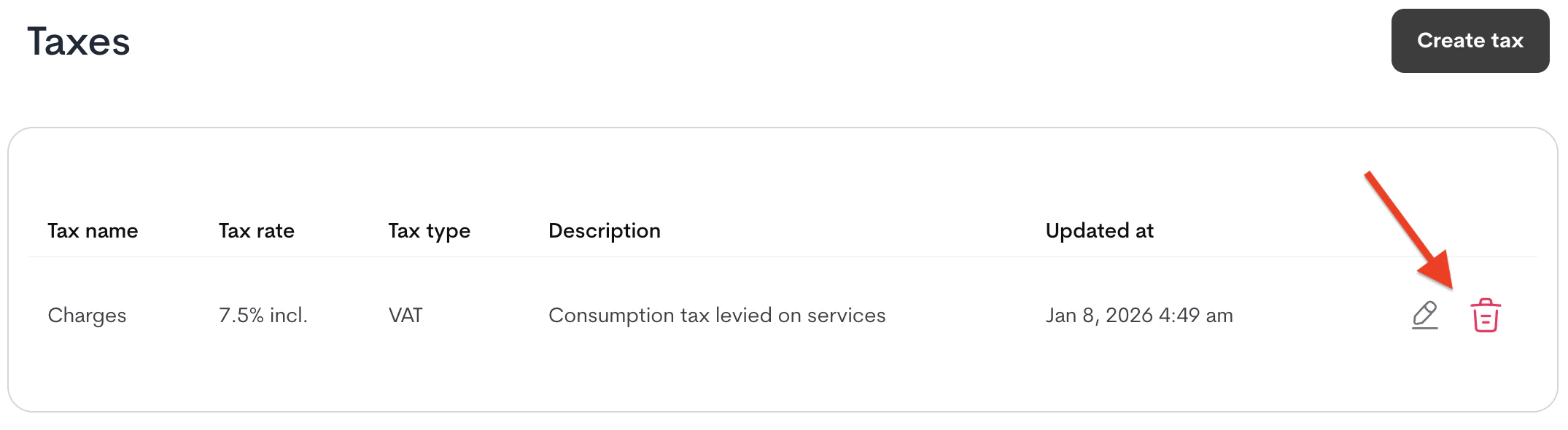
From the **Catalog → Taxes** list:
* **Edit**: Click the pencil icon next to a tax → update fields → save.
* **Delete**: Click the bin icon → confirm deletion (only possible if tax not in use on live plans).
4. Click **Create tax**.
## **Managing Taxes**
From the **Catalog → Taxes** list:
* **Edit**: Click the pencil icon next to a tax → update fields → save.
* **Delete**: Click the bin icon → confirm deletion (only possible if tax not in use on live plans).
 ## **Applying Taxes**
Taxes are selected per priced component:
1. When configuring pricing (e.g., + Add base price, + Add feature → Priced, + Add credit → Priced, etc.).
2. Look for the **Tax** dropdown in the modal.
3. Select your created tax (or "None"). The modals allows "Create tax" for a quick addition.
Taxes apply automatically to qualifying invoices based on customer region (if configured).
**Important Notes**
* Taxes only apply to **priced** components (not included/free entitlements).
* Changes to taxes propagate to live plans immediately (no new version needed).
* See Plans/Features/Credits docs for where the Tax dropdown appears.
## **Applying Taxes**
Taxes are selected per priced component:
1. When configuring pricing (e.g., + Add base price, + Add feature → Priced, + Add credit → Priced, etc.).
2. Look for the **Tax** dropdown in the modal.
3. Select your created tax (or "None"). The modals allows "Create tax" for a quick addition.
Taxes apply automatically to qualifying invoices based on customer region (if configured).
**Important Notes**
* Taxes only apply to **priced** components (not included/free entitlements).
* Changes to taxes propagate to live plans immediately (no new version needed).
* See Plans/Features/Credits docs for where the Tax dropdown appears.