

Overview
Features are the foundational units of monetization in Metrifox. They represent monetizable functionality, resource or value in your product, enabling flexible pricing, packaging, and usage tracking. Once you integrate Metrifox with your codebase, you can create and monetize unlimited features, without additional engineering work. This lets you experiment with pricing, packaging, and easily track its usage, control who has access to it, and include it in different pricing plans, add-ons or single purchases entirely from the Metrifox dashboard. Think of features as the core components you use to build your pricing models. Instead of just creating a plan for “premium,” you can break down your product into individual features like:- Boolean features: A simple on/off function, such as “access to analytics dashboard.”
- Metered features: A function that is tracked by usage or outcome, such as “500 API calls per month”, “monthly active users” or “qualified lead”
Creating a feature
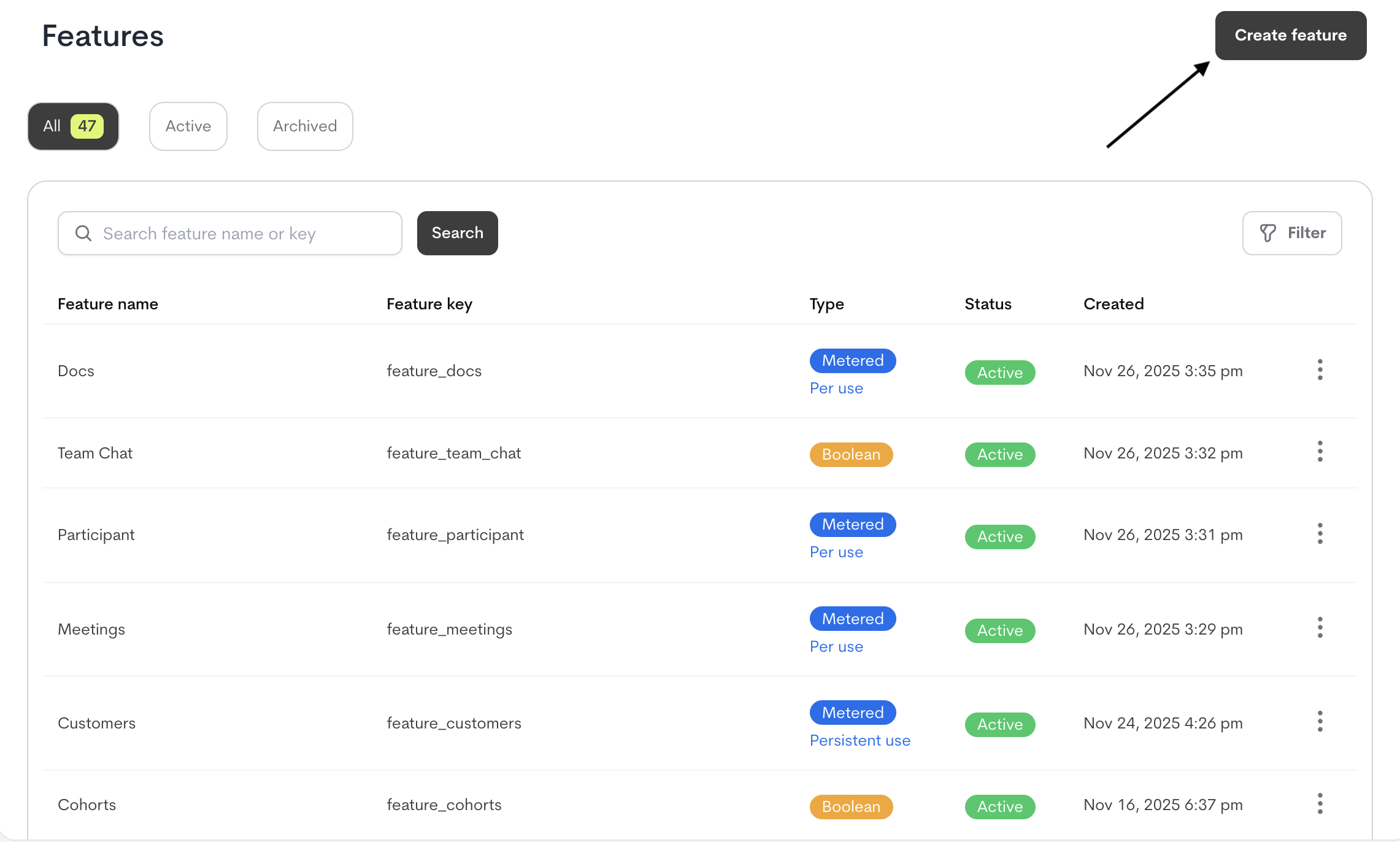
- Navigate to the Catalog section in Metrifox.
- Open the Features sub-section.
- Click the “Create Feature” button.
- A modal is displayed for you to define the Feature details
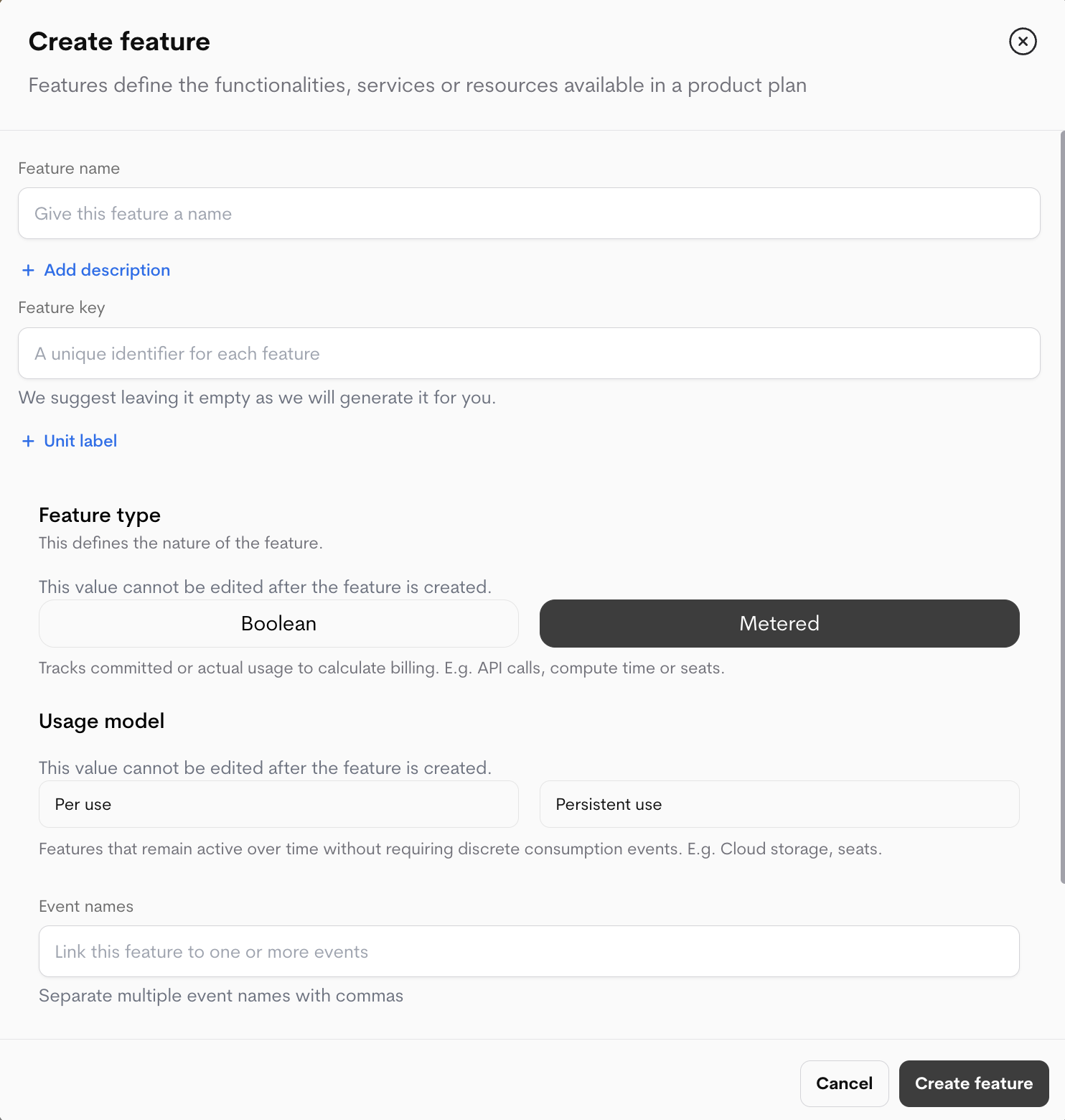
Metered Features Settings (appear only when Metered is selected)
These settings become available only when Metered is selected:1
Select Feature Type
Choose “Metered” as the feature type when creating a new feature that you want to be tracked by usage or outcome.
2
Configure Metering
Metered features require the following settings:1. Usage Type (Required)Defines how usage is recorded and reset:Every event is kept, whether or not it counted. A repeat is stored with the
- PER USE
- Discrete, event-based actions (e.g., API calls, emails sent).
- Usage resets at the end of each reset period.
- PERSISTENT USE
- Ongoing usage that accumulates (e.g., storage, seats).
- Does not reset; capacity limits can be adjusted.
- A unique label to send usage data or outcome event for metering, multiple event names are supported(comma-seperated). e.g.,
image_generated,api_call_executed.
Use
SUM when the quantity carries meaning — bytes stored, minutes used, tokens
consumed — or when you batch several occurrences into one event and send the total.Use COUNT when you want the events themselves counted. The quantity is treated as
1 no matter what you send, so it is not a way to record a total.Use COUNT_UNIQUE when repeated events about the same thing should record nothing after
the first. Only the sign of the quantity is read: a positive quantity counts the value and a
negative one releases it.Aggregation propertiesA feature using COUNT_UNIQUE must be configured with one or more event properties — the
values it counts distinct occurrences of. Every event must carry them under a properties
object:quantity you
sent — it stays an accurate record of what your system did — and simply records no usage. Only
the first event carrying a given value moves the count. So five events for account_id: acct_1
in one period leave five events on the customer’s timeline and 1 unit of usage.Configuring several properties counts distinct tuples, not distinct values of each
property separately. ["workspace_id", "user_id"] counts distinct workspace-and-user
pairs, so the same user seen in two workspaces records 2.Values are matched exactly. ACC_1 and acc_1 are two different values and each records
its own unit.The period a value counts within- PER USE — the set of seen values resets at the end of each billing period. A value seen again in the new period records a unit again.
- PERSISTENT USE — a value records once and stays counted until you release it. Send an event with a negative quantity and the same property values to release it; this is how a seat or account is deactivated. A released value records again the next time it is seen.
MIN, MAX, LATEST and AVERAGE are not yet available. Use SUM, COUNT or
COUNT_UNIQUE.3
Complete Creation
-
Click “Create a Feature” to finalize.
Example Configuration
Managing Your Features
Navigate to the feature list in the Catalog section. From the list of features on the feature page, click the three dots (⋮) menu next to any feature to access management options.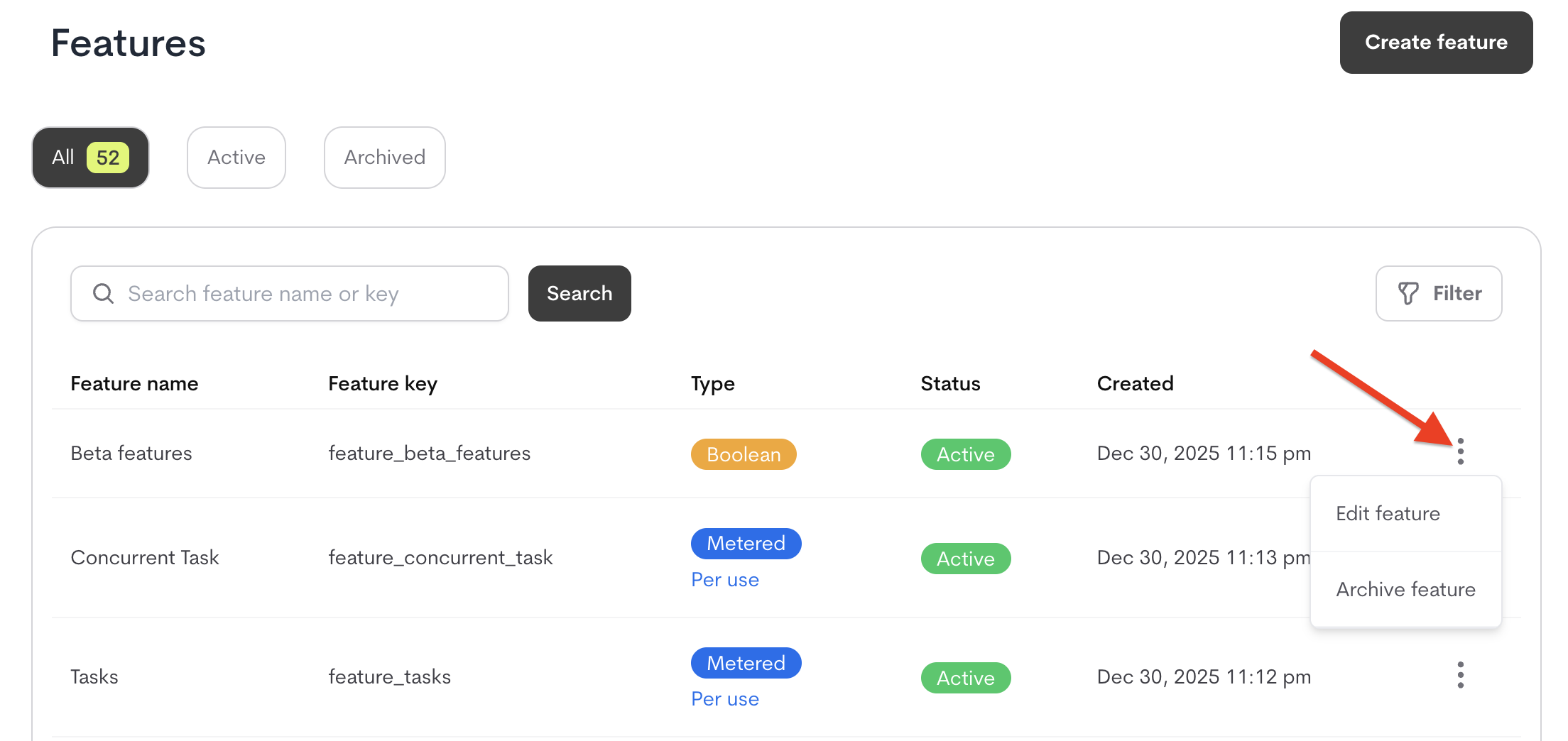
Editing a Feature
To edit a feature:- Locate the Feature
- Click the ⋮ menu icon on the feature’s row
- Select edit
- Update Fields
- Edit any editable fields (Feature name, description, units, etc.)
- Note: Certain properties like the Feature Key and Feature type cannot be modified after creation or if the feature is in use.
- Save Changes
- Click ”Save Changes” to apply your updates.
Archiving Features
When a feature is no longer needed for new customers but may still remain active for existing ones, it can be archived.What Happens When You Archive a Feature?
- Removed from selection lists: Won’t appear when creating new plans/add-ons.
- Existing access preserved: Current customers keep access through old plan or add-ons versions
- Feature key remains reserved: Cannot be reused for new features
How to Archive a Feature
- Click the ⋮ menu icon on the feature’s row
- Select “Archive feature”
- In the confirmation modal:
- Click the “Archive feature” button
Prerequisites for Archiving
- The feature must not be used in any published plans or add-ons
- If in use:
- Create new versions of affected plans/add-ons without the feature
- Publish the new versions
- Then archive the feature