

- “How many subscribers does each plan have?”
- “Show me the MRR trend for the last 6 months”
- “What invoices are overdue for customer Acme Corp?”
- “Create a new Pro plan with a 14-day free trial”
Server endpoint
Connecting your AI assistant
For Claude on the web and most chat-style clients, the easiest path is OAuth: add the server URL, then sign in with Metrifox the first time you use the connector — no API key in the UI. API keys are a good fit when you want a static token, explicit read/write scopes, or a client that only supports custom headers. Both approaches are covered in Authentication (after the client-specific steps below).Claude (claude.ai)
- Go to Settings > Connectors (or click your profile picture → Settings → Connectors).
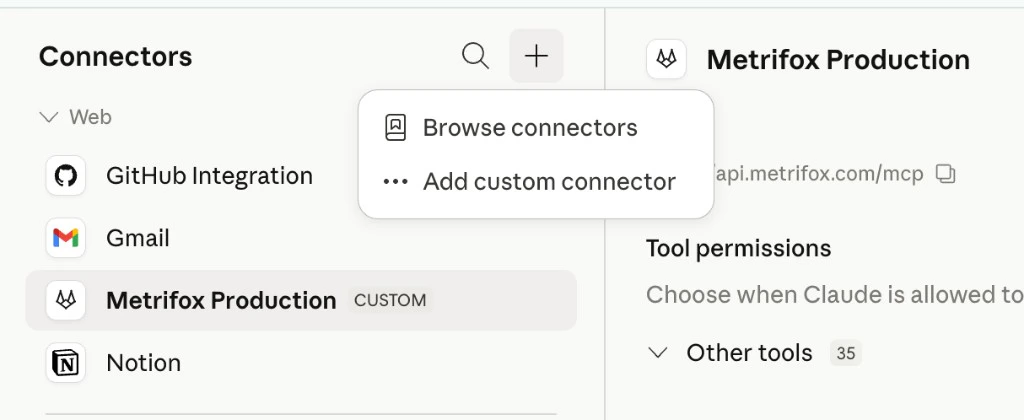
- Click the + button next to Connectors, then choose Add custom connector.
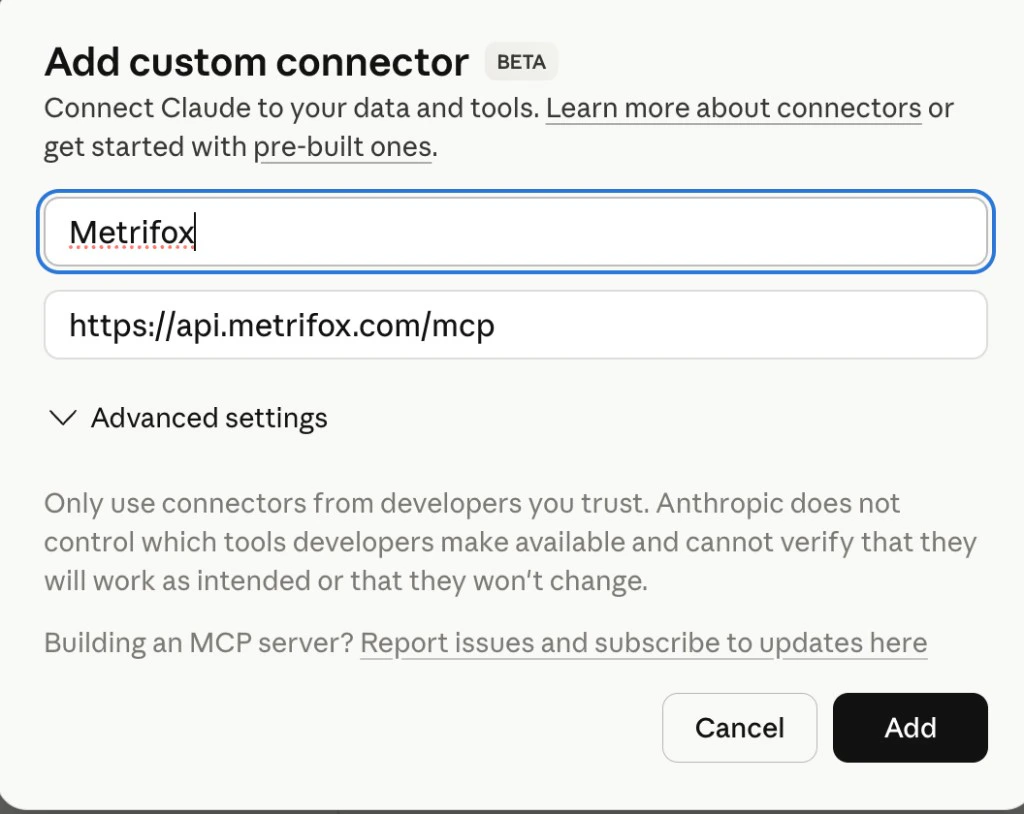
- Enter a connector name (for example, Metrifox) and the endpoint URL
https://api.metrifox.com/mcp, then click Add.
- Follow the prompts to authorize with your Metrifox account when Claude connects for the first time.
Claude Desktop
Add this to your Claude Desktop config file (~/Library/Application Support/Claude/claude_desktop_config.json on macOS):
Cursor
- Open Settings > MCP
- Click Add new MCP server
- Set the transport to Streamable HTTP
- Enter
https://api.metrifox.com/mcpas the URL - For API key auth, add the header
x-api-keywith your key. For OAuth, leave headers empty — Cursor will handle the login flow.
Windsurf
Add to your Windsurf MCP config:Other MCP clients
Any MCP-compatible client that supports Streamable HTTP transport can connect. Configure it with:- URL:
https://api.metrifox.com/mcp - Auth: Either
x-api-keyheader or OAuth (the server advertises OAuth discovery at/.well-known/oauth-authorization-server)
Authentication
Metrifox supports two ways to authenticate MCP requests:OAuth
Use OAuth when your client supports it — including Claude (claude.ai), Cursor (leave custom headers empty), and Claude Desktop without storing a secret in JSON. The server implements OAuth 2.0 authorization code with PKCE. Your client handles discovery, authorization, and token exchange. The first time you connect, you sign in with your Metrifox credentials. Tools and data are limited to the logged-in user’s role permissions. For example, a user who can only view customers will not see invoice or subscription tools.API key
Use an API key when you need a long-lived token, automation outside a browser login, or fine-grained read / write scopes on the key itself.- Go to Developers > API Keys in your Metrifox dashboard
- Create or copy an existing API key
- Pass it as a header:
x-api-key: sk_live_your_key_here
API keys have read and write scopes that control what actions they can perform. Tools that create or modify data (like creating products or plans) require write scope.
What you can do
Once connected, your AI assistant has access to 35 tools spanning read and write operations across your Metrifox account.Query your data
- Customers — search and filter customers, get full details including subscriptions, payment methods, and credit wallets, and track customer growth trends over time
- Invoices & billing — view invoices by status (paid, overdue, etc.), pull billing history for any subscription, and get monthly invoice statistics broken down by currency
- Usage & entitlements — see what features a customer has access to, their usage breakdown by pool, and usage trends over time with daily, weekly, or monthly granularity
- Products & plans — browse products, view plan summaries, detailed pricing configurations (including localized pricing), entitlements, and subscriber counts per plan version
- Revenue — get MRR trends over time (account-wide or per-plan), per-plan revenue breakdowns based on actual invoices, and product-level MRR comparisons
Build and configure your catalog
- Create products — set up new products with name, description, and currency
- Create and manage features — define boolean or metered features with usage models, aggregation methods, and event tracking
- Create and configure plans — build plans within a product, set billing intervals, attach feature entitlements with allowances and reset intervals, configure base prices, and control plan visibility
- Set up trials — enable or disable free trials on plans with configurable duration and post-trial behavior (cancel, convert to paid, or fall back to default plan)
- Organize plans — set upgrade/downgrade hierarchy and designate default plans
Utilities
- Generate charts — create bar, line, pie, or doughnut charts from any data to visualize trends
- Search docs — look up Metrifox product documentation on any topic
The full list of tools and their parameters are automatically discovered by your MCP client when it connects — no manual configuration needed.
Permissions
How permissions work depends on the authentication method:
For OAuth users, tools are grouped by permission subject: customers, invoices, subscriptions, and product catalog. A user needs the relevant “view” permission to query data and the “manage” permission to create or update resources. Utility tools like chart generation and documentation search are always available.