

Overview
Dunning is the process of recovering failed subscription payments. When a recurring payment fails (for example, due to an expired card, insufficient funds, or a temporary bank issue), dunning automatically retries the charge and notifies the customer so they can update their payment method before access is interrupted. Metrifox ships with a default dunning preset that:- Automatically retries failed auto-collect payments up to 3 times over a 7-day window.
- Pauses the subscription during retries attempts.
- If recovery is unsuccessful, leaves the invoice overdue and cancels the subscription.
Creating a Dunning Preset
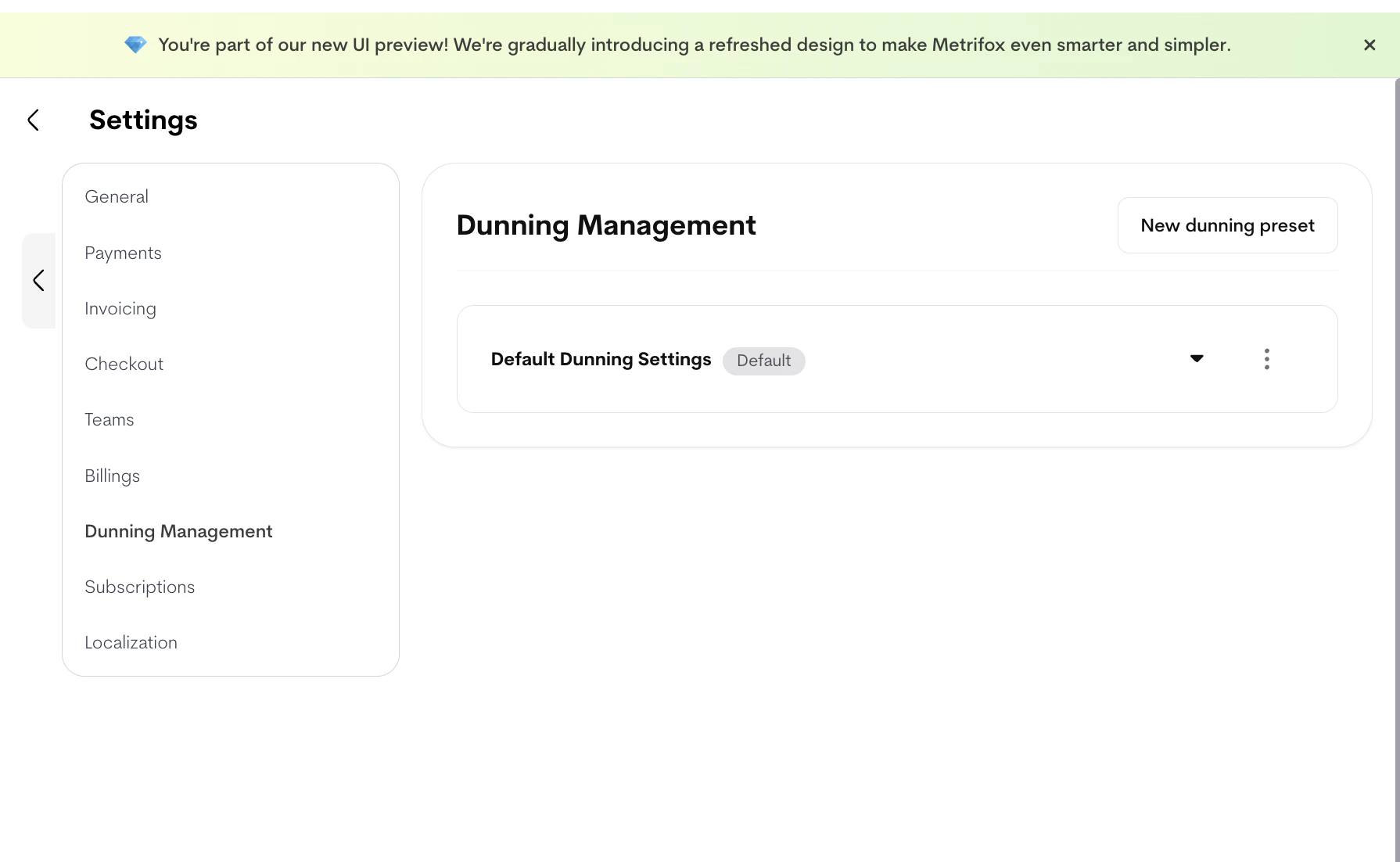
Dunning presets are managed globally and can be reused across products.- Navigate to Settings → Dunning management.
-
Click New dunning preset.
-
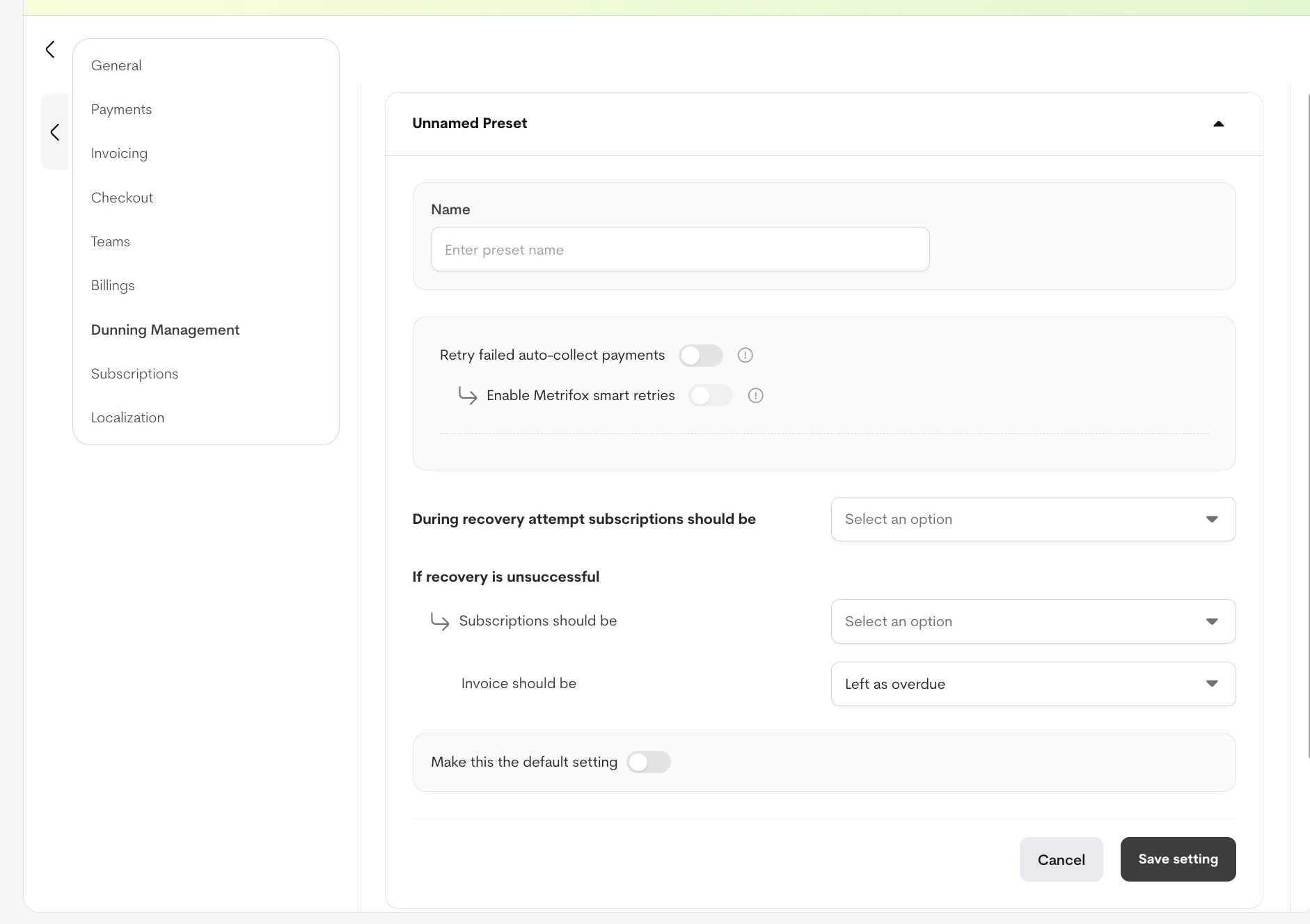
Configure the preset:
- Name: A clear, descriptive name (e.g., “Standard card retries”).
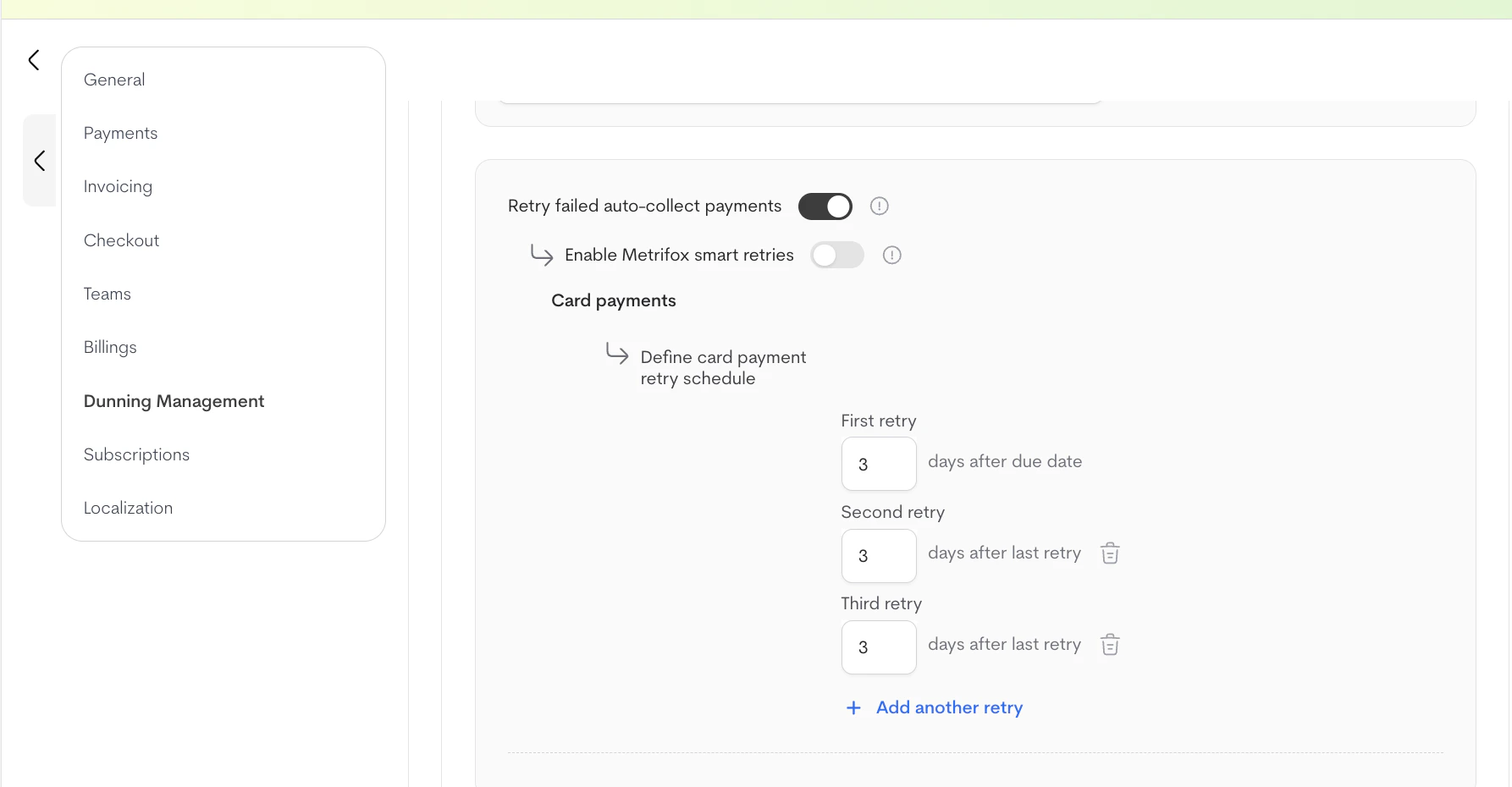
- Retry failed auto-collect payments: When enabled, Metrifox will attempt to collect payment again if the initial attempt fails.
- Enable Metrifox smart retries: Metrifox uses a smart algorithm to optimize retry timing and increase collection success rates.
Available when: Retry failed auto-collect payments is enabled. - Define card payment retry schedule: Manually configure how many days to wait between each retry, up to a maximum of 8 retries.
Available when: Retry failed auto-collect payments is enabled and Smart retries is disabled.
-
Set what happens during recovery attempts:
- Pause subscription — the customer loses access until payment succeeds.
- Keep active until manually cancelled — the customer keeps access while retries run.
-
Set what happens if recovery attempts fail:
- Subscription outcome: choose one of
- Cancel subscription
- Keep active after dunning
- Pause subscription after dunning fails
- Invoice outcome: choose one of
- Mark as written off
- Leave overdue
- Leave overdue for a specific number of days
- Subscription outcome: choose one of
- Click Save to store the preset.
- (Optional) Click Mark as default to make this the default dunning preset for new products.
Applying Dunning to a Product
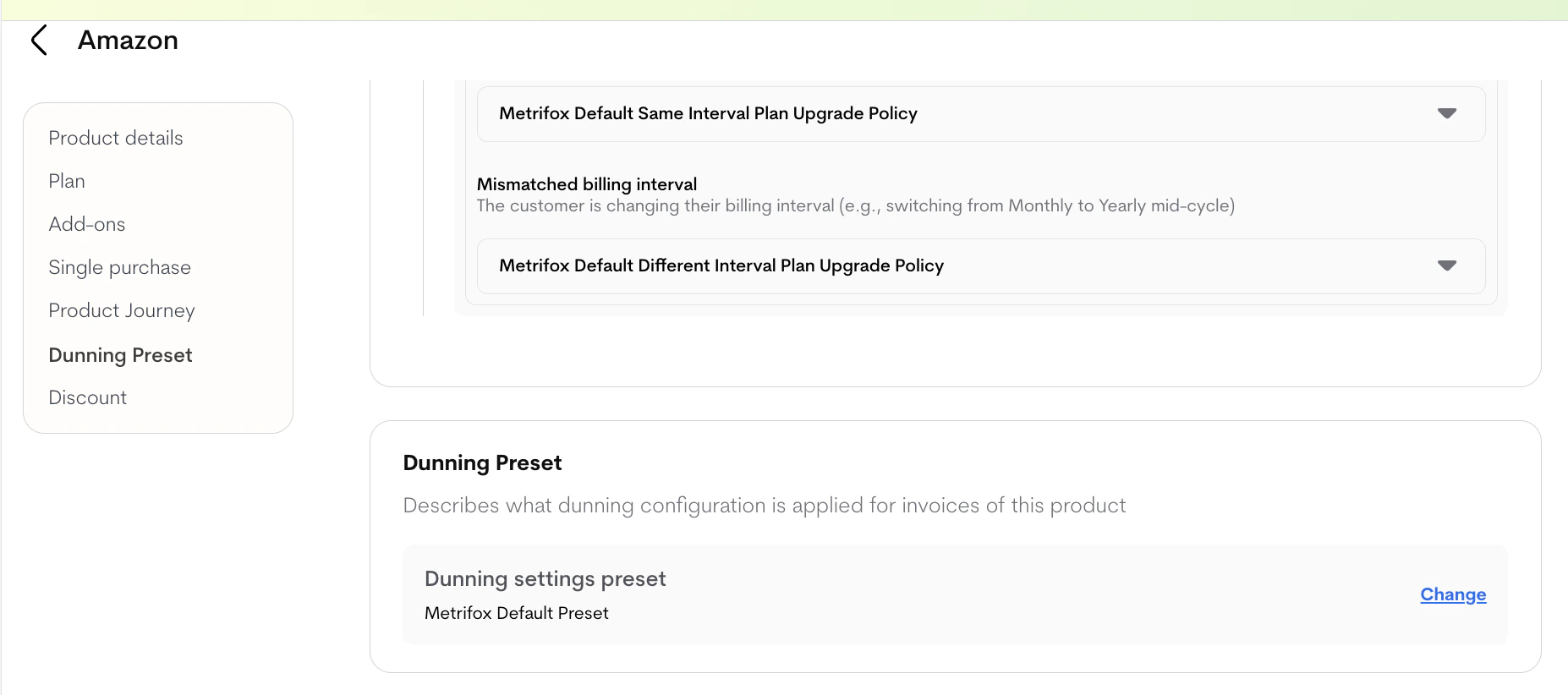
Each product uses the global default dunning preset unless you override it.- Open the product you want to configure.
- Open the Dunning setting on the product.
-
Select any preset created under Settings → Dunning management. The default preset is selected automatically.
- Smart retries and a custom retry schedule are mutually exclusive — only one can be active at a time.
- The maximum number of manual retries is 8.
- Changing the default preset does not retroactively change products already using a different preset.