Overview
Discounts let you reduce the amount a customer pays for products, plans, or purchase items. You can use discounts to:- Run promotions and seasonal campaigns
- Offer partner or enterprise pricing
- Reward loyal customers
- Apply special pricing for selected customer groups
Creating a Discount
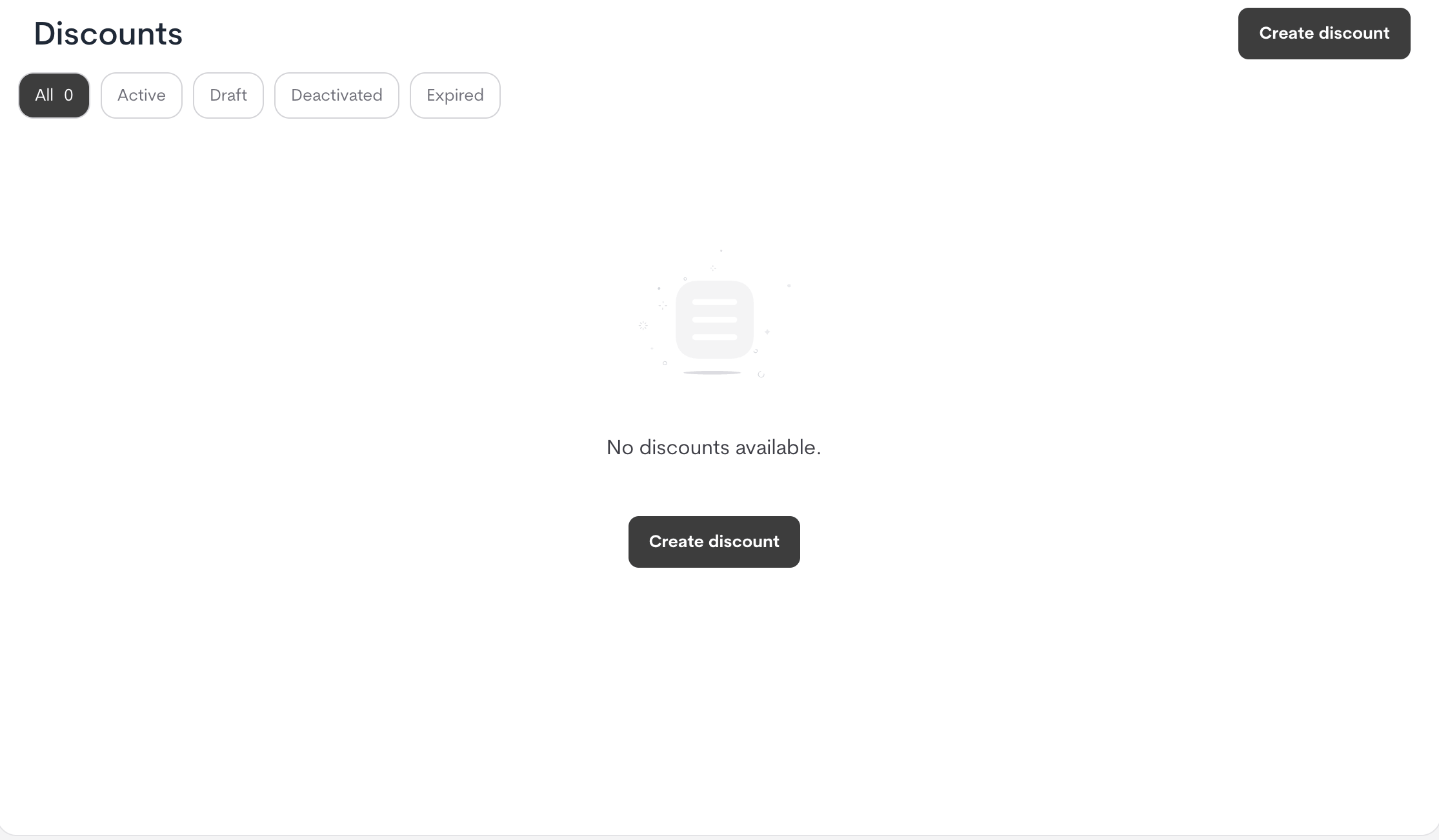
- Navigate to Offers → Discounts.
-
Click Create discount.
-
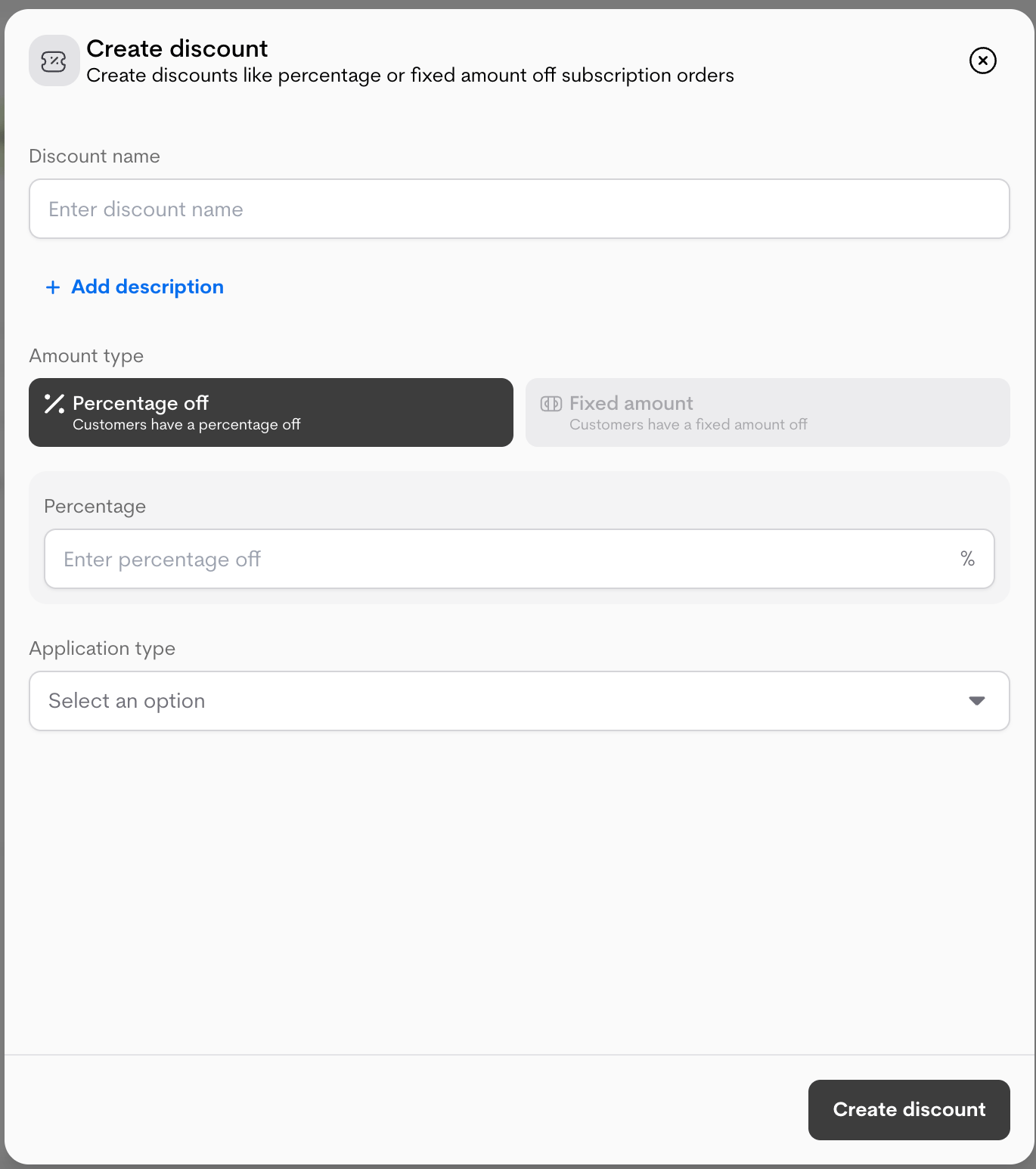
Fill in the basic details:
- Discount name
- Description (Optional)
- Amount type (currently percentage)
- Percentage (%)
-
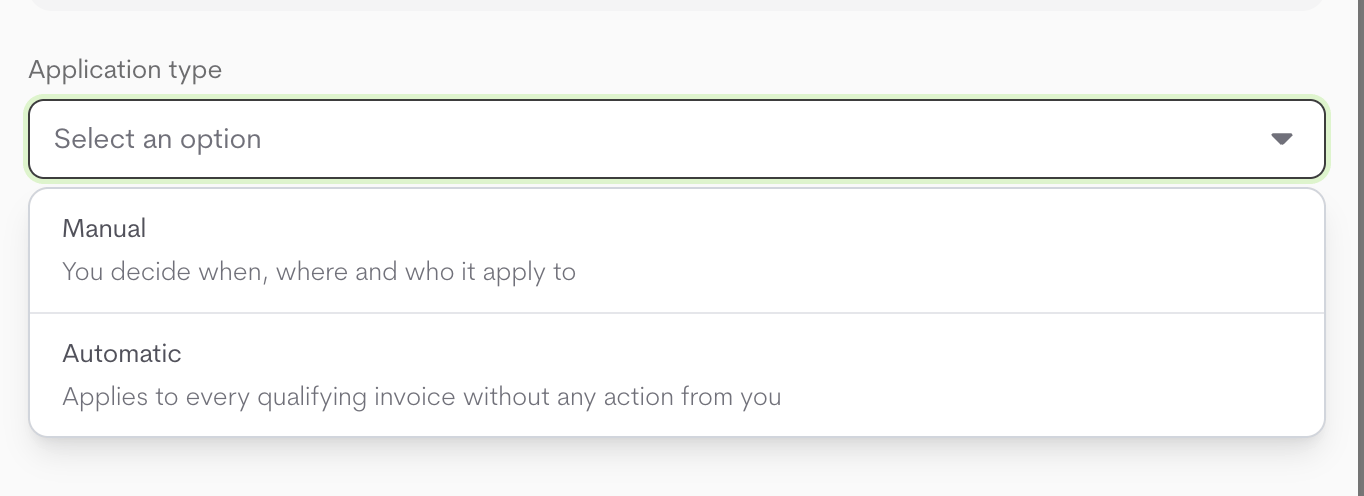
Choose Application type:
- Manual: Applied when selected during manual subscription/invoice flows.
- Automatic: Applied automatically to eligible invoices based on configuration rules.
- Manual discounts: active immediately after creation.
- Automatic discounts: created in Draft. You can activate them manually, or have them activate automatically on the date you set.
Automatic discount
When Application type is Automatic, configure lifecycle, limits, scope, and eligibility.Discount lifecycle
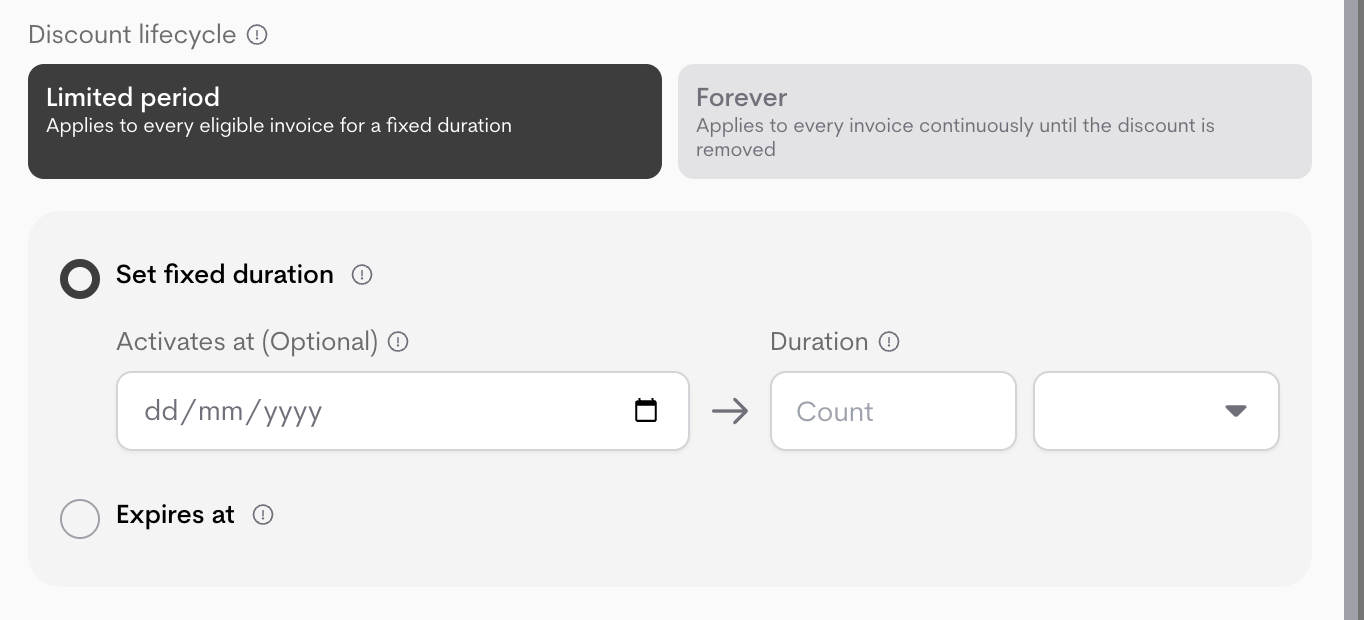
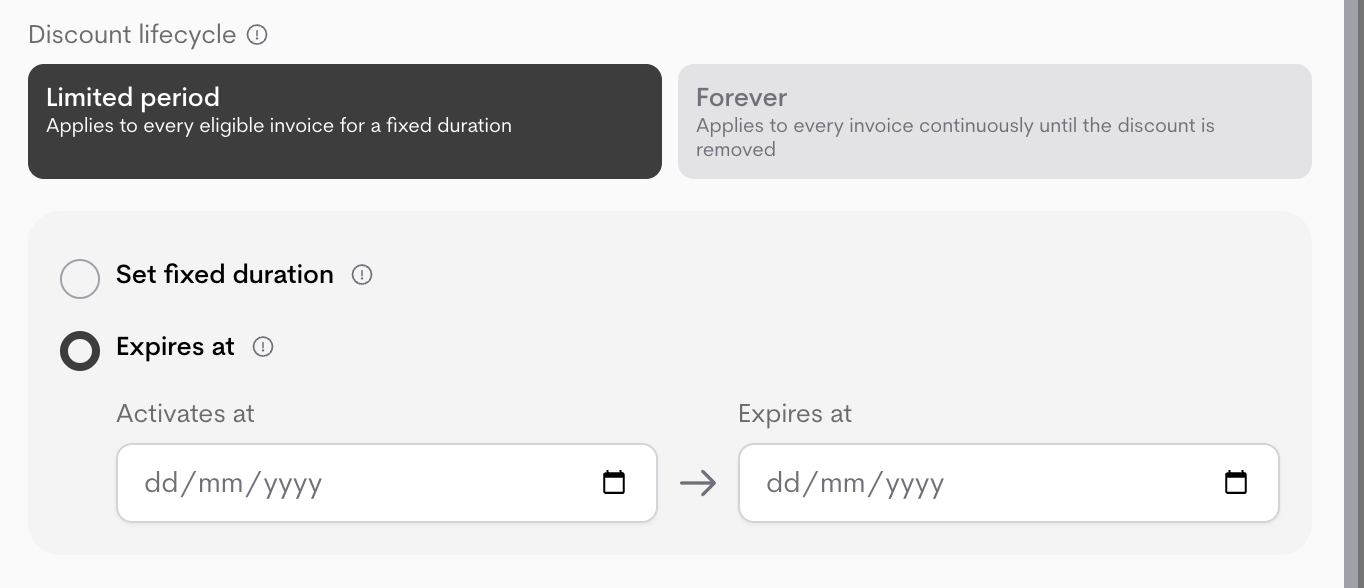
Choose how long the discount remains active:- Forever: Applies to every eligible invoice continuously until deactivated.
- Limited period:
- Set fixed duration (optionally set activation date, then duration + unit)
- Expires at (set activation and end dates)
Redemption limits
- Per customer usage limit: Set how many times each customer can redeem the discount.

Scope
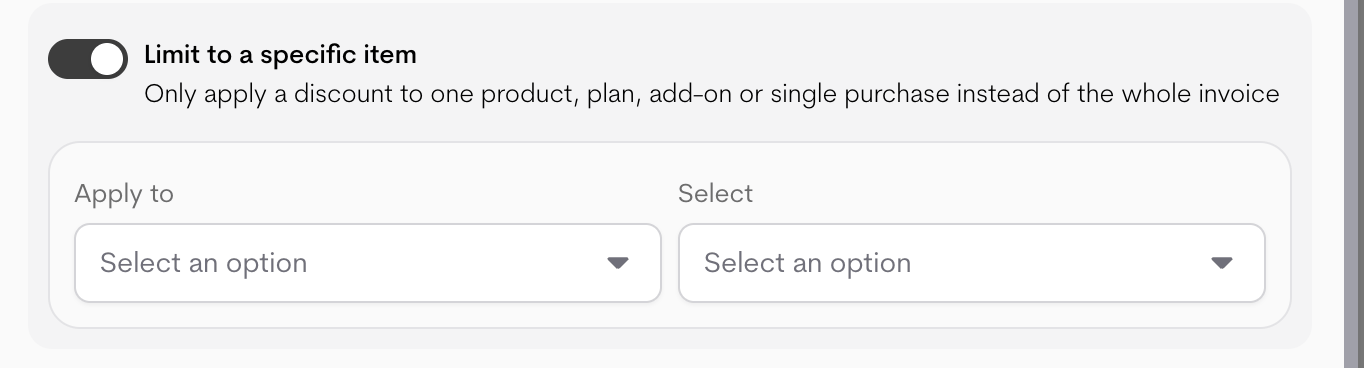
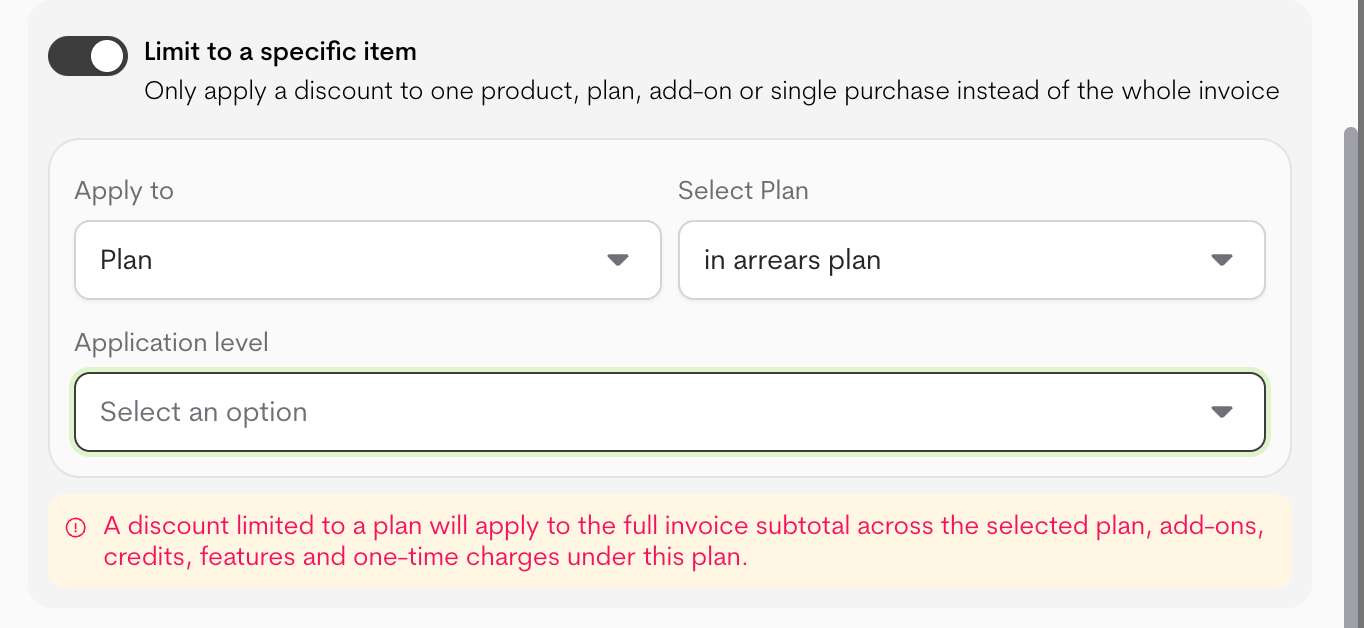
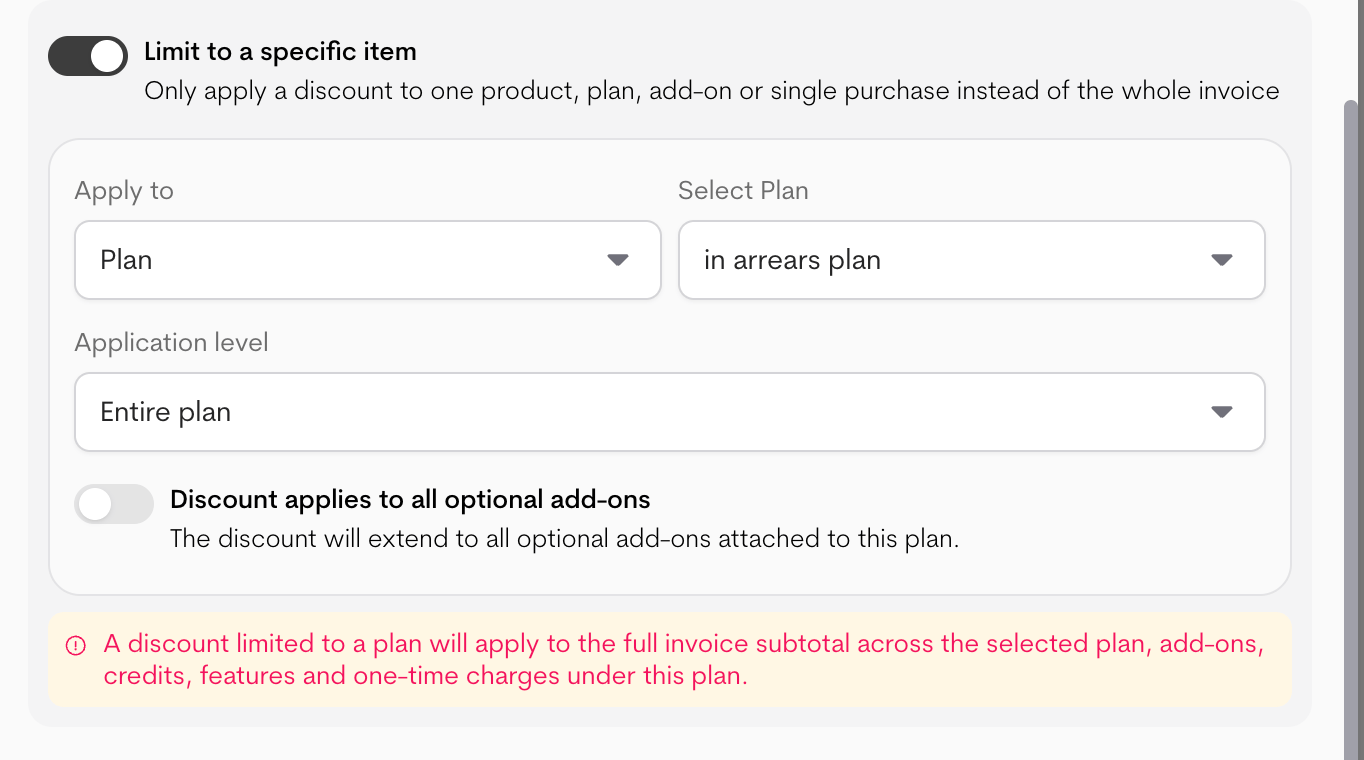
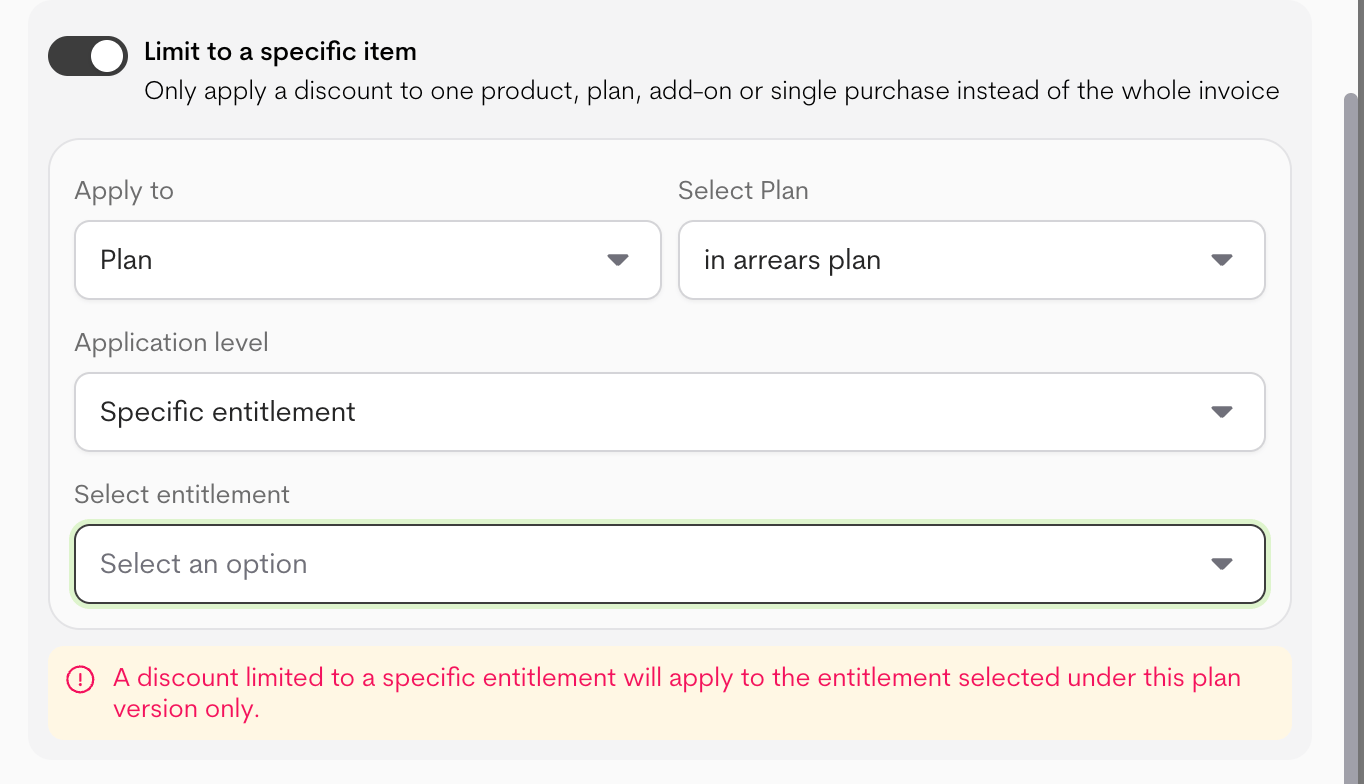
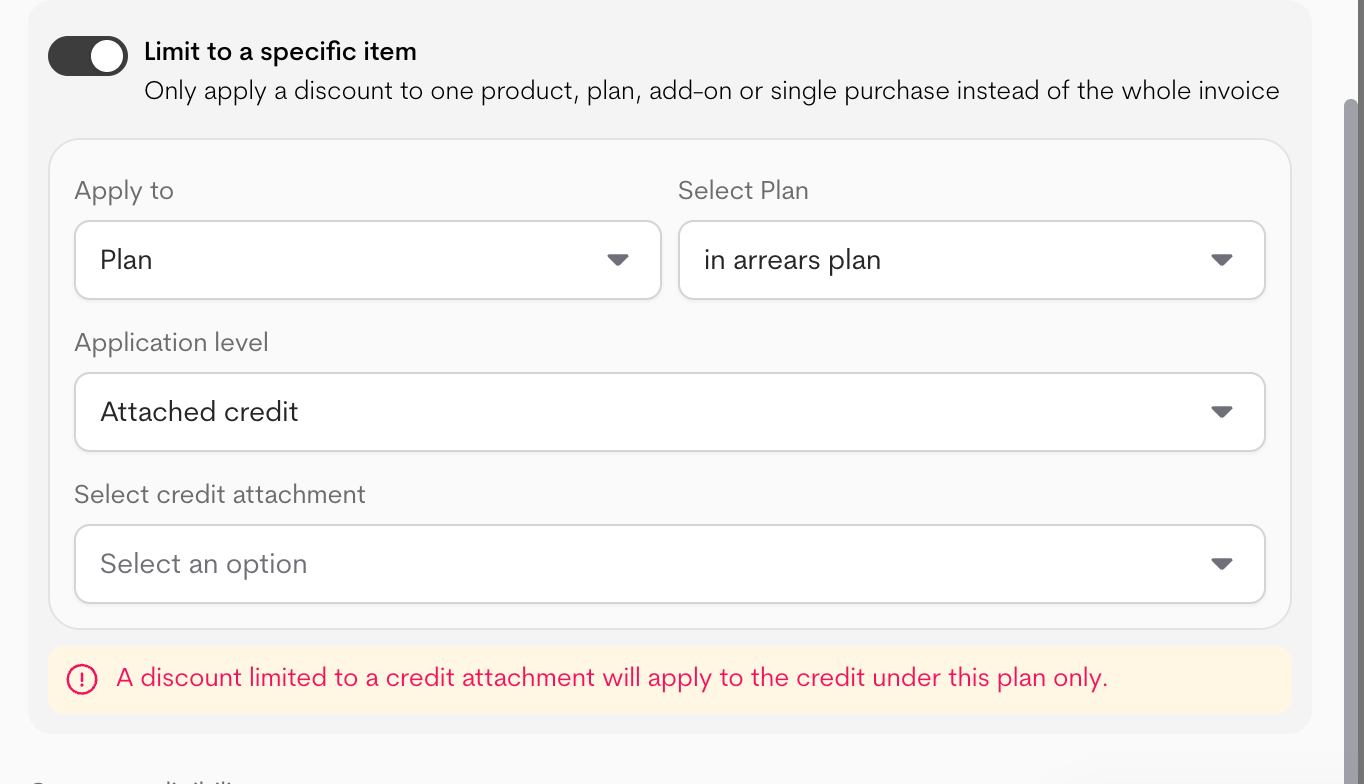
Apply the discount to a specific scope instead of the full invoice. When limiting to a specific item, set:- Apply to: Product, Plan, Add-on, Single purchase, One-time charge, Feature, or Credit.
- Select item: Choose the specific item the discount should apply to.
- Application level (Plan only): Entire plan, specific entitlement, or attached credit.
- If Entire plan is selected, you can optionally toggle Discount applies to all optional add-ons.
- If Specific entitlement or Attached credit is selected, choose the entitlement/credit under that plan.
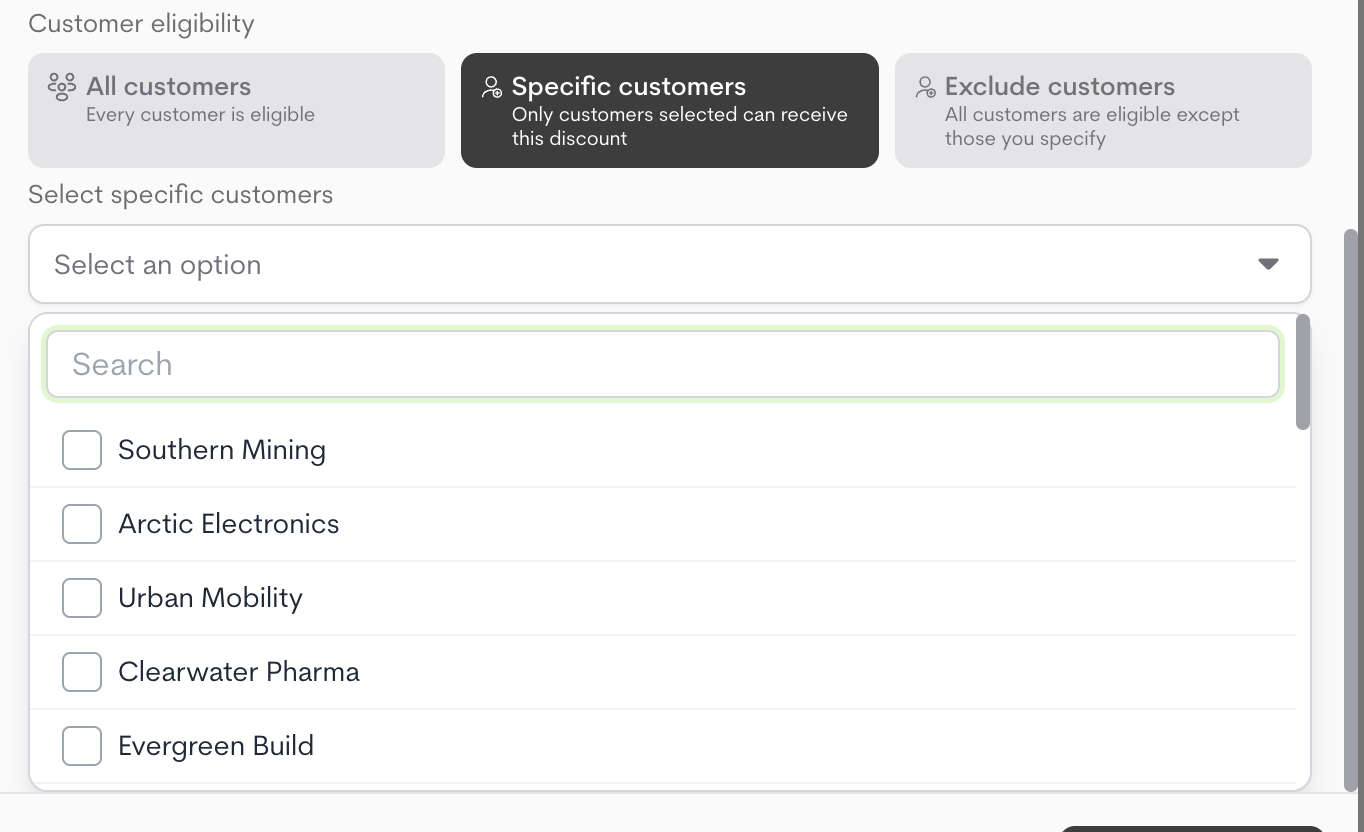
Customer eligibility
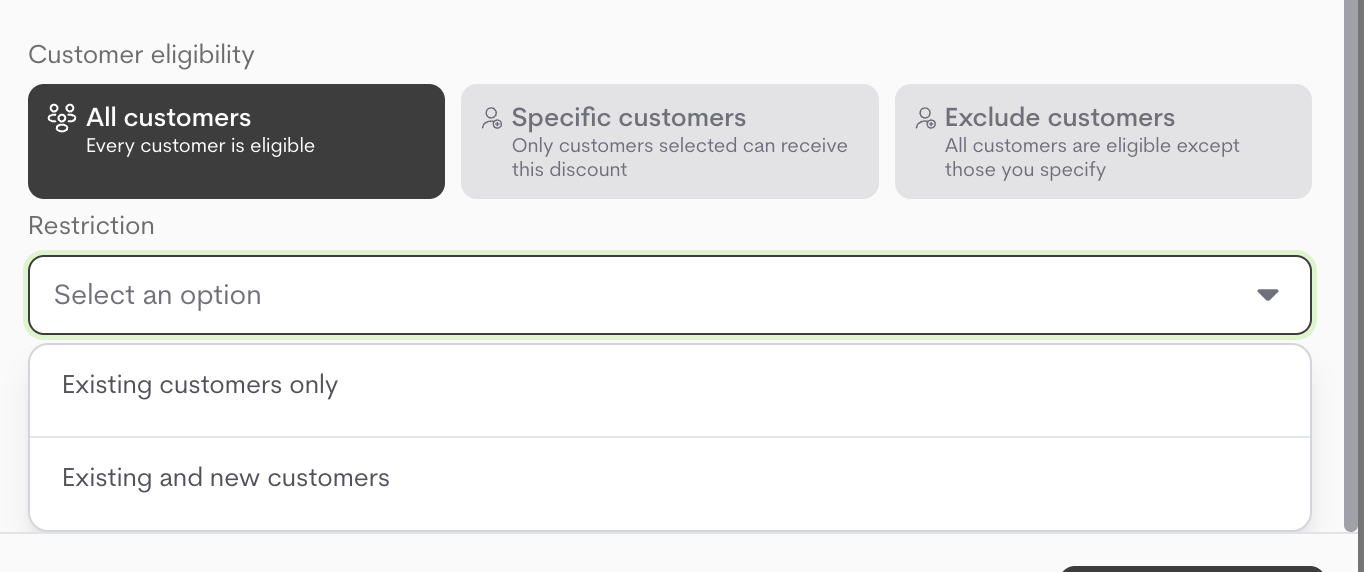
Choose who can receive the discount:- All customers
- Specific customers
- Exclude customers
- Click Create discount to save.
Managing Discounts
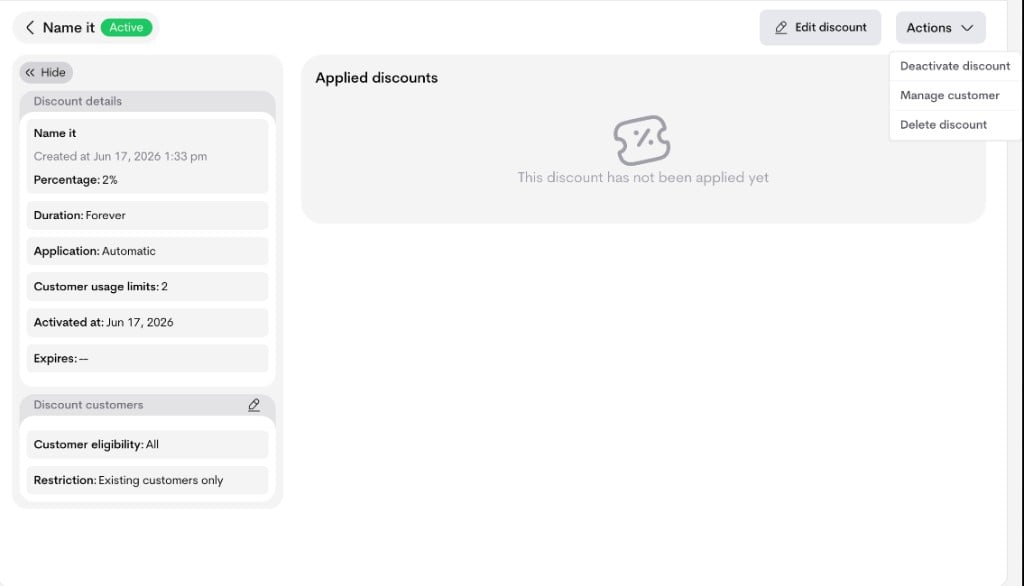
From Offers → Discounts → Discount details page, you can:- Edit discount: Click Edit discount to update configuration fields.
- Activate discount: Use Actions → Activate discount (for draft/inactive discounts).
- Deactivate discount: Use Actions → Deactivate discount to stop applying it.
- Manage customer eligibility: Use Actions → Manage customer to update included/excluded customers and restrictions.
- Delete discount: Use Actions → Delete discount to permanently remove it.
Applying Discounts
Automatic discounts
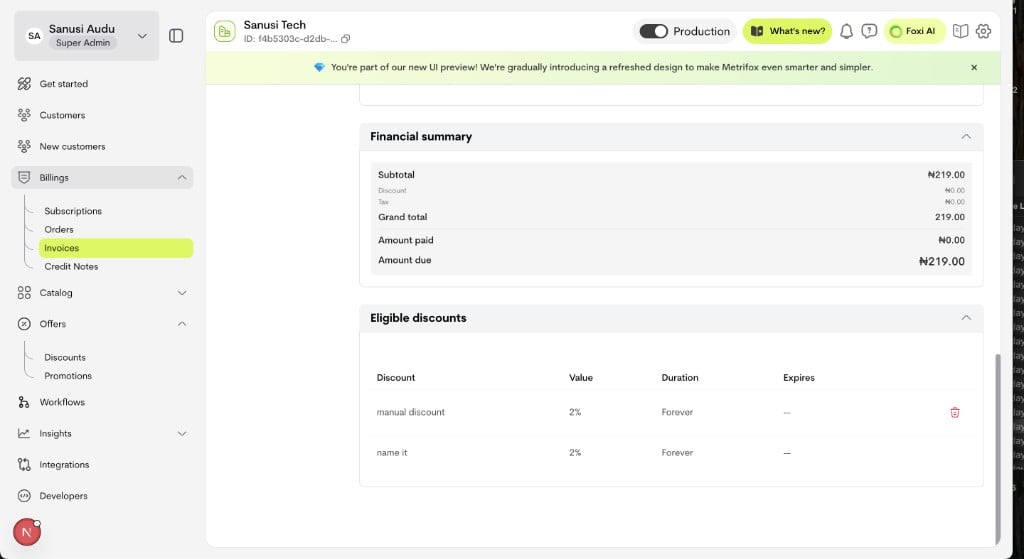
Automatic discounts are applied by Metrifox whenever an invoice or checkout matches the discount rules (lifecycle, scope, and eligibility). You can see applied automatic discounts in:- Checkout or subscription order summary
- Subscription or invoice details (Eligible discounts / applied discount sections)
Manual discounts
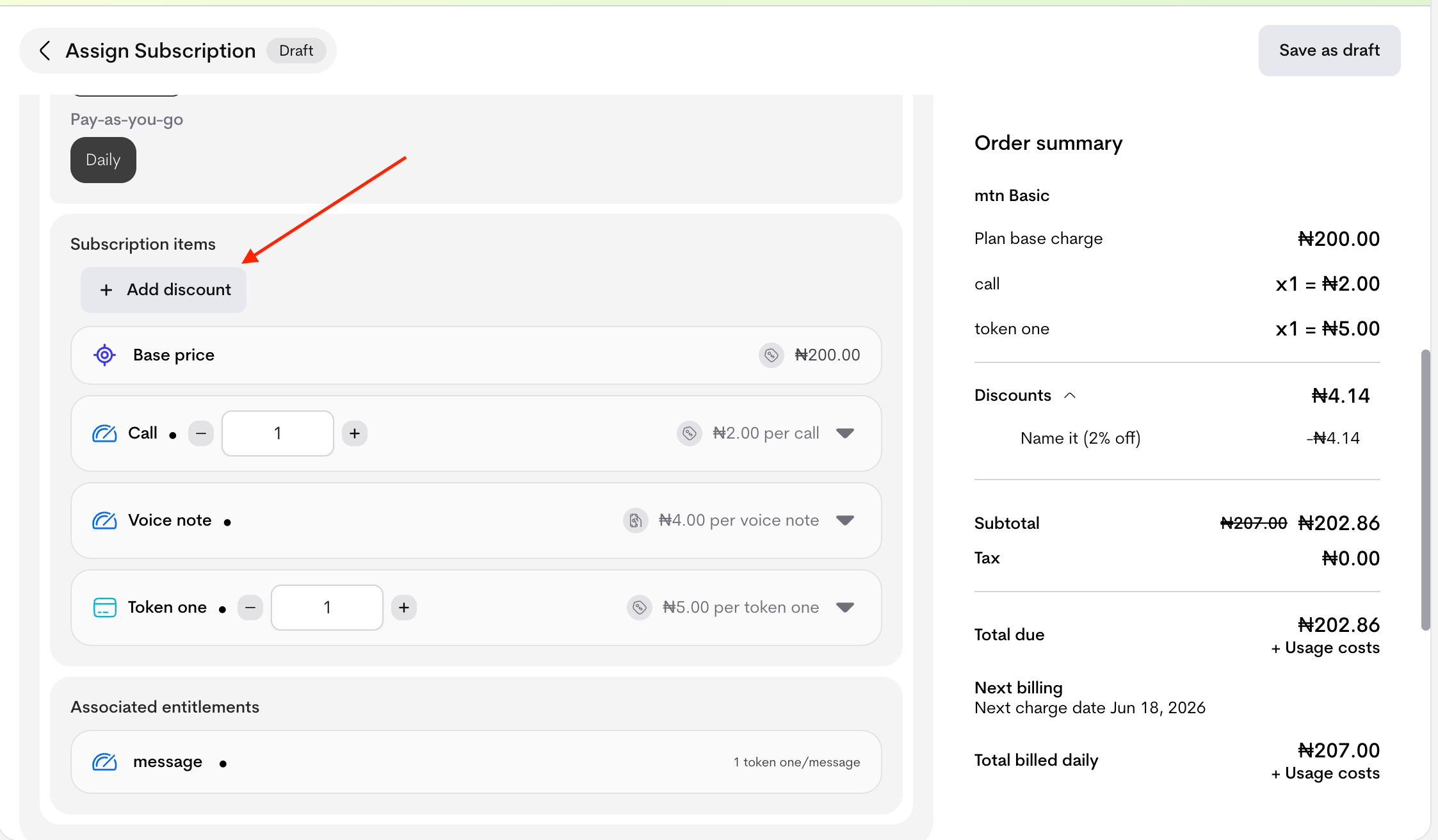
Manual discounts are applied explicitly at runtime from one of these entry points:- Manual subscription flow: Click + Add discount in the Assign Subscription page.
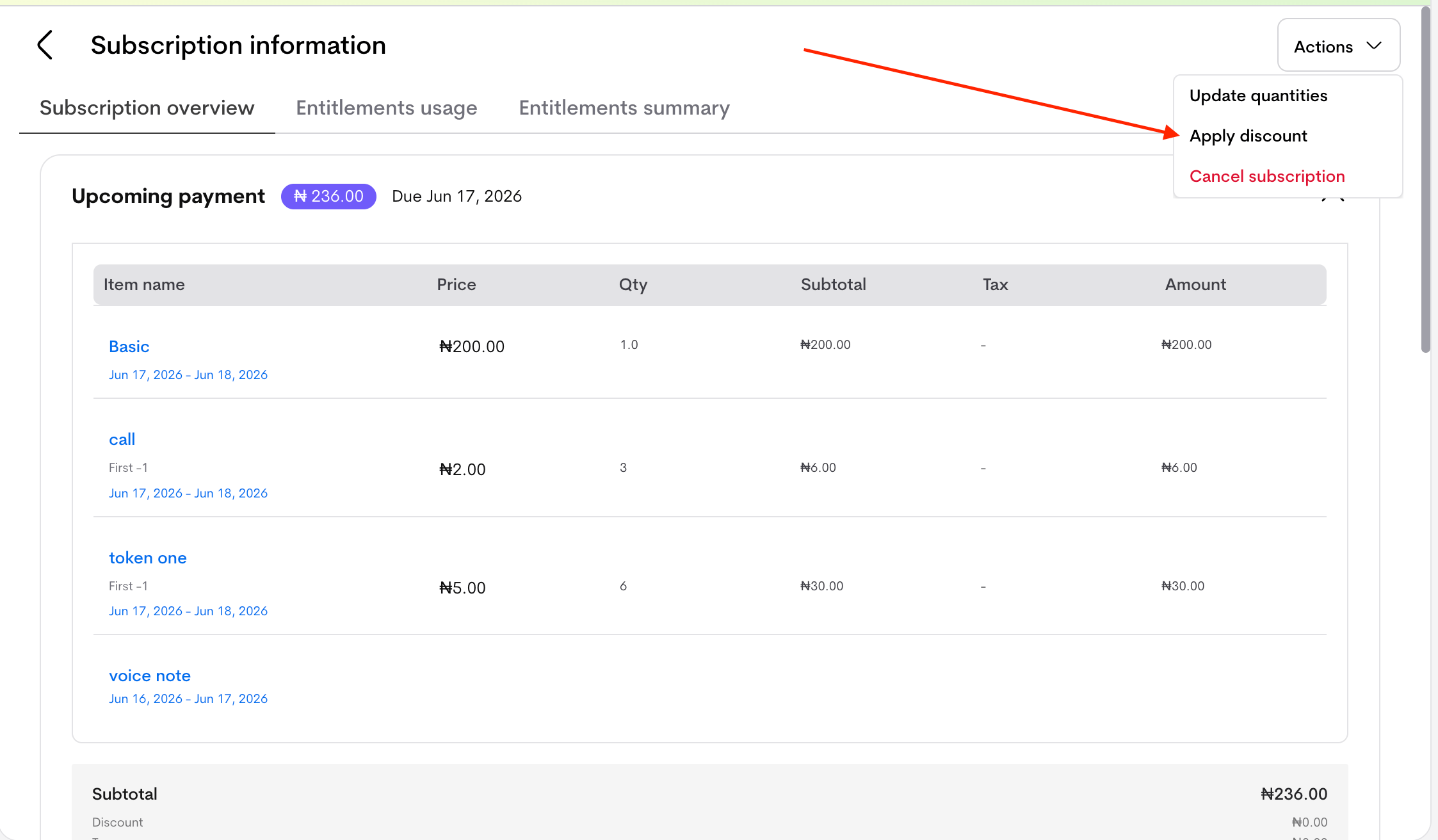
- Subscription details flow: Open a subscription and use Actions → Apply discount. This affects the upcoming invoice only.
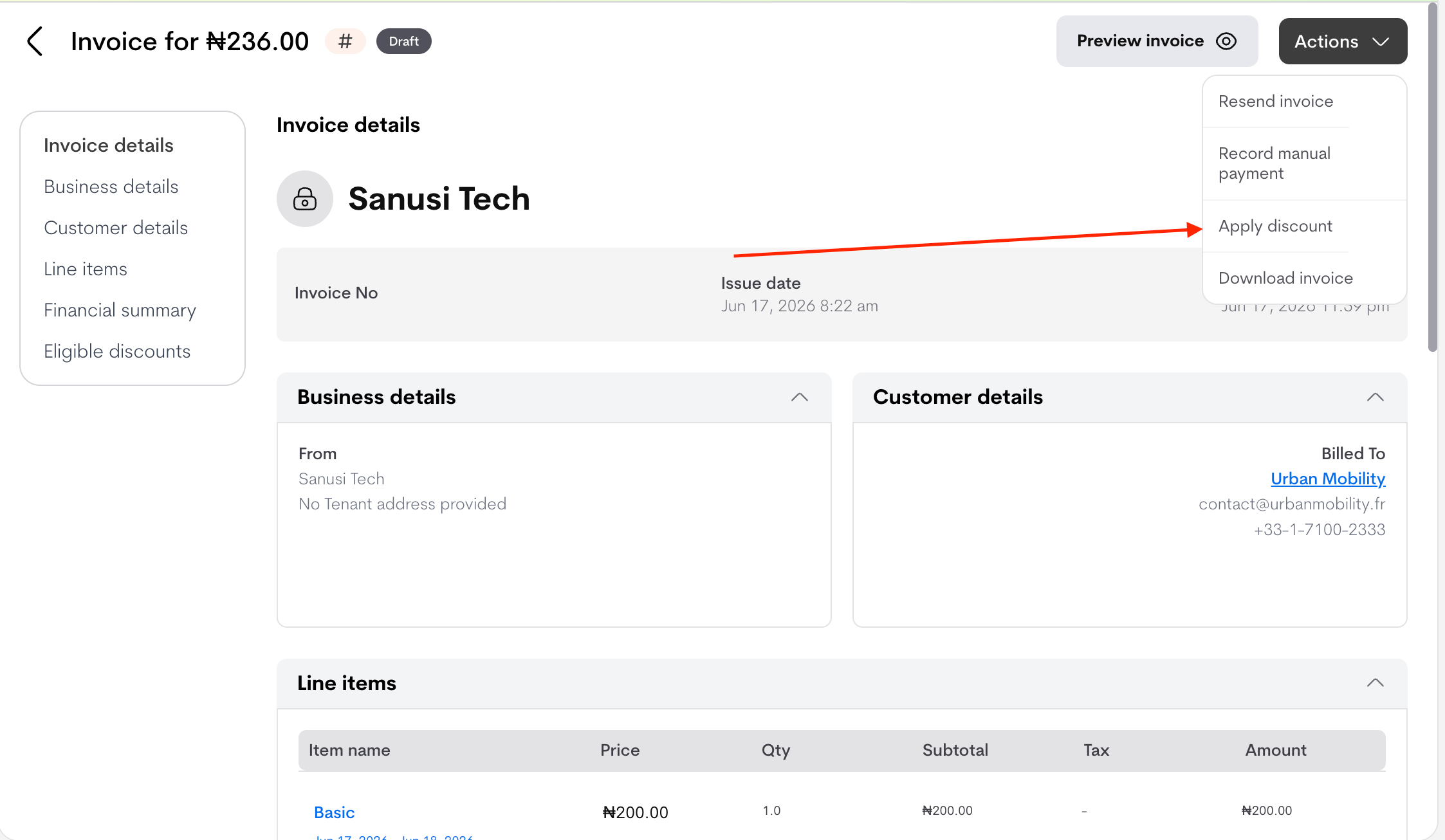
- Invoice details flow: Open a draft invoice and use Actions → Apply discount (manual discounts can only be added to draft invoices).
Steps
- Open the Add discount modal.
- Select the discount.
- Choose scope:
- Apply on entire plan, or
- Apply on specific items
- If Apply on specific items is selected, choose the items to include.
- Click Add discount.
- Subscription details → Eligible discounts section
- Invoice details → Eligible discounts section