

Overview
A credit note reduces the amount a customer owes. Use credit notes to issue goodwill credits, correct billing mistakes, or compensate a customer, without editing an invoice. A credit note is applied against the customer’s next invoice, or you can apply it to a specific open invoice.Creating a Credit Note
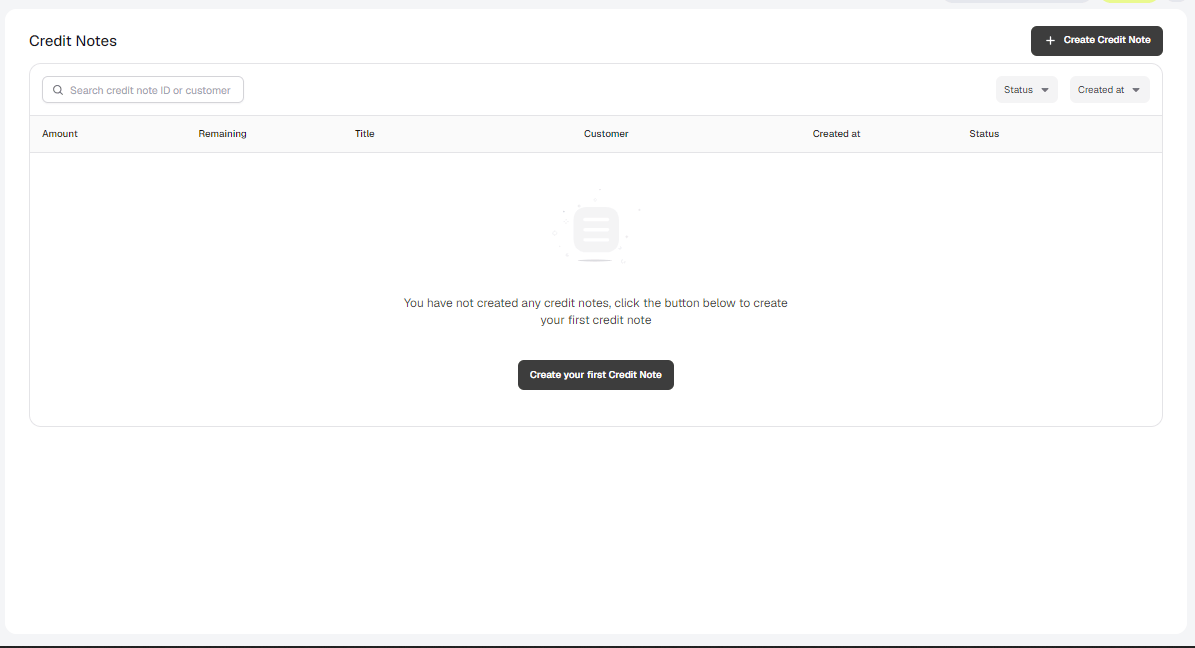
You can create a credit note from two places. From the Credit Notes page- Navigate to Charge customers → Credit Notes.
- Click Create Credit Note.
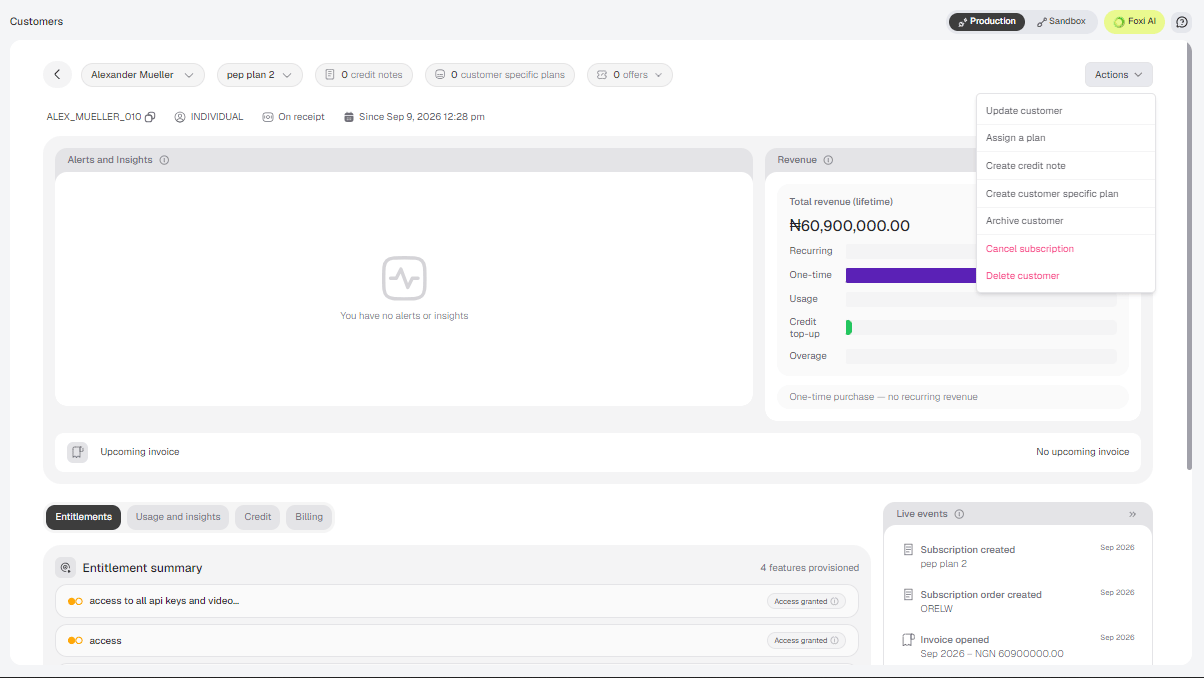
- Open the customer’s profile.
- Select Actions → Create credit note.
You can also click Add description to add more detail.
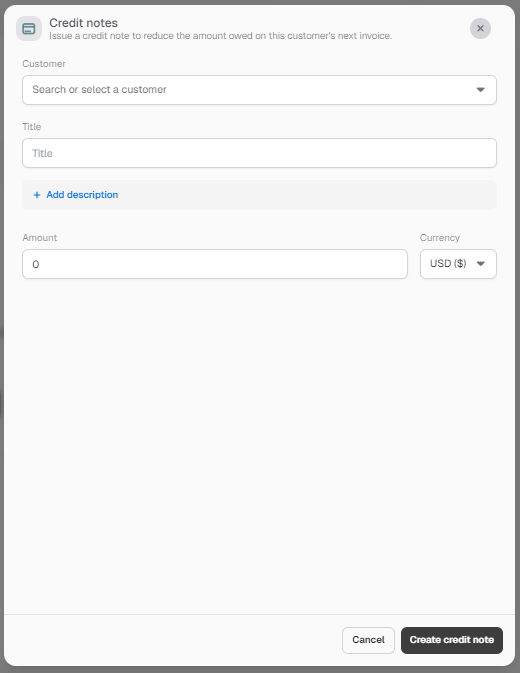
Tracking Credit Notes
The Credit Notes page lists each note with its title, customer, amount, remaining balance, status and creation date. The remaining balance shows how much of the credit has not yet been used. Search by credit note ID or customer, and filter by Status or Created at. A credit note has one of these statuses:
A customer’s profile shows how many credit notes they have.
Applying a Credit Note to an Invoice
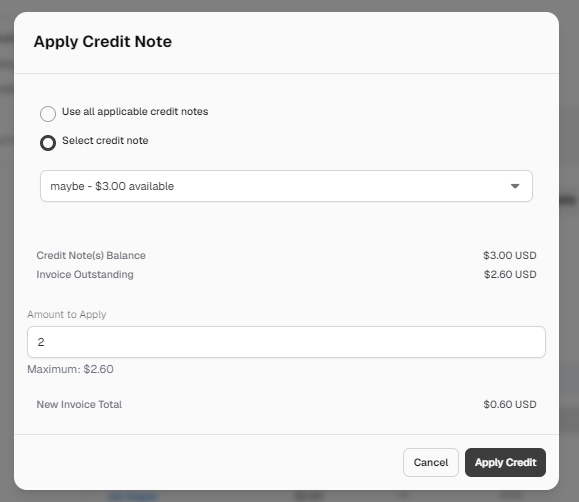
You can apply a credit note to an open invoice that was created for the same customer the credit note was issued to.- Open the open invoice you want to reduce.
- Select Actions → Apply Credit Note.
- Choose how to apply credit:
-
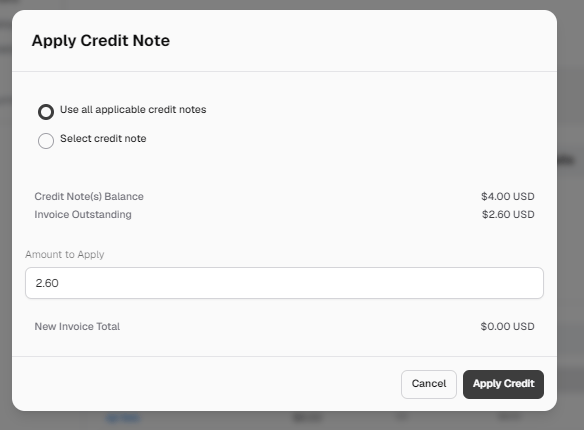
Use all applicable credit notes: draws on all of the customer’s available credit notes. The dialog shows the combined Credit Note(s) Balance.
-
Select credit note: pick one credit note from the dropdown. Each option shows its title and the amount still available.
-
Use all applicable credit notes: draws on all of the customer’s available credit notes. The dialog shows the combined Credit Note(s) Balance.
- Review the Credit Note(s) Balance and the Invoice Outstanding, then enter the Amount to Apply. The maximum is the invoice’s outstanding amount.
- Check the New Invoice Total, then click Apply Credit.