

Overview
A subscription connects a customer to a plan. Customers usually subscribe through self-serve checkout, but you can also create and manage subscriptions directly in the dashboard. This page covers how to create a subscription manually and how to manage a subscription through its lifecycle: updating quantities, applying discounts, pausing, resuming and cancelling.How subscriptions are billed (collection mode, billing alignment, plan change timing and cancellations) is configured under Settings → Subscriptions. See Configure Subscription Settings in Getting Started in Minutes.
Manual Subscriptions
Manual subscriptions let you create subscriptions directly in the dashboard, without requiring customers to go through self-serve checkout. Each manual subscription is created as an order. Saving it as a draft creates a draft order you can come back to and finish later. Use cases:- Sales-led or enterprise deals: Create subscriptions for customers with negotiated/custom pricing, terms, or bundles that aren’t available in self-serve checkout.
- Free or promotional access: Quickly grant complimentary subscriptions for partners, beta testers, influencers, or marketing campaigns.
- Internal testing/demos: Set up test subscriptions for your team or product demos without real payments.
- Support resolutions: Fix or adjust subscriptions directly (e.g., extend access).
Creating a Manual Subscription
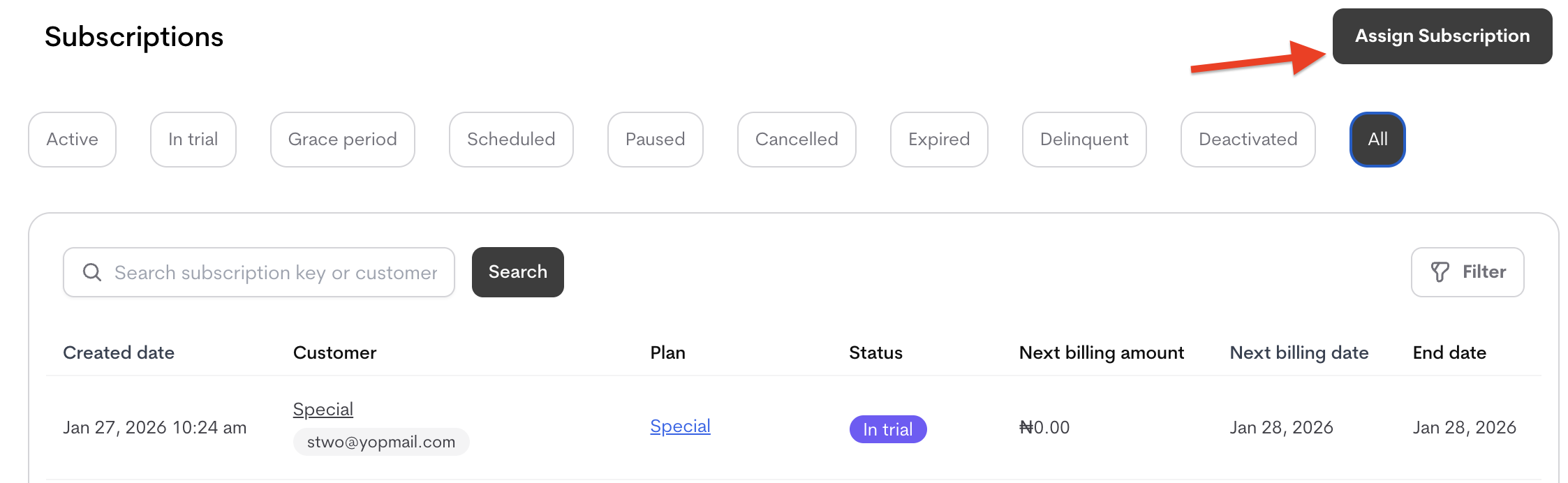
Manual subscriptions are created from the Subscriptions tab, or from Charge customers → Orders → Create Order → Create Subscription Order, which opens the same form.- Navigate to Charge customers → Subscriptions.
-
Click Assign Subscription.
-
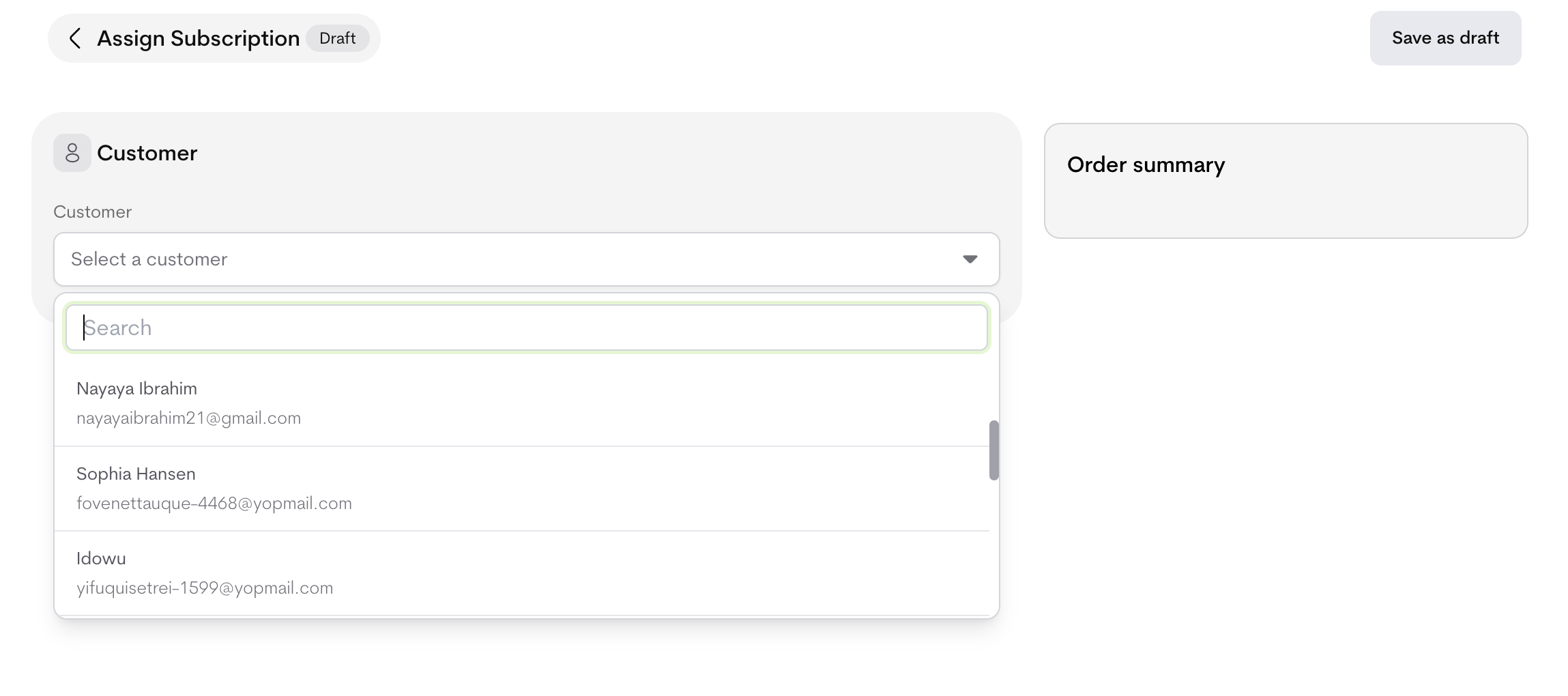
Select a customer
- Search or choose from the dropdown.
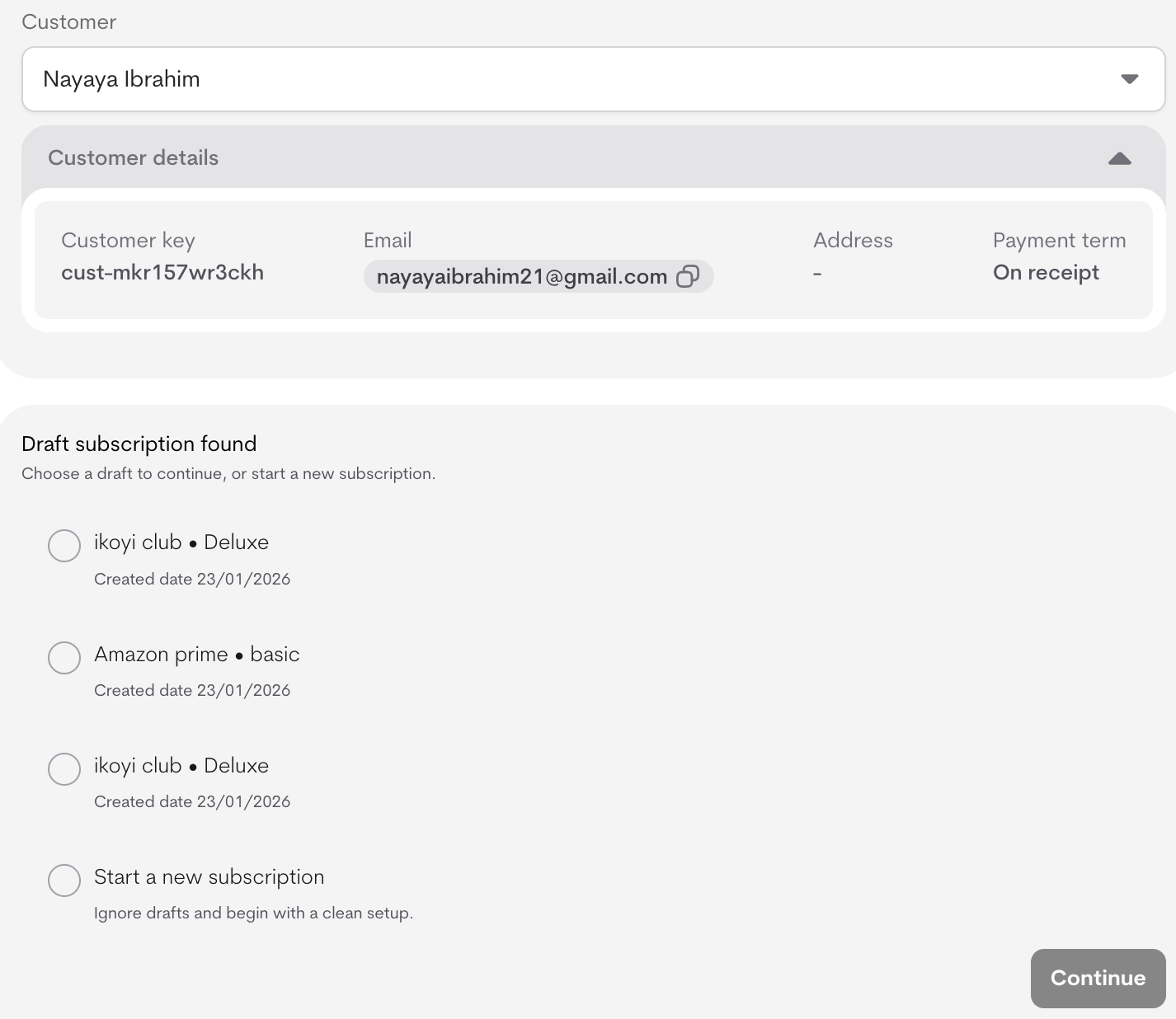
- Customer details (key, email, address and payment term) appear after the customer has been selected.
-
If drafts exist for this customer:
- You’ll see a list of saved drafts (e.g., “ikoyi club • Deluxe – Created 23/01/2026”).
-
Choose Continue on a draft to resume editing, or Start a new subscription to ignore drafts and begin fresh.
-
Configure the subscription:
- Product: Select from dropdown.
- Plan: Select from product’s plans (loads after product).
- Add subscription key (optional custom ID).
These options control when the subscription begins and how long it runs. Available choices depend on the Collection Mode for In-Advance Plans (set under Billing and Collection in subscription settings) and whether the customer has a saved payment method. Subscription Start- Checkout completion: Subscription starts once the customer completes payment.
Available when: Collection mode is prepaid. - Auto-charge & start subscription: Automatically charges the customer and activates the subscription on the start date.
Available when: Collection mode is prepaid and the customer has a saved payment method; if no payment method is saved, this option is grayed out and disabled. - Start immediately without charge: Activates the subscription right away; the customer is invoiced later.
Available when: Collection mode is postpaid. - Custom start date: Activates the subscription on a date you choose.
Available: Always. If collection mode is prepaid, payment must be completed before the subscription starts.
- Forever: No end date (ongoing until cancelled).
Available for all terms. - Duration: Fixed length (e.g., 12 months).
Available depending on term. - Custom end date: Specific end date.
Available depending on term.
- Click Assign Subscription to create it, or Save as draft to save a draft order. Drafts for a customer appear in step 4 the next time you assign them a subscription.
- Manual subscriptions count toward usage/entitlements exactly like self-serve.
Managing Subscriptions
From the customer’s profile or the global Subscriptions list (Charge customers → Subscriptions), click the subscription you want to manage. The detail page shows the current billing period, the next estimated bill with a Preview invoice for it, and tabs for the prepaid balance, entitlement usage and entitlement summary.Subscription Statuses
Filter the Subscriptions list by status:Actions
Use the Actions button at the top right of the subscription to:- Update quantities: change the quantity of priced items on the subscription.
- Apply discount: apply a discount to the subscription.
- Pause subscription
- Cancel subscription
Pausing and Resuming
- Open the subscription and select Actions → Pause subscription.
- Confirm. The subscription is paused immediately.
- In the Subscriptions list, find the paused subscription and resume it from there.
- Open the subscription and resume it from its details page.
Dunning can also pause a subscription automatically while payment retries run.
Cancelling a Subscription
- Open the subscription and select Actions → Cancel subscription.
- Choose When to cancel subscription. By default this is At the end of billing cycle, which schedules the cancellation for the end of the current period. The dialog shows the exact date.
- Click Confirm.
subscription.cancel_scheduled webhook, and the subscription.cancelled webhook when it takes effect. You can also schedule a cancellation through the Cancel subscription API.
To let customers cancel on their own from the customer portal, enable Allow customers to cancel in Settings → Subscriptions (see Configure Subscription Settings).