

Create and build quote
- Navigate to Charge Customers → Quotes.
- Click New quote and enter a clear title.
- Click Select customer and choose the customer.

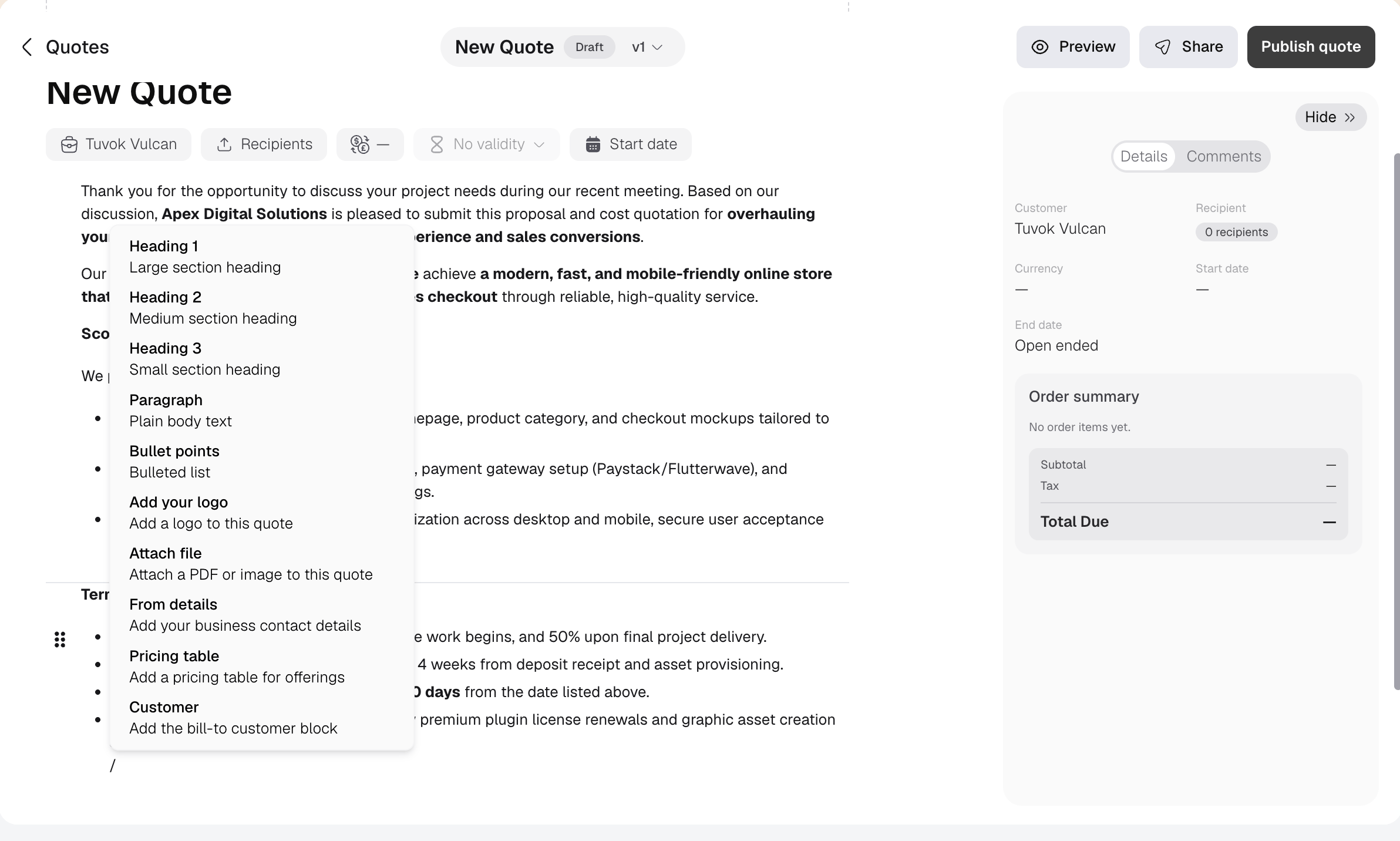
/ on an empty line to add content to the quote. You can add text, branding, files, business or customer details, and a pricing table. You can also format and rearrange the content, then use Preview to check what recipients will see.
Add pricing
- Type
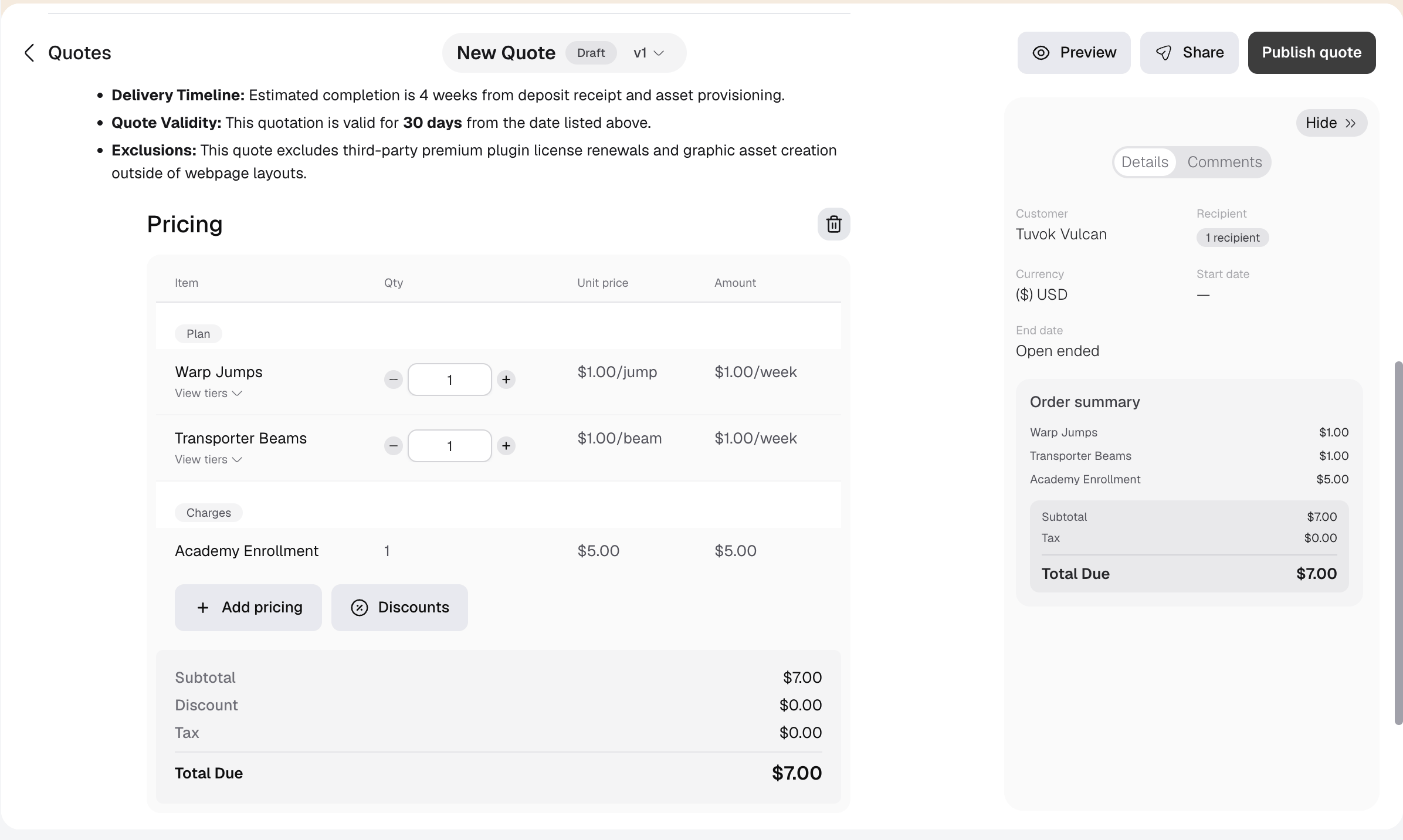
/and select Pricing table. - Click Add offering.
- Choose a plan or single purchase.
- Add the required pricing and check the order summary.
Add recipients
Add recipients from Recipients, Share, or Publish quote. Enter each person’s name and email address, then choose their role.
At least one Admin recipient is required before the quote can be published. Give this role only to someone who can accept the quote for the customer.
Share and publish quote
Share quote
- Open the quote and click Share.
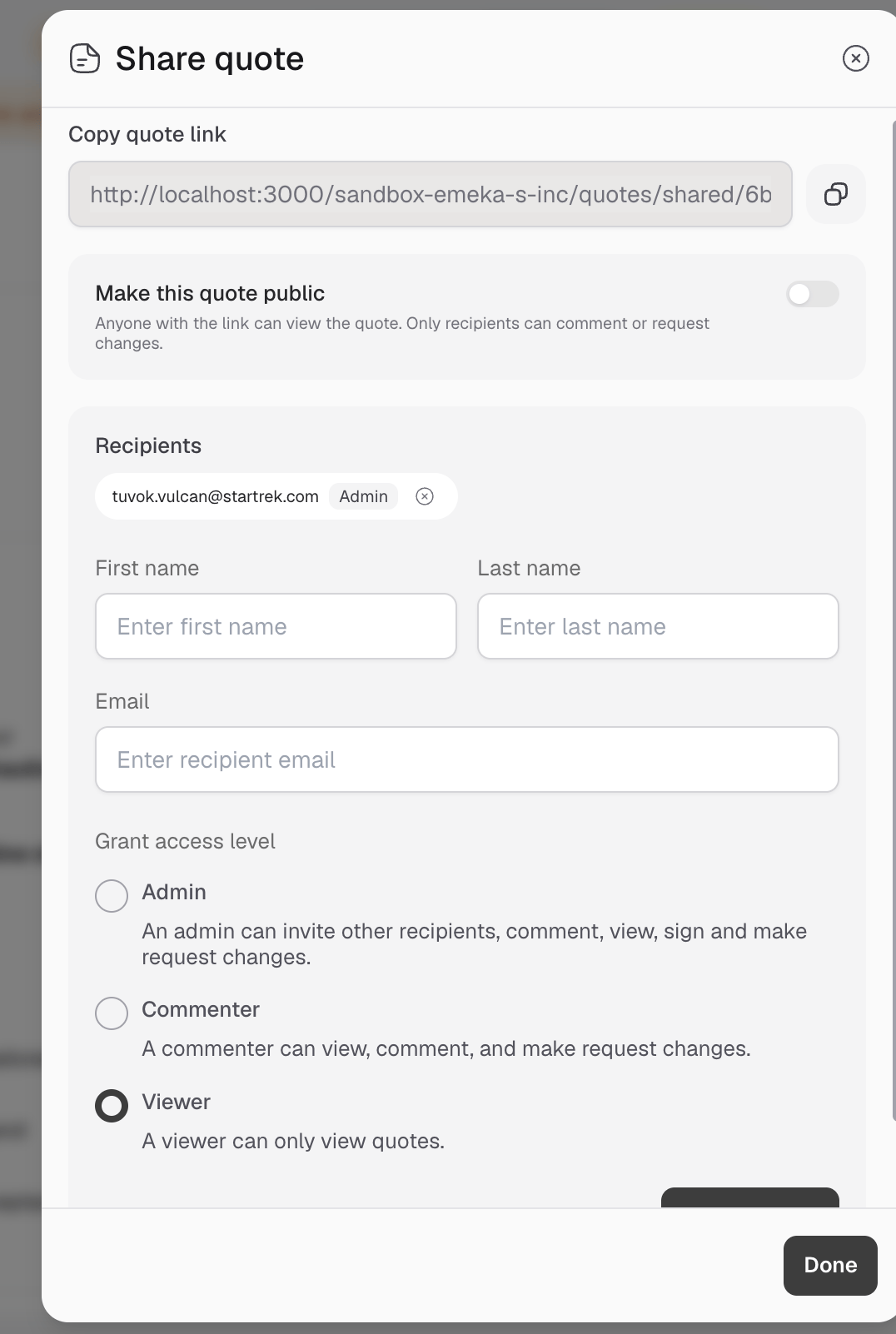
- Review the existing recipients. To add someone, enter their name and email address, choose a role, and click Add.
- Leave Make this quote public off for private access, or turn it on if anyone with the link should be able to view the quote.
- Click the copy icon beside Copy quote link.
- Click Done, then send the copied link to the people who need it.
Publish quote
- Open the draft and click Publish quote.
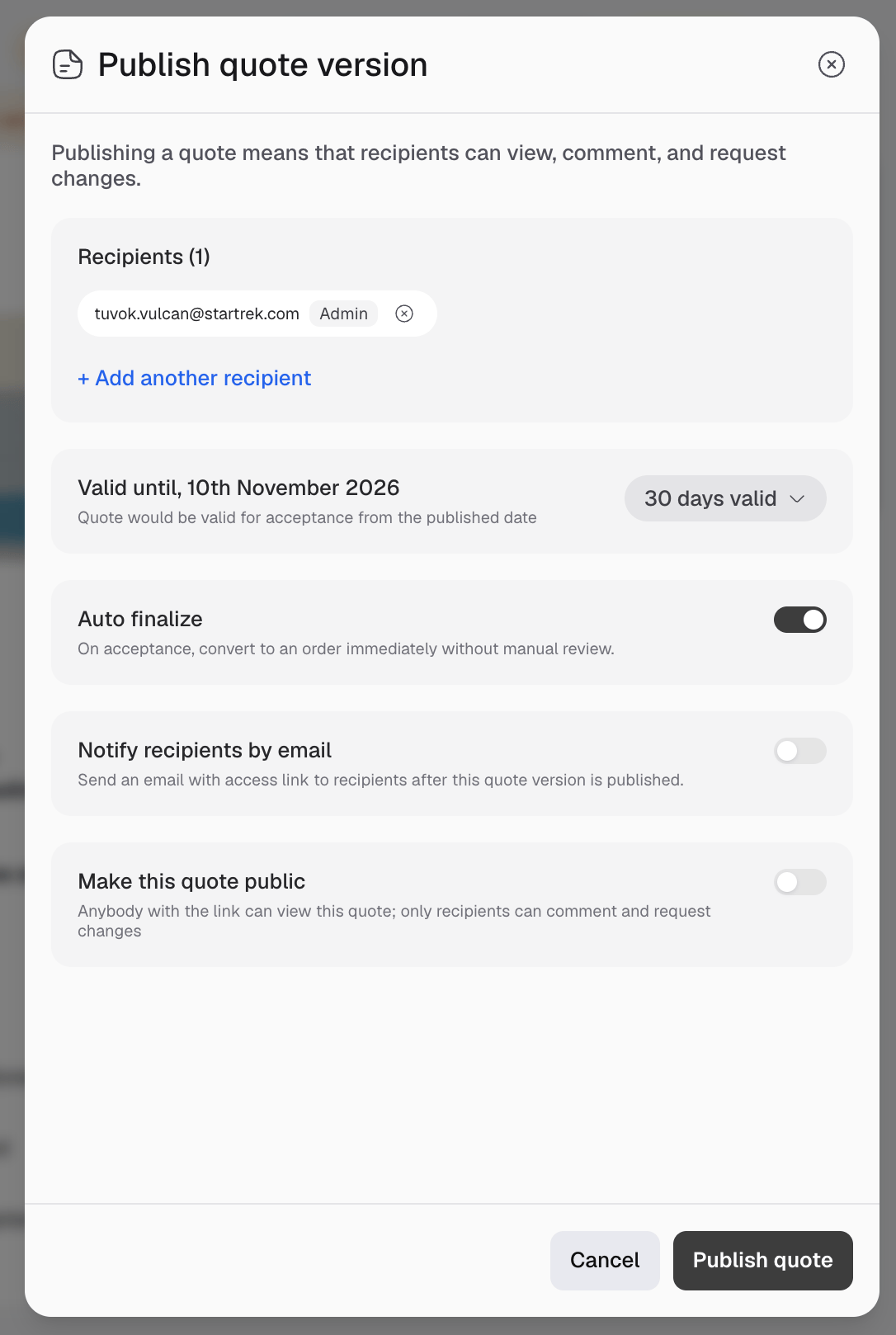
- Review the recipients.
- Choose the validity period.
- Set the finalization, email notification, and public access options.
- Click Publish quote.
Private links are limited to named recipients. A public link allows anyone with the link to view the quote, but only named recipients can take actions allowed by their role.
If your workspace uses quote approvals, publishing submits the quote for approval first.
Comments and requesting changes
Comments on a draft are internal. After publishing, Admin and Commenter recipients can comment and reply to discussions. To request an update, an Admin or Commenter clicks Request changes, adds a reason, and confirms. The quote moves to Changes requested and cannot be accepted. To respond, review the feedback, click Edit quote to create a new draft version, make the updates, and publish the new version. Comments remain connected to the version where they were created.Accept quote
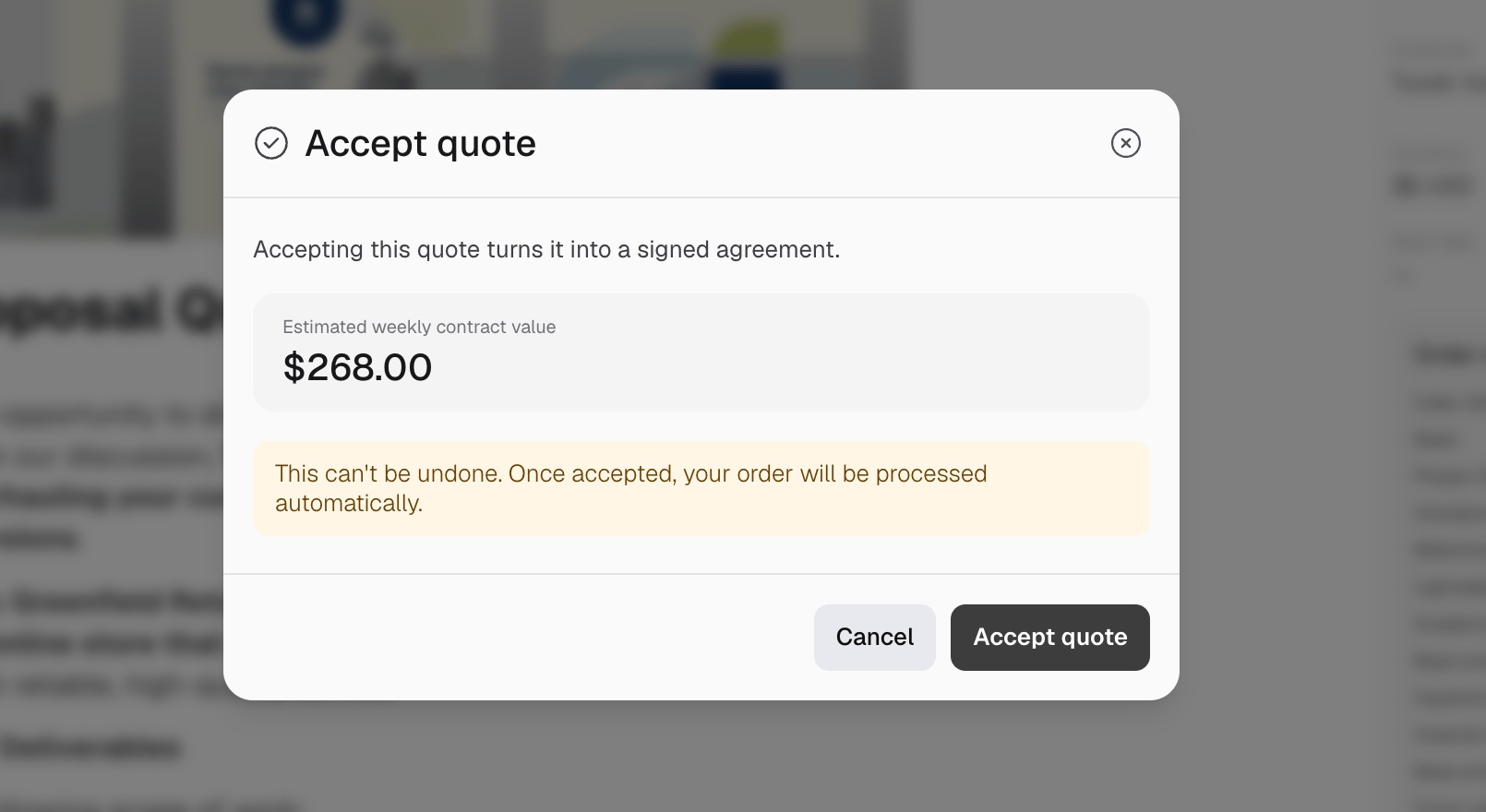
Only an Admin recipient can accept a published quote that is still valid and has no pending change request.- Open the private quote link.
- Review the proposal and pricing.
- Click Accept quote and confirm.
After finalization, prepaid subscriptions require payment before activation. Postpaid subscriptions are activated before payment and invoiced later.